By Alberto Roura, Alibaba Cloud Tech Share Author
In this tutorial, I will show you how to set up a CMS, in this case Bolt, on Alibaba Cloud using a Load Balancer and RDS with 3 ECS instances attached. We will be doing this based on a DevOps approach using Terraform and the official Alibaba Cloud (Alicloud) provider.
If you heard of the term "Load Balancer" but don't have a clear idea of the concept, sit tight, as I'm going to develop (pun intended) it a bit more.
What is Load Balancing?
Load balancing is a means to distribute workload across different resources. Let's say you own a very busy website; having a single server dealing with all queries will overload it. Instead, you can have an additional server to help cope with the requests.
The most common approach is to clone the web hosting server and put it behind a load balancer. The load balancer is just another server that distributes the load, sending the request from visitor to one server or another. Using load balancers also increases redundancy, so it's also handy to keep the data safe.
How Does a Load Balancer Distribute Load?
There are different scheduling methods to do it, and the most popular is Round Robin (RR), as it is very simple and effective. Another way to do it is using a similar approach called Weighted Round Robin (WRR), which is a fine-tuned version of RR.
Round-Robin Balancing (RR)
You might have heard the term Round Robin from sporting events, such as soccer tournaments. This technique name comes the original term meaning "signing petitions in circular order so that the leaders could not be identified". This leads to the current meaning in computing terms, where the load balancer rotates the attached servers, one at a time.
The biggest advantage is its simplicity. Load is also distributed evenly across all servers in a network. RR has one bad downside, however, as this algorithm doesn't care how different are servers between them and their capacity. That's why there is another version of this called Weighted Round-Robin.
Weighted Round-Robin (WRR)
This algorithm is based in the standard Round-Robin but with the difference of "having in mind" how different the resources are. In WRR, the resources are given priorities (weight) in the queue based on the capacity. For example, a 100GB server would be given a larger weight over a 20GB server. This approach gives the network admin more control in which servers should be used first and which ones later. WRR is better than RR for complex networks, such as in a hybrid cloud environment.
Weighted Least-Connections (WLC)
Similar to WRR, WLC is an approach that assigns different weights to the servers in a network. But unlike RR and WRR, WLC is dynamic. This scheduling algorithm sends the requests to the server with least active connections in a weighted resource list. This is handy when, apart from assigning a performance weight to each server, you want to control how busy, network-wise, a resource can get. The downside of this approach is that it requires more computations for it to work effectively.
Setting Up Terraform
With the Alibaba Cloud (Alicloud) official terraform provider we can choose between Weighted Round-Robin (WRR) and Weighted Least-Connections (WLC). It is completely up to you which one you use. In the example I provide, I have used WRR, but with no specific reasons.
Install Terraform
Terraform is very easy to install using Homebrew. If you do not have Homebrew already installed on your computer, please find install instructions here.
Run brew install terrafrom the below command in your terminal to install Terraform.
To verify Terraform installation type terraform version.
Install Alibaba Cloud Official provider
As Hashicorp is not actively updating the provider for us, Alibaba Cloud has a really good and active developed GitHub repository of its official provider, which is the one you should get and install. Go to the releases tab and get the latest one for your platform.
After downloading it, you should place the binary file in the plugins folder of terraform. On Windows, in the terraform.d/plugins beneath your user's "Application Data" directory. On all other systems, as Linux or Mac, in ~/.terraform.d/plugins in your user's home directory. Its also a good practice to version the binary, so you should rename it to terraform-provider-alicloud_v1.8.2, given that the version you downloaded is the 1.8.2, you should change that depending in which one you get.
Get Alibaba Cloud Access Keys
Once you log into your Alibaba Cloud console, go to the top Menu and click “accesskeys” located directly under your email address.
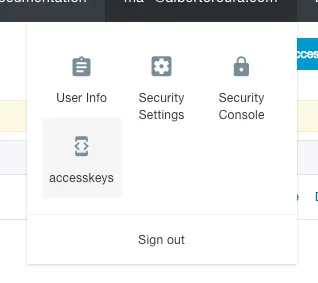
Once in the keys screen, copy the Access Key ID and the Access Key Secret into a safe place. To show the Secret Key to need to click on “Show“. Be careful where you save this data, as it is very sensitive. Also you should consider creating more limited keys using their policies.
Prepare the Terraform File
For this example, we will put all the config in one single file, but you are recommended to separate the different parts of the config in their own .tf files. This is a good practice that improves the maintainability and readability over time.
Having that clear, lets create a folder, and inside that folder a file called main.tf that we will edit in the next step.
main.tf
provider "alicloud" {
  access_key = "KEY"
  secret_key = "SECRET"
  region = "ap-southeast-2"
}

variable "vswitch" {
  type = "string"
  default = "vsw-xxxxxxxxx"
}

variable "sgroups" {
  type = "list"
  default = [
    "sg-xxxxxxxxxxx"
  ]
}

variable "app_name" {
  type = "string"
  default = "my_app"
}

variable "ecs_password" {
  type = "string"
  default = "Test1234!"
}

resource "alicloud_db_instance" "default" {
  engine = "MySQL"
  engine_version = "5.6"
  instance_type = "rds.mysql.t1.small"
  instance_storage = 5
  vswitch_id = "${var.vswitch}"
  security_ips = [
    "0.0.0.0/0"
  ]
}

resource "alicloud_db_database" "default" {
  instance_id = "${alicloud_db_instance.default.id}"
  name = "bolt_site"
  character_set = "utf8"
}

resource "alicloud_db_account" "default" {
  instance_id = "${alicloud_db_instance.default.id}"
  name = "bolt_user"
  password = "boltdb1234"
}

resource "alicloud_db_account_privilege" "default" {
  instance_id = "${alicloud_db_instance.default.id}"
  account_name = "${alicloud_db_account.default.name}"
  privilege = "ReadWrite"
  db_names = [
    "${alicloud_db_database.default.name}"
  ]
}

resource "alicloud_db_connection" "default" {
  instance_id = "${alicloud_db_instance.default.id}"
  connection_prefix = "bolt-app"
  port = "3306"
}

data "template_file" "user_data" {
  template = "${file("user-data.sh")}"
}

data "alicloud_images" "default" {
  name_regex = "^ubuntu_16.*_64"
}

data "alicloud_instance_types" "default" {
  instance_type_family = "ecs.xn4"
  cpu_core_count = 1
  memory_size = 1
}

resource "alicloud_instance" "app" {
  count = 3
  instance_name = "${var.app_name}-${count.index}"
  image_id = "${data.alicloud_images.default.images.0.image_id}"
  instance_type = "${data.alicloud_instance_types.default.instance_types.0.id}"

  vswitch_id = "${var.vswitch}"
  security_groups = "${var.sgroups}"
  internet_max_bandwidth_out = 100

  password = "${var.ecs_password}"

  user_data = "${data.template_file.user_data.template}"
}

resource "alicloud_slb" "default" {
  name = "${var.app_name}-slb"
  vswitch_id = "${var.vswitch}"
  internet = true
}

resource "alicloud_slb_listener" "http" {
  load_balancer_id = "${alicloud_slb.default.id}"
  backend_port = 80
  frontend_port = 80
  health_check_connect_port = 80
  bandwidth = -1
  protocol = "http"
  sticky_session = "on"
  sticky_session_type = "insert"
  cookie = "testslblistenercookie"
  cookie_timeout = 86400
}

resource "alicloud_slb_attachment" "default" {
  load_balancer_id = "${alicloud_slb.default.id}"
  instance_ids = [
    "${alicloud_instance.app.*.id}",
  ]
}

output "app_id" {
  value = "${alicloud_instance.app.*.public_ip}"
}


output "slb_ip" {
  value = "${alicloud_slb.default.address}"
}

output "rds_host" {
  value = "${alicloud_db_instance.default.connection_string}"
}
user-data.sh
In this example, we are going to rely in the cloud-init program that comes bundled in Ubuntu and runs whatever script to pass at the moment of resource creation. In this case, the script is going to install the needed software packages tu run Docker containers and to connect the app to the proper database. The file user-data.sh needs to be in the same path next to our main.tf. Be aware of the MYSQL_HOST variable, you'll need to adjust that to fit your database instance internet host.
#!/bin/bash -v

export MYSQL_HOST=bolt-app.mysql.australia.rds.aliyuncs.com

apt-get update && apt-get install -y apt-transport-https ca-certificates curl software-properties-common
curl -fsSL https://download.docker.com/linux/ubuntu/gpg | apt-key add -
add-apt-repository "deb [arch=amd64] https://download.docker.com/linux/ubuntu $(lsb_release -cs) stable"
apt-get update && apt-get install -y docker-ce docker-compose
curl -L https://github.com/docker/compose/releases/download/1.20.1/docker-compose-`uname -s`-`uname -m` -o /usr/bin/docker-compose

cd ~/
curl https://raw.githubusercontent.com/roura356a/bolt/master/with-mysql/docker-compose.yml -o docker-compose.yml
sed -i "s/=db/=$MYSQL_HOST/g" docker-compose.yml

docker-compose up -d
Launch Terraform
terraform init
We are ready to take off! Type the init command for Terraform to get the project ready to apply.
terraform init
terraform plan
In order to verify that everything is fine, it is good practice to run the plan command, so you can get an overview of the job without actually applying it.
terraform plan
terraform apply
Seatbelts on. We are now deploying our machine! Run the apply command and wait until it finishes. It will take about 3 to 5 minutes depending on the Internet connection and the conditions of the datacenter you are connecting to.
terraform apply
After the job finishes, you will get a message in the terminal confirming the IP address of your new ECS instances, RDS host and Load Balancer IP:
Apply complete! Resources: 11 added, 0 changed, 0 destroyed.

Outputs:

app_id = [
    xx.xx.xx.xx,
    xx.xx.xx.xx,
    xx.xx.xx.xx
]
rds_host = rm-xxxxxxxxxxx.mysql.australia.rds.aliyuncs.com
slb_ip = xx.xx.xx.xxx
If the security group you selected has the port 80 opened, you can now type the IP of the balancer in your browser and see how Bolt web-based installation comes up to customize your new website.
Conclusion
You have now successfully set up Bolt on Alibaba Cloud ECS using Load Balancers and RDS. Go and do something fun with them! Because this is a fresh Bolt installation, you'll need to manually visit one of the instances (not the slb) and create the first user, so this way the health check will pass in the 3 backend servers. After that, visiting the SLB IP directly or thought a domain should be enough to make it work.
Enjoy you newly-created SLB-backed Bolt web application!