一、背景
最近多家云盘相继关停,费了很多时间才把上面的东西下载到本地,百度云盘也早已开始限速,技术宅岂能容忍?是时候搭建自己的私有云盘了!
1、搭建自己的私有云有什么好处呢?
首先没有什么容量、下载速度的限制,而且本地访问速度很快。然后可以和本地的ftp配合使用来实现多个设备文件共享:比如可以在电视、手机等等智能设备上挂载云盘中的文件来实现播放电影、看照片、听歌等需求。最后可以防止泄密和和谐。
说到私有云,其实有很多现成的产品可以使用,比如群晖、铁威马、西数等。买过来,插上一块硬盘就可以用,十分适合小白。但是成本略高,仅仅主机就需要1000多元,再加上一块硬盘,这种解决方案的成本一般都要超过2000元。自己搭建私有云的话,不仅成本很低,而且可以自己定制很多功能,比如在线笔记、邮件等等功能。但是需要会折腾linux哦!
2、搭建难度怎么样?
自己搭建私有云其实很简单,首先需要一台主机,然后需要选择一个私有云软件(比如ownCloud、Nextcloud、seafile)。在这里我还是用我的Linux服务器作为主机,大概上传下载为2MB/s,在对比几个不同的私有云软件之后,最终采用了Nextcloud 12,感觉这个功能更为强大。
二、Nextcloud 12概述
Nextcloud 是一款自由(开源)的类Dropbox软件,由ownCloud分支演化形成。它使用PHP和JavaScript编写,支持多种数据库系统,比如 MySQL/MariaDB、PostgreSQL、Oracle 数据库和 SQLite。它可以使你的桌面系统和云服务器中的文件保持同步,Nextcloud 为 Windows、Linux、Mac、安卓以及苹果手机都提供了客户端支持。Nextcloud 并非只是 Dropbox 的克隆,它还提供了很多附加特性,如日历、联系人、计划任务以及流媒体 Ampache。
在这篇文章中,我将向你展示如何在CentOS 7.3服务器中安装和配置最新版本的 Nextcloud 12。我会通过Nginx和PHP7-FPM来运行Nextcloud,同时使用MariaDB做为数据库系统。
1、系统需求
官方推荐参数如下:
| 内存 | 最少512MB |
| 系统 | Red Hat Enterprise Linux 7 / Ubuntu 16.04 LTS |
| 数据库 |
MySQL/MariaDB |
| PHP版本 | PHP 7.0 + |
| WEB服务器 | Apache 2.4 with mod_php |
2、安装需要最低版本及支持平台
Server: Linux (Debian 7, SUSE Linux Enterprise Server 11 SP3 & 12, Red Hat Enterprise Linux/CentOS 6.5 and 7 (7 is 64-bit only), Ubuntu 14.04 LTS, 16.04 LTS)
Web server: Apache 2 (mod_php, php-fpm) or Nginx (php-fpm)
Databases: MySQL/MariaDB 5.5+; PostgreSQL; Oracle 11g (currently only possible if you contact us <https://nextcloud.com/enterprise> as part of a subscription)
PHP 5.6 + required
Hypervisors: Hyper-V, VMware ESX, Xen, KVM
Desktop: Windows XP SP3 (EoL Q2 2015), Windows 7+, Mac OS X 10.7+ (64-bit only), Linux (CentOS 6.5, 7 (7 is 64-bit only), Ubuntu 12.04 LTS, 14.04 LTS, 14.10, Fedora 20, 21, openSUSE 12.3, 13, Debian 7 & 8).
Mobile apps: iOS 7+, Android 4+
Web browser: IE11+, Microsoft Edge, Firefox 14+, Chrome 18+, Safari 7+
三、Nextcloud 12环境准备
1、安装nginx和PHP7
首先安装epel和webtatic最新包仓库,具体参照我的置顶博文。
|
1
2
3
4
|
#安装nginx
yum
install
nginx -y
#安装php7及其nextcloud需要的包
yum -y
install
php70w-fpm php70w-cli php70w-opcache php70w-gd php70w-mcrypt php70w-mysql php70w-pear php70w-xml php70w-mbstring php70w-pdo php70w-json php70w-pecl-apcu php70w-pecl-apcu-devel
|
2、验证安装的php版本
|
1
2
3
4
|
[root@pan ~]
# php -v
PHP 7.0.20 (cli) (built: Jun 10 2017 06:34:07) ( NTS )
Copyright (c) 1997-2017 The PHP Group
Zend Engine v3.0.0, Copyright (c) 1998-2017 Zend Technologies
|
3、配置 PHP7-FPM
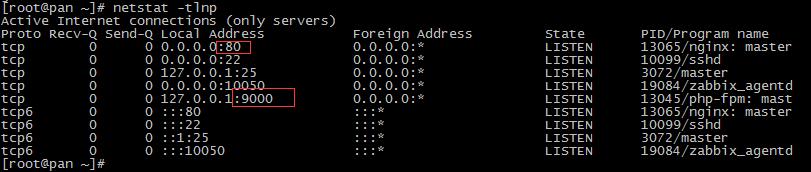
在这一个步骤中,我们将配置php-fpm与Nginx协同运行。Php7-fpm将使用nginx用户来运行,并监听9000端口。
使用vim编辑默认的php7-fpm配置文件。
|
1
2
3
4
5
6
7
8
9
10
11
|
#vim /etc/php-fpm.d/www.conf
user = nginx
group = nginx
#在第8行和第10行,user和group赋值为nginx。
listen = 127.0.0.1:9000
#在第 22 行,确保 php-fpm 运行在指定端口。
env
[HOSTNAME] = $HOSTNAME
env
[PATH] =
/usr/local/bin
:
/usr/bin
:
/bin
env
[TMP] =
/tmp
env
[TMPDIR] =
/tmp
env
[TEMP] =
/tmp
#取消第366-370行的注释,启用php-fpm的系统环境变量。
|
下一步,就是在/var/lib/目录下创建一个新的文件夹session,并将其拥有者变更为nginx用户。
|
1
2
|
mkdir
-p
/var/lib/php/session
chown
nginx:nginx -R
/var/lib/php/session/
|
然后启动php-fpm和Nginx,并且将它们设置为随开机启动的服务。
|
1
2
3
4
|
systemctl start php-fpm
systemctl start nginx
systemctl
enable
php-fpm
systemctl
enable
nginx
|
4、安装和配置MariaDB
我这里使用MariaDB作为Nextcloud的数据库。可以直接使用yum命令从CentOS默认远程仓库中安装 mariadb-server包。
|
1
|
yum -y
install
mariadb mariadb-server
|
在配置文件/etc/my.cnf添加如下几行配置
|
1
2
3
|
[mysqld]
innodb_file_per_table=1
default-storage-engine = INNODB
|
启动MariaDB,并将其添加到随系统启动的服务中去。
|
1
2
|
systemctl start mariadb
systemctl
enable
mariadb
|
现在开始配置MariaDB的root用户密码,键入Y,然后设置MariaDB的root密码。
|
1
|
mysql_secure_installation
|
这样就设置好了密码,现在登录到 mysql shell并为Nextcloud创建一个新的数据库和用户。这里我创建名为nextcloud的数据库以及名为nextcloud的用户,用户密码为nextcloud。当然了,要给你自己的系统选用一个更安全的密码。
|
1
|
mysql -u root -p
|
输入MariaDB的root密码,即可登录 mysql shell。
|
1
2
3
|
mysql> create database nextcloud CHARACTER SET utf8mb4 COLLATE utf8mb4_general_ci;
mysql> grant all privileges on nextcloud.* to nextcloud@localhost identified by
'nextcloud'
;
mysql> flush privileges;
|
5、为Nextcloud生成一个自签名SSL证书
我会让客户端以https连接来运行Nextcloud,这里我使用OpenSSL来创建自己的自签名SSL证书。
|
1
|
mkdir
-p
/etc/nginx/cert/
|
如下,使用openssl生成一个新的SSL证书。
|
1
|
openssl req -new -x509 -days 365 -nodes -out
/etc/nginx/cert/nextcloud
.crt -keyout
/etc/nginx/cert/nextcloud
.key
|
最后使用 chmod 命令将所有证书文件的权限设置为 600。
|
1
2
|
chmod
700
/etc/nginx/cert
chmod
600
/etc/nginx/cert/
*
|
四、Nextcloud 12安装配置
1、下载和安装Nextcloud
我直接使用wget命令下载Nextcloud到服务器上。
|
1
|
wget https:
//download
.nextcloud.com
/server/releases/nextcloud-12
.0.0.zip
|
解压Nextcloud,并将其移动到/usr/share/nginx/html/目录。
|
1
2
|
unzip nextcloud-12.0.0.zip
mv
nextcloud/
/usr/share/nginx/html/
|
下一步,转到Nginx的web根目录为Nextcloud创建一个data文件夹,推荐选择一个比较大的分区放置data目录,因为以后上传的数据都会放置在里面。
|
1
2
|
cd
/usr/share/nginx/html/
mkdir
-p nextcloud
/data/
|
变更nextcloud目录的拥有者为nginx用户和组。
|
1
|
chown
nginx:nginx -R nextcloud/
|
2、在Nginx中为Nextcloud配置虚拟主机
我们已经下载好了Nextcloud源码,并配置好了让它运行于Nginx服务器中,但我们还需要为它配置一个虚拟主机。在Nginx的conf.d目录下创建一个新的虚拟主机配置文件nextcloud.conf。
|
1
|
vim
/etc/nginx/conf
.d
/nextcloud
.conf
|
将以下内容粘贴到虚拟主机配置文件中:
|
1
2
3
4
5
6
7
8
9
10
11
12
13
14
15
16
17
18
19
20
21
22
23
24
25
26
27
28
29
30
31
32
33
34
35
36
37
38
39
40
41
42
43
44
45
46
47
48
49
50
51
52
53
54
55
56
57
58
59
60
61
62
63
64
65
66
67
68
69
70
71
72
73
74
75
76
77
78
79
80
81
82
83
84
85
86
87
88
89
90
91
92
93
94
95
96
97
98
99
100
101
102
103
104
105
106
107
108
109
110
111
112
113
114
115
116
117
118
119
120
121
122
123
124
125
126
127
128
129
130
131
132
133
134
135
136
137
138
|
upstream php-handler {
server 127.0.0.1:9000;
#server unix:/var/run/php5-fpm.sock;
}
server {
listen 80;
server_name pan.wzlinux.com;
# enforce https
return
301 https:
//
$server_name$request_uri;
}
server {
listen 443 ssl http2;
server_name pan.wzlinux.com;
ssl_certificate
/etc/nginx/cert/nextcloud
.crt;
ssl_certificate_key
/etc/nginx/cert/nextcloud
.key;
# Add headers to serve security related headers
# Before enabling Strict-Transport-Security headers please read into this
# topic first.
add_header Strict-Transport-Security "max-age=15768000;
includeSubDomains; preload;";
#
# WARNING: Only add the preload option once you read about
# the consequences in https://hstspreload.org/. This option
# will add the domain to a hardcoded list that is shipped
# in all major browsers and getting removed from this list
# could take several months.
add_header X-Content-Type-Options nosniff;
add_header X-XSS-Protection
"1; mode=block"
;
add_header X-Robots-Tag none;
add_header X-Download-Options noopen;
add_header X-Permitted-Cross-Domain-Policies none;
# Path to the root of your installation
root
/usr/share/nginx/html/nextcloud/
;
location =
/robots
.txt {
allow all;
log_not_found off;
access_log off;
}
# The following 2 rules are only needed for the user_webfinger app.
# Uncomment it if you're planning to use this app.
#rewrite ^/.well-known/host-meta /public.php?service=host-meta last;
#rewrite ^/.well-known/host-meta.json /public.php?service=host-meta-json
# last;
location = /.well-known
/carddav
{
return
301 $scheme:
//
$host
/remote
.php
/dav
;
}
location = /.well-known
/caldav
{
return
301 $scheme:
//
$host
/remote
.php
/dav
;
}
# set max upload size
client_max_body_size 512M;
fastcgi_buffers 64 4K;
# Enable gzip but do not remove ETag headers
gzip
on;
gzip_vary on;
gzip_comp_level 4;
gzip_min_length 256;
gzip_proxied expired no-cache no-store private no_last_modified no_etag auth;
gzip_types application
/atom
+xml application
/javascript
application
/json
application
/ld
+json application
/manifest
+json application
/rss
+xml application
/vnd
.geo+json application
/vnd
.ms-fontobject application
/x-font-ttf
application
/x-web
-app-manifest+json application
/xhtml
+xml application
/xml
font
/opentype
image
/bmp
image
/svg
+xml image
/x-icon
text
/cache-manifest
text
/css
text
/plain
text
/vcard
text
/vnd
.rim.location.xloc text
/vtt
text
/x-component
text
/x-cross-domain-polic
y;
# Uncomment if your server is build with the ngx_pagespeed module
# This module is currently not supported.
#pagespeed off;
location / {
rewrite ^
/index
.php$uri;
}
location ~ ^/(?:build|tests|config|lib|3rdparty|templates|data)/ {
deny all;
}
location ~ ^/(?:\.|autotest|occ|issue|indie|db_|console) {
deny all;
}
location ~ ^/(?:index|remote|public|
cron
|core
/ajax/update
|status|ocs
/v
[12]|updater/.+|ocs-provider/.+)\.php(?:$|/) {
fastcgi_split_path_info ^(.+\.php)(/.*)$;
include fastcgi_params;
fastcgi_param SCRIPT_FILENAME $document_root$fastcgi_script_name;
fastcgi_param PATH_INFO $fastcgi_path_info;
fastcgi_param HTTPS on;
#Avoid sending the security headers twice
fastcgi_param modHeadersAvailable
true
;
fastcgi_param front_controller_active
true
;
fastcgi_pass php-handler;
fastcgi_intercept_errors on;
fastcgi_request_buffering off;
}
location ~ ^/(?:updater|ocs-provider)(?:$|/) {
try_files $uri/ =404;
index index.php;
}
# Adding the cache control header for js and css files
# Make sure it is BELOW the PHP block
location ~ \.(?:css|js|woff|svg|gif)$ {
try_files $uri
/index
.php$uri$is_args$args;
add_header Cache-Control
"public, max-age=15778463"
;
# Add headers to serve security related headers (It is intended to
# have those duplicated to the ones above)
# Before enabling Strict-Transport-Security headers please read into
# this topic first.
add_header Strict-Transport-Security "max-age=15768000;
includeSubDomains; preload;";
#
# WARNING: Only add the preload option once you read about
# the consequences in https://hstspreload.org/. This option
# will add the domain to a hardcoded list that is shipped
# in all major browsers and getting removed from this list
# could take several months.
add_header X-Content-Type-Options nosniff;
add_header X-XSS-Protection
"1; mode=block"
;
add_header X-Robots-Tag none;
add_header X-Download-Options noopen;
add_header X-Permitted-Cross-Domain-Policies none;
# Optional: Don't log access to assets
access_log off;
}
location ~ \.(?:png|html|ttf|ico|jpg|jpeg)$ {
try_files $uri
/index
.php$uri$is_args$args;
# Optional: Don't log access to other assets
access_log off;
}
}
|
下面测试一下该Nginx配置文件是否有错误,没有的话就可以重启服务了。
|
1
2
3
4
|
# nginx -t
nginx: the configuration
file
/etc/nginx/nginx
.conf syntax is ok
nginx: configuration
file
/etc/nginx/nginx
.conf
test
is successful
# systemctl restart nginx.service
|
3、Nextcloud安装
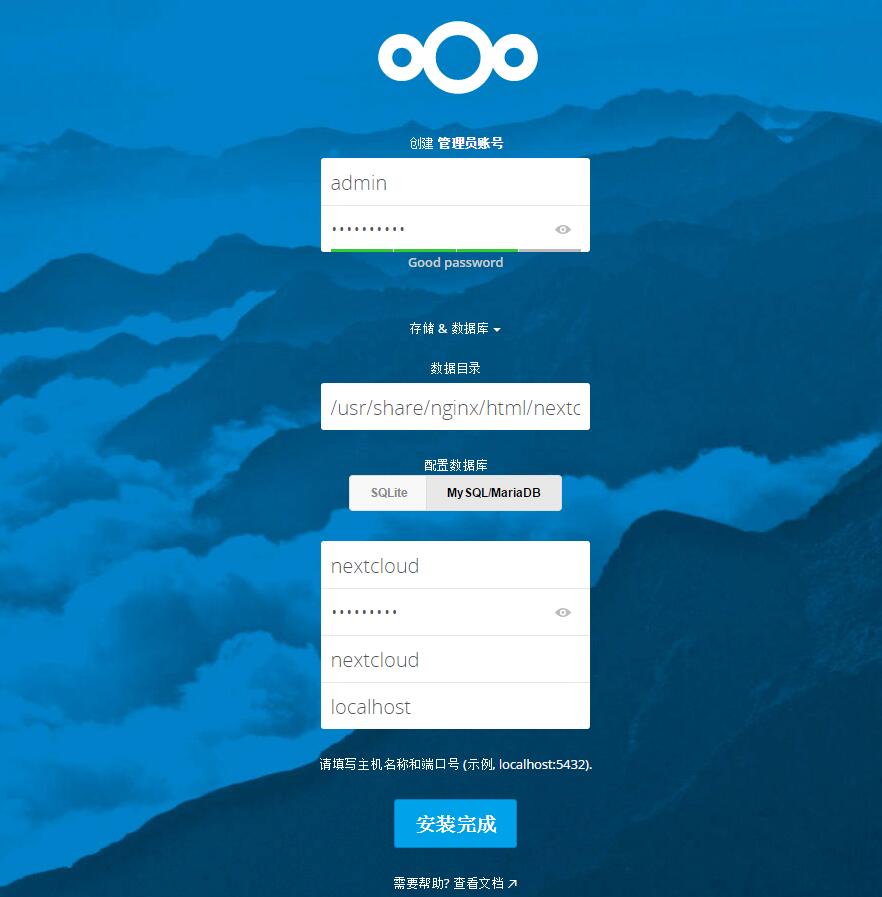
打开你的Web浏览器,输入你为Nextcloud设置的域名,我这里设置为pan.wzlinux.com,然后会重定向到安全性更好的https连接。
设置你的管理员用户名和密码,然后输入数据验证信息,点击 '完成安装(Finish Setup)'。
参考文档:https://docs.nextcloud.com/server/12/admin_manual/installation/index.html
本文转自 wzlinux 51CTO博客,原文链接:http://blog.51cto.com/wzlinux/1945314,如需转载请自行联系原作者