一、检查本地系统版本
[root@kvm01 test]# cd
[root@kvm01 ~]# cat /etc/os-release
NAME="CentOS Linux"
VERSION="7 (Core)"
ID="centos"
ID_LIKE="rhel fedora"
VERSION_ID="7"
PRETTY_NAME="CentOS Linux 7 (Core)"
ANSI_COLOR="0;31"
CPE_NAME="cpe:/o:centos:centos:7"
HOME_URL="https://www.centos.org/"
BUG_REPORT_URL="https://bugs.centos.org/"

CENTOS_MANTISBT_PROJECT="CentOS-7"
CENTOS_MANTISBT_PROJECT_VERSION="7"
REDHAT_SUPPORT_PRODUCT="centos"
REDHAT_SUPPORT_PRODUCT_VERSION="7"
二、df命令的帮助
[root@kvm01 ~]# df --help
Usage: df [OPTION]... [FILE]...
Show information about the file system on which each FILE resides,
or all file systems by default.

Mandatory arguments to long options are mandatory for short options too.
  -a, --all             include pseudo, duplicate, inaccessible file systems
  -B, --block-size=SIZE  scale sizes by SIZE before printing them; e.g.,
                           '-BM' prints sizes in units of 1,048,576 bytes;
                           see SIZE format below
      --direct          show statistics for a file instead of mount point
      --total           produce a grand total
  -h, --human-readable  print sizes in human readable format (e.g., 1K 234M 2G)
  -H, --si              likewise, but use powers of 1000 not 1024
  -i, --inodes          list inode information instead of block usage
  -k                    like --block-size=1K
  -l, --local           limit listing to local file systems
      --no-sync         do not invoke sync before getting usage info (default)
      --output[=FIELD_LIST]  use the output format defined by FIELD_LIST,
                               or print all fields if FIELD_LIST is omitted.
  -P, --portability     use the POSIX output format
      --sync            invoke sync before getting usage info
  -t, --type=TYPE       limit listing to file systems of type TYPE
  -T, --print-type      print file system type
  -x, --exclude-type=TYPE   limit listing to file systems not of type TYPE
  -v                    (ignored)
      --help     display this help and exit
      --version  output version information and exit

Display values are in units of the first available SIZE from --block-size,
and the DF_BLOCK_SIZE, BLOCK_SIZE and BLOCKSIZE environment variables.
Otherwise, units default to 1024 bytes (or 512 if POSIXLY_CORRECT is set).

SIZE is an integer and optional unit (example: 10M is 10*1024*1024).  Units
are K, M, G, T, P, E, Z, Y (powers of 1024) or KB, MB, ... (powers of 1000).

FIELD_LIST is a comma-separated list of columns to be included.  Valid
field names are: 'source', 'fstype', 'itotal', 'iused', 'iavail', 'ipcent',
'size', 'used', 'avail', 'pcent', 'file' and 'target' (see info page).

GNU coreutils online help: <http://www.gnu.org/software/coreutils/>
For complete documentation, run: info coreutils 'df invocation'
三、df命令的基本使用
1.磁盘使用情况统计
[root@kvm01 ~]# df
Filesystem              1K-blocks    Used Available Use% Mounted on
/dev/mapper/centos-root  52403200 1297544  51105656   3% /
devtmpfs                   928860       0    928860   0% /dev
tmpfs                      940940       0    940940   0% /dev/shm
tmpfs                      940940    8684    932256   1% /run
tmpfs                      940940       0    940940   0% /sys/fs/cgroup
/dev/vda1                 1038336  148452    889884  15% /boot
/dev/mapper/centos-home 101654020   33004 101621016   1% /home
tmpfs                      188192       0    188192   0% /run/user/0
2.带单位显示磁盘容量
[root@kvm01 ~]# df -h
Filesystem               Size  Used Avail Use% Mounted on
/dev/mapper/centos-root   50G  1.3G   49G   3% /
devtmpfs                 908M     0  908M   0% /dev
tmpfs                    919M     0  919M   0% /dev/shm
tmpfs                    919M  8.5M  911M   1% /run
tmpfs                    919M     0  919M   0% /sys/fs/cgroup
/dev/vda1               1014M  145M  870M  15% /boot
/dev/mapper/centos-home   97G   33M   97G   1% /home
tmpfs                    184M     0  184M   0% /run/user/0
3.显示文件系统类型
[root@kvm01 ~]# df -hT
Filesystem              Type      Size  Used Avail Use% Mounted on
/dev/mapper/centos-root xfs        50G  1.3G   49G   3% /
devtmpfs                devtmpfs  908M     0  908M   0% /dev
tmpfs                   tmpfs     919M     0  919M   0% /dev/shm
tmpfs                   tmpfs     919M  8.5M  911M   1% /run
tmpfs                   tmpfs     919M     0  919M   0% /sys/fs/cgroup
/dev/vda1               xfs      1014M  145M  870M  15% /boot
/dev/mapper/centos-home xfs        97G   33M   97G   1% /home
tmpfs                   tmpfs     184M     0  184M   0% /run/user/0
4.显示inode信息
[root@kvm01 ~]# df -i
Filesystem                Inodes IUsed    IFree IUse% Mounted on
/dev/mapper/centos-root 26214400 32749 26181651    1% /
devtmpfs                  232215   375   231840    1% /dev
tmpfs                     235235     1   235234    1% /dev/shm
tmpfs                     235235   463   234772    1% /run
tmpfs                     235235    16   235219    1% /sys/fs/cgroup
/dev/vda1                 524288   327   523961    1% /boot
/dev/mapper/centos-home 50851840     7 50851833    1% /home
tmpfs                     235235     1   235234    1% /run/user/0
四、du命令的使用
1.du命令的帮助
[root@kvm01 ~]# du --help
Usage: du [OPTION]... [FILE]...
  or:  du [OPTION]... --files0-from=F
Summarize disk usage of each FILE, recursively for directories.

Mandatory arguments to long options are mandatory for short options too.
  -0, --null            end each output line with 0 byte rather than newline
  -a, --all             write counts for all files, not just directories
      --apparent-size   print apparent sizes, rather than disk usage; although
                          the apparent size is usually smaller, it may be
                          larger due to holes in ('sparse') files, internal
                          fragmentation, indirect blocks, and the like
  -B, --block-size=SIZE  scale sizes by SIZE before printing them; e.g.,
                           '-BM' prints sizes in units of 1,048,576 bytes;
                           see SIZE format below
  -b, --bytes           equivalent to '--apparent-size --block-size=1'
  -c, --total           produce a grand total
  -D, --dereference-args  dereference only symlinks that are listed on the
                          command line
  -d, --max-depth=N     print the total for a directory (or file, with --all)
                          only if it is N or fewer levels below the command
                          line argument;  --max-depth=0 is the same as
                          --summarize
      --files0-from=F   summarize disk usage of the
                          NUL-terminated file names specified in file F;
                          if F is -, then read names from standard input
  -H                    equivalent to --dereference-args (-D)
  -h, --human-readable  print sizes in human readable format (e.g., 1K 234M 2G)
      --inodes          list inode usage information instead of block usage
  -k                    like --block-size=1K
  -L, --dereference     dereference all symbolic links
  -l, --count-links     count sizes many times if hard linked
  -m                    like --block-size=1M
  -P, --no-dereference  don't follow any symbolic links (this is the default)
  -S, --separate-dirs   for directories do not include size of subdirectories
      --si              like -h, but use powers of 1000 not 1024
  -s, --summarize       display only a total for each argument
  -t, --threshold=SIZE  exclude entries smaller than SIZE if positive,
                          or entries greater than SIZE if negative
      --time            show time of the last modification of any file in the
                          directory, or any of its subdirectories
      --time=WORD       show time as WORD instead of modification time:
                          atime, access, use, ctime or status
      --time-style=STYLE  show times using STYLE, which can be:
                            full-iso, long-iso, iso, or +FORMAT;
                            FORMAT is interpreted like in 'date'
  -X, --exclude-from=FILE  exclude files that match any pattern in FILE
      --exclude=PATTERN    exclude files that match PATTERN
  -x, --one-file-system    skip directories on different file systems
      --help     display this help and exit
      --version  output version information and exit
2.显示目录或者文件所占空间
[root@kvm01 test]# du
4    ./.git/refs/heads
0    ./.git/refs/tags
4    ./.git/refs
0    ./.git/branches
40    ./.git/hooks
4    ./.git/info
0    ./.git/objects/pack
0    ./.git/objects/info
4    ./.git/objects/e6
4    ./.git/objects/70
4    ./.git/objects/74
4    ./.git/objects/1e
16    ./.git/objects
4    ./.git/logs/refs/heads
4    ./.git/logs/refs
8    ./.git/logs
92    ./.git
96    .
3.带容量单位显示目录或者文件所占空间
[root@kvm01 test]# du -h
4.0K    ./.git/refs/heads
0    ./.git/refs/tags
4.0K    ./.git/refs
0    ./.git/branches
40K    ./.git/hooks
4.0K    ./.git/info
0    ./.git/objects/pack
0    ./.git/objects/info
4.0K    ./.git/objects/e6
4.0K    ./.git/objects/70
4.0K    ./.git/objects/74
4.0K    ./.git/objects/1e
16K    ./.git/objects
4.0K    ./.git/logs/refs/heads
4.0K    ./.git/logs/refs
8.0K    ./.git/logs
92K    ./.git
96K    .
[root@kvm01 test]#
4.查看单个文件的大小
[root@kvm01 test]# du aa.txt   -h
4.0K    aa.txt
五、lsblk命令
检查本地磁盘及分区情况
[root@kvm01 test]# lsblk
NAME            MAJ:MIN RM  SIZE RO TYPE MOUNTPOINT
sr0              11:0    1  4.3G  0 rom
vda             252:0    0  150G  0 disk
├─vda1          252:1    0    1G  0 part /boot
└─vda2          252:2    0  149G  0 part
  ├─centos-root 253:0    0   50G  0 lvm  /
  ├─centos-swap 253:1    0    2G  0 lvm  [SWAP]
  └─centos-home 253:2    0   97G  0 lvm  /home
六、磁盘管理其他命令
# mount /dev/cdrom /mnt   # 挂载磁盘分区
fdisk -l /dev/vda    # 查看磁盘分区情况
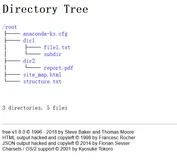
tree     # 查看目录层级结构
fdisk   /dev/sdb    # 对磁盘进行分区操作
mkfs.ext4 /dev/sdb1   # 对分区格式化
ls -l # 查看当前目录