UIToolBar控件:是经常使用的一个工具条控件,虽然在上面可以添加子控件,但是toolbar中只能添加UIBarButtonItem类型的子控件,其他子控件会被包装成这种类型的,例如UIButton。通过工具栏可以用来对视图View中内容进行操作。
原理:
可以在toolBar上添加任何子控件。其实它的原理是把你要添加的子控件先加到toolbarItems数组里面,最后再把toolbarItems数组一次性放到toolbar工具栏里面。
虽然可以在toolbar中添加其他任何的视图控件如UILabel、UITextField、UIImageView等等,但是在xib/storyboard图形界面设计时,不能它们直接放置到UIToolBar中。若强行将它们拖曳到UIToolBar,会使它们放置在上层容器中,而不是UIToolBar中。所以前提是先必须添加一个视图UIView控件到toolbar中,它会被包装成UIBarButtonItem类型,然后再在UIView中添加需要的子视图控件。
举例如下:将UILabel加入到toolbar工具栏中,步骤如下:
1. 将UIView拖曳到UIToolBar(UIToolBar中自动增加了一个UIBarButtonItem,其中便是刚才插入的UIView);
2. 将UILabel(或其他控件)拖曳到刚才的UIView中;
3. 将刚才的UIView的Background设为某种颜色(如蓝色);
4. 将刚才的UIView的Background设为Default。
对toolbar进行初始化:
-initWithTitle(添加button用这个)
-initWithImage
-initWithBarButtonSystemItem(添加系统自定义的button,形状跟大小都已经固定了)下面链接里面有按钮图片样式
-initWithCustomView(添加除了button以外的View)
一、采用系统默认.xib文件中的UIToolBar,制作的工具栏(删除和添加图片)
(1)默认的View视图布局
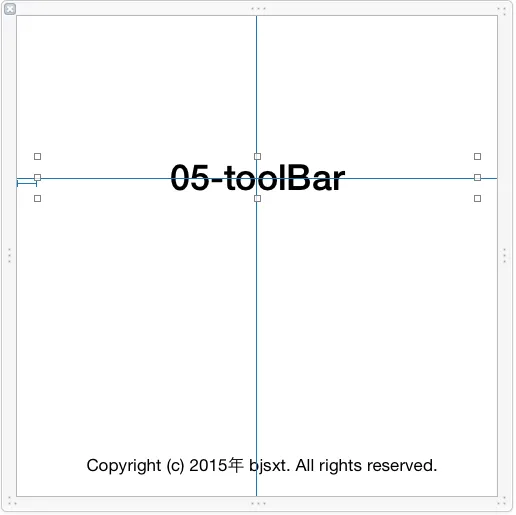
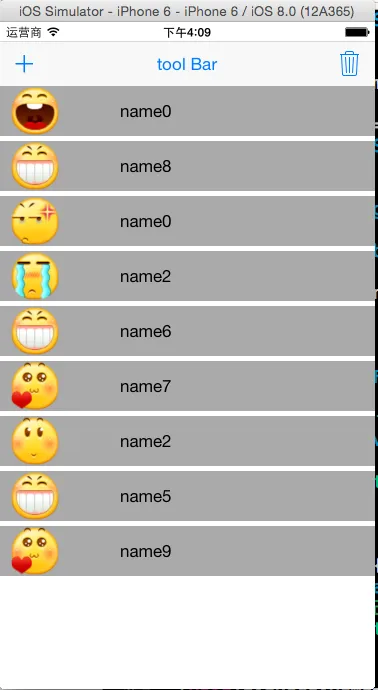
代码如下:需要在代码中为添加的控件人为设置frame具体坐标x,y、大小width,height
 1 #import "ViewController.h"
 2 #define CONTACE_VIEW_HEIGHT 50
 3 @interface ViewController ()
 4 @property (weak, nonatomic) IBOutlet UIToolbar *toolBar;
 5 @property (weak, nonatomic) IBOutlet UIBarButtonItem *barButtonitemDelete;
 6
 7 @end
 8
 9 @implementation ViewController
10 - (IBAction)addContact:(UIBarButtonItem *)sender
11 {
12
13     //让删除按钮有效
14     [self.barButtonitemDelete setEnabled:YES];
15
16     //在subView中已经有了3个控件
17     NSInteger count = self.view.subviews.count - 3;
18     CGRect lastFrame = self.toolBar.frame;
19
20     UIView *contactView = [[UIView alloc]init];
21     CGFloat gapY = 5;
22     CGFloat x = 0;
23     CGFloat y = lastFrame.origin.y + lastFrame.size.height + (CONTACE_VIEW_HEIGHT+gapY) * count;
24     CGFloat w = self.view.frame.size.width;
25
26     contactView.frame = CGRectMake(x,y,w,CONTACE_VIEW_HEIGHT);
27
28
29     //添加头像
30     UIImage *image = [UIImage imageNamed:[NSString stringWithFormat:@"%d.png",arc4random_uniform(9)]];
31     UIImageView *face = [[UIImageView alloc]initWithImage:image];
32     face.frame = CGRectMake(10, 0,50,50);
33     [contactView addSubview:face];
34
35     //添加姓名
36     UILabel *labelName = [[UILabel alloc]init];
37     labelName.text = [NSString stringWithFormat:@"name%d",arc4random_uniform(10)];
38     labelName.frame = CGRectMake(10+image.size.width+50, 0, 100, 50);
39     [contactView addSubview:labelName];
40
41
42     contactView.backgroundColor = [UIColor lightGrayColor];
43
44     [self.view addSubview:contactView];
45 }
46 - (IBAction)deleteContact:(UIBarButtonItem *)sender
47 {
48     //删除视图
49     UIView *lastView = [self.view.subviews lastObject];
50     [lastView removeFromSuperview];
51
52     //如果没有了contactView,设置删除按钮无效
53     if(self.view.subviews.count == 3)
54     {
55         [self.barButtonitemDelete setEnabled:NO];
56     }
57 }
58
59 - (void)viewDidLoad {
60     [super viewDidLoad];
61     //开始时删除设置为无效
62     [self.barButtonitemDelete setEnabled:NO];
63 }
64
65 - (void)didReceiveMemoryWarning {
66     [super didReceiveMemoryWarning];
67     // Dispose of any resources that can be recreated.
68 }
二、采用提前自定义布局的.xib文件中的UIToolBar,制作的工具栏(删除和添加图片)
(2)自定义的View视图布局,添加UIImage、UILabel控件

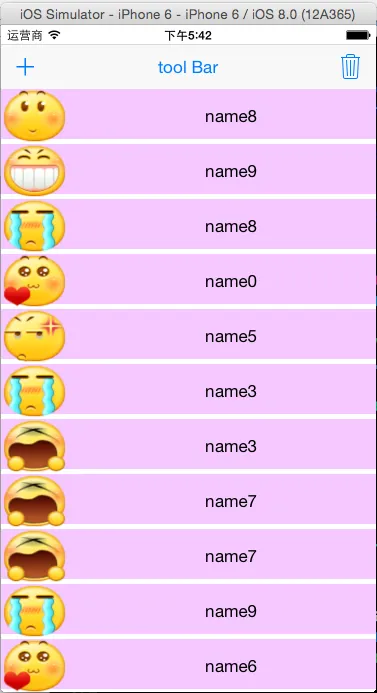
代码如下:不需要在代码中再去设置添加控件的frame,在.xib文件中已经布局好了。
 1 import "ViewController.h"
 2 #define CONTACE_VIEW_HEIGHT 50
 3 @interface ViewController ()
 4 @property (weak, nonatomic) IBOutlet UIToolbar *toolBar;
 5 @property (weak, nonatomic) IBOutlet UIBarButtonItem *barButtonitemDelete;
 6
 7 @end
 8
 9 @implementation ViewController
10 - (IBAction)addContact:(UIBarButtonItem *)sender
11 {
12
13     //让删除按钮有效
14     [self.barButtonitemDelete setEnabled:YES];
15
16     //在subView中已经有了3个控件
17     NSInteger count = self.view.subviews.count - 3;
18     CGRect lastFrame = self.toolBar.frame;
19
20     //加载xib文件
21     NSArray *views = [[NSBundle mainBundle]loadNibNamed:@"contactView" owner:nil options:nil];
22
23     //添加contactView
24     UIView *contactView = [views lastObject];
25
26
27     CGFloat gapY = 5;
28     CGFloat x = 0;
29     CGFloat y = lastFrame.origin.y + lastFrame.size.height + (CONTACE_VIEW_HEIGHT+gapY) * count;
30     CGFloat w = self.view.frame.size.width;
31     contactView.frame = CGRectMake(x,y,w,CONTACE_VIEW_HEIGHT);
32
33
34     //添加头像
35     UIImageView *face = (UIImageView *)[contactView viewWithTag:1];
36     UIImage *image = [UIImage imageNamed:[NSString stringWithFormat:@"%d.png",arc4random_uniform(9)]];
37     [face setImage:image];
38
39
40
41     //添加姓名
42     UILabel *labelName = (UILabel *)[contactView viewWithTag:2];
43     labelName.text = [NSString stringWithFormat:@"name%d",arc4random_uniform(10)];
44
45     [self.view addSubview:contactView];
46 }
47
48 - (IBAction)deleteContact:(UIBarButtonItem *)sender
49 {
50     //删除视图
51     UIView *lastView = [self.view.subviews lastObject];
52     [lastView removeFromSuperview];
53
54     //如果没有了contactView,设置删除按钮无效
55     if(self.view.subviews.count == 3)
56     {
57         [self.barButtonitemDelete setEnabled:NO];
58     }
59 }
60
61 - (void)viewDidLoad {
62     [super viewDidLoad];
63     //开始时删除设置为无效
64     [self.barButtonitemDelete setEnabled:NO];
65 }
66
67 - (void)didReceiveMemoryWarning {
68     [super didReceiveMemoryWarning];
69     // Dispose of any resources that can be recreated.
70 }
71
72 @end