程序员Feri一名12年+的程序员,做过开发带过团队创过业,擅长Java相关开发、鸿蒙开发、人工智能等,专注于程序员搞钱那点儿事,希望在搞钱的路上有你相伴!君志所向,一往无前!
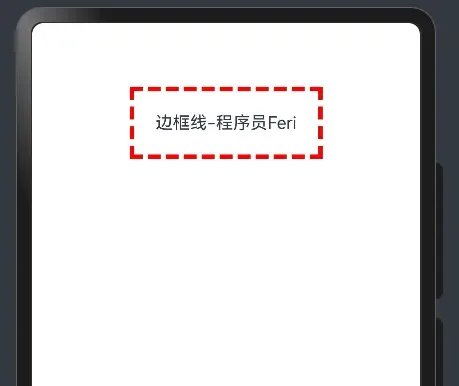
1.边框属性
边框属性,组件的边框可以进行属性设置
四个方向边框相同
属性:border()
参数:{width?: 数字, color?: '', style?: BorderStyle},
● width:边框宽度,边框宽度默认值为0,即不显示边框
● color:边框颜色
● style:边框样式,BorderStyle为枚举类型
○ Solid:实线(默认)
○ Dashed:虚线
○ Dotted:点线
  @Entry
@Component
struct Index {
  build() {
    Column() {
      Text('边框线-程序员Feri')
        .padding(20)
        .textAlign(TextAlign.Center)
        //   // 黑色 实线 边框
        // .border({width: 1})
        //   // 红色 实线 边框
        // .border({width: 1, color: 'red'})
          // 红色 虚线 边框
        .border({width: 4, color: 'red', style: BorderStyle.Dashed})
    }.width("100%").padding(20)
  }
}
2.边框圆角
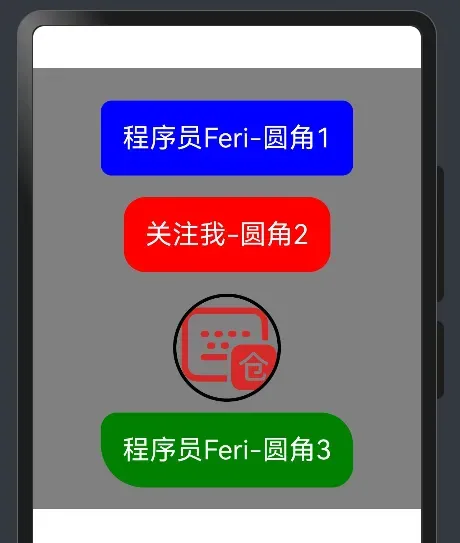
属性:borderRadius(圆角半径)
参数:数值 或 { }
● topLeft:左上角
● topRight:右上角
● bottomLeft:左下角
● bottomRight:右下角
@Entry
@Component
struct Index {
  build() {
    Column() {
      Text('程序员Feri-圆角1')
        .padding(20)
        .fontColor(Color.White)
        .fontSize(25)
        .backgroundColor(Color.Blue)
        .borderRadius(10)
        .margin(10)

      // 胶囊状 圆角半径 = 高度 / 2
      Text('关注我-圆角2')
        .padding(20)
        .fontColor(Color.White)
        .fontSize(25)
        .backgroundColor(Color.Red)
        .borderRadius(20)
        .margin(10)

      // 正圆 圆角半径 = 正方形尺寸 / 2
      Image($r('app.media.ic_celiakeyboard_cangjie'))
        .width(100)
        .aspectRatio(1)
        .borderRadius(50)
        .margin(10)
        .borderWidth(3)

      // 四个角半径不同写法
      Text('程序员Feri-圆角3')
        .padding(20)
        .fontColor(Color.White)
        .fontSize(25)
        .backgroundColor(Color.Green)
        .borderRadius({
          topLeft: 15,
          topRight: 30,
          bottomRight: 20,
          bottomLeft: 40
        })

    }.backgroundColor(Color.Gray).
    width("100%").padding(20)
  }
}
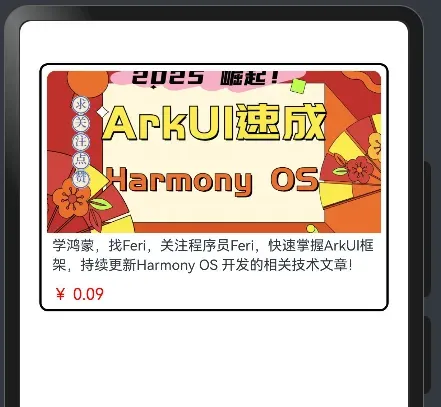
3.综合使用
@Entry
@Component
struct Index {
  build() {
    Column() {
      Column() {
        Image($r('app.media.ArkUI'))
          .width('100%')
          .height(150)
          .borderRadius({topLeft: 8, topRight: 8})
        Text('学鸿蒙,找Feri,关注程序员Feri,快速掌握ArkUI框架,持续更新Harmony OS 开发的相关技术文章!')
          .width('100%')
          .padding({left: 5, right: 5,top:2})
          .fontSize(13)
          .lineHeight(18)
          .maxLines(2)
          .textOverflow({overflow: TextOverflow.Ellipsis})
        Text('¥ 0.09')
          .width('100%')
          .padding({left: 5, right: 5})
          .fontSize(15)
          .fontColor(Color.Red)
          .margin({top: 10})
      }
      .width('90%')
      .padding(5)
      .backgroundColor('#fff')
      .borderRadius(8)
      .borderWidth(2)
    }.width('100%')
  }
}
4.组件背景属性
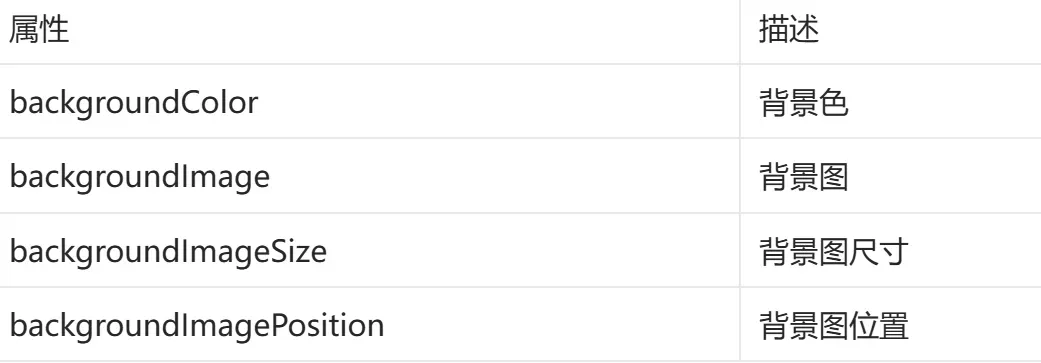
4.1 背景色
backgroundColor:设置组件的背景色
组件添加宽高属性或有内容才能观察到背景色
4.2 背景图片
backgroundImage
属性:backgroundImage(背景图地址, 背景图平铺方式 ImageRepeat)
背景图平铺方式:(可省略)
● NoRepeat:不平铺,默认值
● X:水平平铺
● Y:垂直平铺
● XY:水平垂直均平铺
4.3 背景图缩放
backgroundImageSize
作用:背景图缩放
属性:backgroundImageSize
参数:
● 设置背景图宽高尺寸:{width: 数值, height: 数值}
(只设置宽或高,另一个尺寸等比例缩放)
● 枚举 ImageSize:
○ Cover:等比例缩放背景图至图片完全覆盖组件范围
○ Contain:等比例缩放背景图,当宽或高与组件尺寸相同则停止缩放
○ Auto:默认,原图尺寸
@Entry
@Component
struct Index {
  build() {
    Column() {
      Text('程序员Feri')
        .width("100%")
        .height(50)
        .backgroundColor(Color.Orange).margin(10)

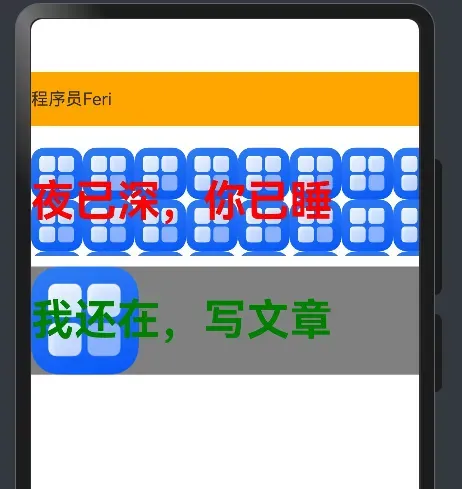
      Text('夜已深,你已睡')
        .width("100%")
        .height(100)
        .fontSize(40)
        .fontWeight(FontWeight.Bold)
        .fontColor(Color.Red)
        .backgroundImage($r('app.media.startIcon'), ImageRepeat.XY)
        .margin(10)

      Text('我还在,写文章')
        .width("100%")
        .height(100)
        .fontSize(40)
        .fontWeight(FontWeight.Bold)
        .fontColor(Color.Green)
        .backgroundColor(Color.Gray)
        .backgroundImage($r('app.media.startIcon'))
        .backgroundImageSize(ImageSize.Contain)

    }.width('100%')
  }
}
好啦,本篇就到这,明天再战!