首先为eclipse添加testng插件
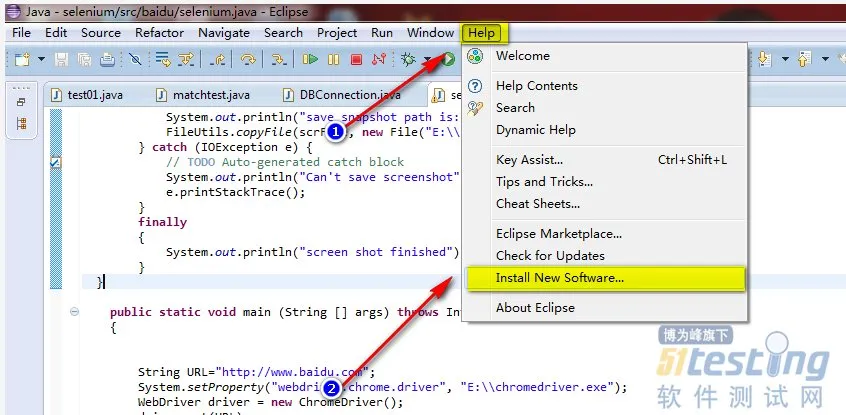
1.步骤如下:help->Install New SoftWare...
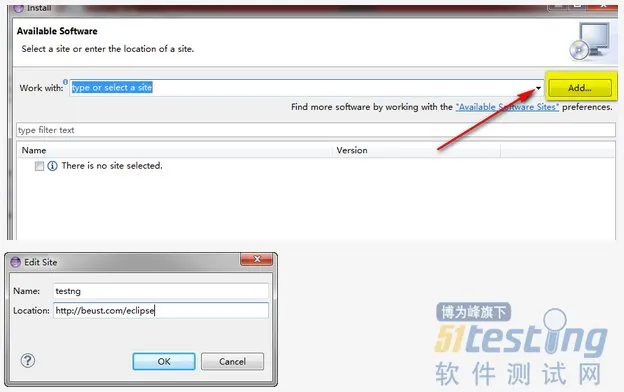
2. 添加testng链接,该链接可以在这里找到
|
For the Eclipse plug-in, we suggest using the update site:
Select Help / Software updates / Find and Install.
Search for new features to install.
New remote site.
For Eclipse 3.4 and above, enter http://beust.com/eclipse.
For Eclipse 3.3 and below, enter http://beust.com/eclipse1.
Make sure the check box next to URL is checked and click Next.
Eclipse will then guide you through the process.
|
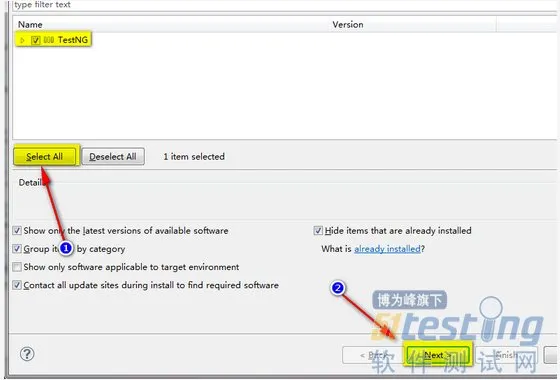
4.下载并安装 testng
testng和junit相比为什么要使用testng
1. testng 和junit功能基本相同testng支持suite,junit执行一大堆case,如果个别fail,只能所有case重跑
而testng可以单独跑
2.testng能生成漂亮的测试报告,比较直观
添加一个testng case,复制一份,保存为
openlinkTest1.java
|
package baidu;
import java.io.File;
import java.io.IOException;
import java.util.regex.Matcher;
import java.util.regex.Pattern;
import junit.framework.Assert;
import org.apache.commons.io.FileUtils;
import org.openqa.selenium.By;
import org.openqa.selenium.OutputType;
import org.openqa.selenium.TakesScreenshot;
import org.openqa.selenium.WebDriver;
import org.openqa.selenium.WebElement;
import org.openqa.selenium.chrome.ChromeDriver;
import org.testng.annotations.AfterMethod;
import org.testng.annotations.BeforeMethod;
import org.testng.annotations.Test;
public class openlinkTest {
public static void snapshot(TakesScreenshot drivername, String filename)
{
// this method will take screen shot ,require two parameters ,one is driver name, another is file name
File scrFile = drivername.getScreenshotAs(OutputType.FILE);
// Now you can do whatever you need to do with it, for example copy somewhere
try {
System.out.println("save snapshot path is:E:/"+filename);
FileUtils.copyFile(scrFile, new File("E:\\"+filename));
} catch (IOException e) {
// TODO Auto-generated catch block
System.out.println("Can't save screenshot");
e.printStackTrace();
}
finally
{
System.out.println("screen shot finished");
}
}
@BeforeMethod
public void tearUp()
{
// WebDriver driver = new ChromeDriver();
}
@Test
public static void runSelenium() throws InterruptedException
{
String URL="http://www.baidu.com";
Pattern p = Pattern.compile("http");
Matcher m = p.matcher(URL);
if(m.find())
{
System.out.println(URL);
}
System.setProperty("webdriver.chrome.driver", "E:\\chromedriver.exe");
WebDriver driver = new ChromeDriver();
driver.get(URL);
//max size the browser
driver.manage().window().maximize();
/*
Navigation navigation = driver.navigate();
navigation.to(URL);*/
Thread.sleep(2000);
snapshot((TakesScreenshot)driver,"open_baidu.png");
//WebElement reg=driver.findElement(By.name("tj_reg"));
//reg.click();
// WebElement keyWord = driver.findElement(By.id("kw1"));
//find the element
WebElement keyWord = driver.findElement(By.xpath("//input[@id='kw1']"));
keyWord.clear();
//send key words
keyWord.sendKeys("Selenium");
Thread.sleep(3000);
snapshot((TakesScreenshot)driver,"input_keyWord.png");
WebElement submit = driver.findElement(By.id("su1"));
System.out.println(submit.getLocation());
submit.click();
//System.out.println(driver.getWindowHandle());
Thread.sleep(5000);
// System.out.println(driver.getPageSource());
String pageSource=driver.getPageSource();
// System.out.println(pageSource);
//WebElement link =driver.findElement(By.xpath(SELENIUM_LINK));
WebElement link =driver.findElement(By.xpath("//*[@id=\"1\"]/h3/a")); //*[@id="1"]/h3/a
link.click();
Thread.sleep(5000);
driver.switchTo().window(driver.getWindowHandles().toArray(new String[0])[1]);
//get page title
System.out.println(driver.getTitle());
Thread.sleep(5000);
// navigation.back();
snapshot((TakesScreenshot)driver,"open_bake.png");
System.out.println(driver.getTitle()+"\n"+driver.getCurrentUrl());
Assert.assertEquals(driver.getTitle(),"Selenium - Web Browser Automation");
driver.quit();
}
@AfterMethod
public void tearDown()
{
//driver.quit();
System.out.println("------------END----------------------");
}
}
|
添加testng suite
|
<?xml version="1.0" encoding="UTF-8"?>
<suite name="Suite" parallel="false">
<test name="Test">
<classes>
<class name="baidu.openlinkTest"/>
<class name="baidu.openlinkTest1"/>
</classes>
</test> <!-- Test -->
</suite> <!-- Suite -->
|
执行case:
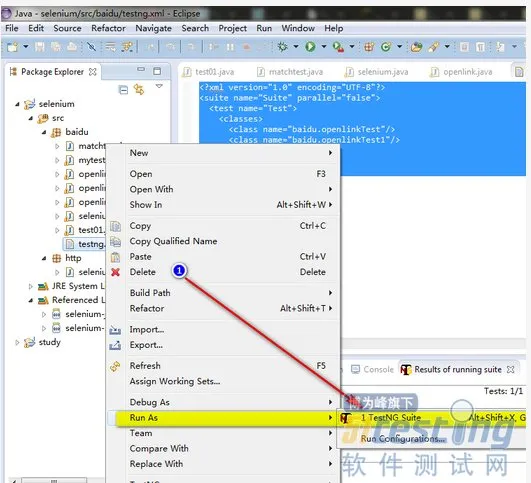
结果如下
|
[TestNG] Running:
C:\Users\Young\workspace\selenium\src\baidu\testng.xml
http://www.baidu.com
Starting ChromeDriver (v2.9.248315) on port 28218
save snapshot path is:E:/open_baidu.png
screen shot finished
save snapshot path is:E:/input_keyWord.png
screen shot finished
(858, 179)
Selenium - Web Browser Automation
save snapshot path is:E:/open_bake.png
screen shot finished
Selenium - Web Browser Automation
http://docs.seleniumhq.org/
------------END----------------------
http://www.baidu.com
Starting ChromeDriver (v2.9.248315) on port 5568
save snapshot path is:E:/open_baidu.png
screen shot finished
save snapshot path is:E:/input_keyWord.png
screen shot finished
(858, 179)
Selenium_百度百科
save snapshot path is:E:/open_bake.png
screen shot finished
Selenium_百度百科
http://baike.baidu.com/subview/478050/6464537.htm?fr=aladdin
------------END----------------------
===============================================
Suite
Total tests run: 2, Failures: 1, Skips: 0
===============================================
|
最新内容请见作者的GitHub页:http://qaseven.github.io/