网页截图
上次提到了selenium的四种截图方法,最终截图了整张网页。但很多时候,我们仅仅需要截图部分的内容。比如截取某个关键信息,或者现在已经不常见的截图验证码(现在都是各种按规则点击...)。那么我们该如何进行部分元素的截图呢?今天我们就来举个例子...
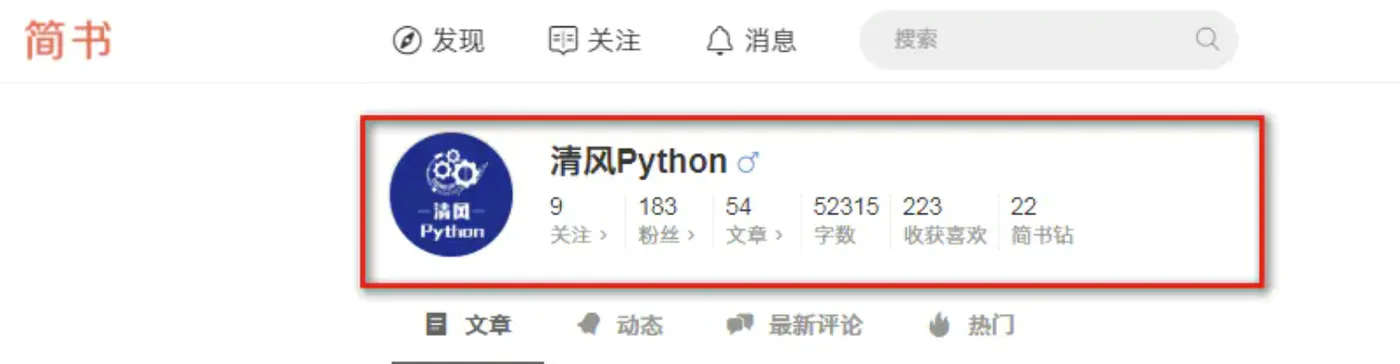
清风Python首页
我立马翻了下简书首页,54篇文章5.23万字。除去之前写的几篇灌水帖,字数上貌似达标了。那么今天就做个练习通过selenium与Pillow,截图红框中的内容吧
代码分析
要局部截图,首先正常的网页登陆后,我们需要定位到这个框体,F12看看如何定位:
元素定位
我们通过driver.find_element_by_class_name('main-top')即可定位到该元素。
那么接下来需要引入两个方法
element.location
获取element的位置,返回值是一个x,y的坐标点:{'x': 486, 'y': 86}
element.size
获取element的元素大小即长和宽,这个比较好理解:{'height': 119, 'width': 625}
画地为牢
我们知道了x,y,height,width,如何能把这个元素的四个角框起来呢?用下图说明:
位置参数解析
那我们现在要做的就是进行相关的抠图即可。
图片裁剪
Python操作图片的库很多,但最经典的莫过于Pillow了。
Pillow安装
在命令行下输入:*pip instlal Pillow * 即可
剪切代码
剪切代码我们只需要从Pillow中引入Image子模块,然后使用剪裁方法crop即可实现,代码如下:
img = Image.open('screenshort.png')
title = img.crop((left, top, right, bottom))
title.save('title.png')
最终实现
代码:
# -*- coding: utf-8 -*-
# @Author   : 王翔
# @JianShu  : 清风Python
# @Date     : 2019/7/15 23:24
# @Software : PyCharm
# @version  :Python 3.7.3
# @File     : SaveLongPicture.py
import os
from selenium import webdriver
from PIL import Image
class SaveLongPicture:
    # 清风Python个人主页
    BaseUrl = "https://www.jianshu.com/u/d23fd5012bed"
    # 脚本目录
    BaseDir = os.path.dirname(os.path.realpath(__file__))
    def __init__(self):
        self.driver = self.init_driver()
        self.long_picture = os.path.join(self.BaseDir, 'BreezePython.png')
    @staticmethod
    def init_driver():
        options = webdriver.ChromeOptions()
        options.add_argument('--start-maximized')
        options.add_argument('disable-infobars')
        return webdriver.Chrome(options=options)
    def prepare_work(self):
        self.driver.get(self.BaseUrl)
        self.driver.add_cookie(cookie)
        self.driver.refresh()
        self.base_handle = self.driver.current_window_handle
    def add_cookie(self):
        self.driver.get(self.BaseUrl)
        self.driver.add_cookie(cookie)
        self.driver.refresh()
    def save_crop_img(self):
        self.driver.get(self.BaseUrl)
        # 定位元素
        title = self.driver.find_element_by_class_name('main-top')
        # 打印元素位置、元素尺寸
        print(title.location, title.size)
        # 保存图片
        self.driver.get_screenshot_as_file(self.long_picture)
        # 元素参数获取
        left = title.location.get('x')
        top = title.location.get('y')
        right = title.size.get('width') + left
        bottom = title.size.get('height') + top
        # 读取图片
        img = Image.open(self.long_picture)
        # 图片裁剪
        title = img.crop((left, top, right, bottom))
        # 局部保存
        title.save('title.png')
def run():
    # 实例化方法
    start_test = SaveLongPicture()
    # cookie登陆
    start_test.add_cookie()
    # 裁剪图片
    start_test.save_crop_img()
if __name__ == '__main__':
    cookie = {
        'name': 'remember_user_token',
        'value': ('......')
    }
    run()
selenium局部抠图.gif
有人会问,明明可以直接访问的,为什么要添加cookie呢?不美观...未登录的情况下,显示的消息是折行的....
未登录情况
当然你可以不登录,然后截图这个元素内容,完全没问题,但是处女座的人有强迫症啊...
The End
今天的selenium内容就更新到这里