
封装一个UIPickerView
先给大家看一下效果图
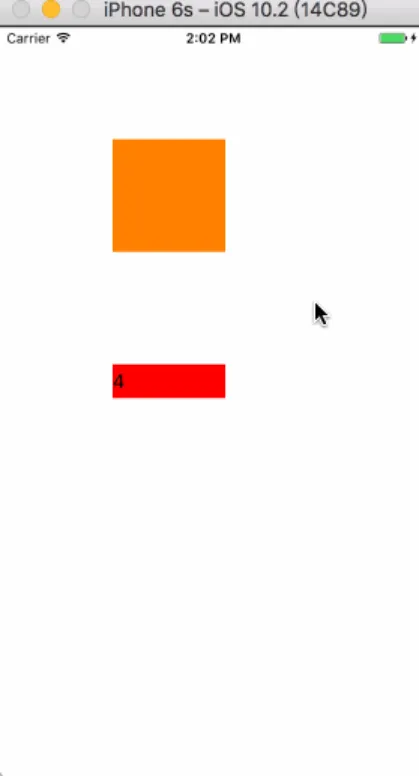
pickerView.gif
第一步:
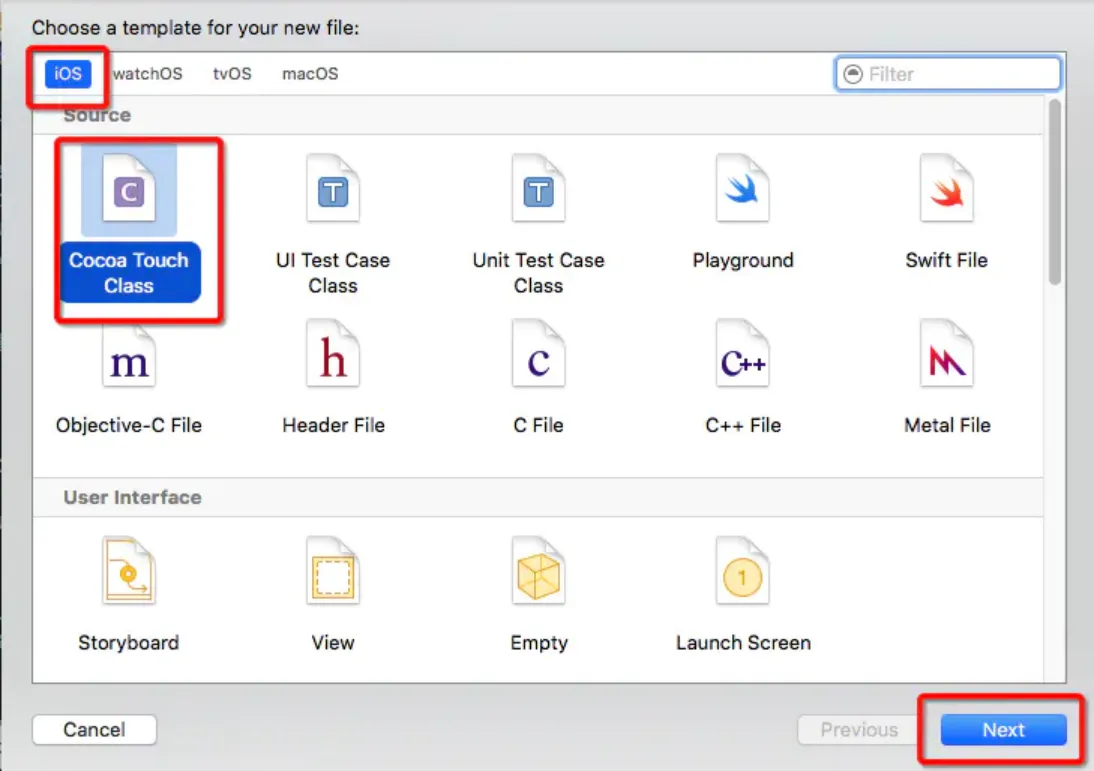
第二步:
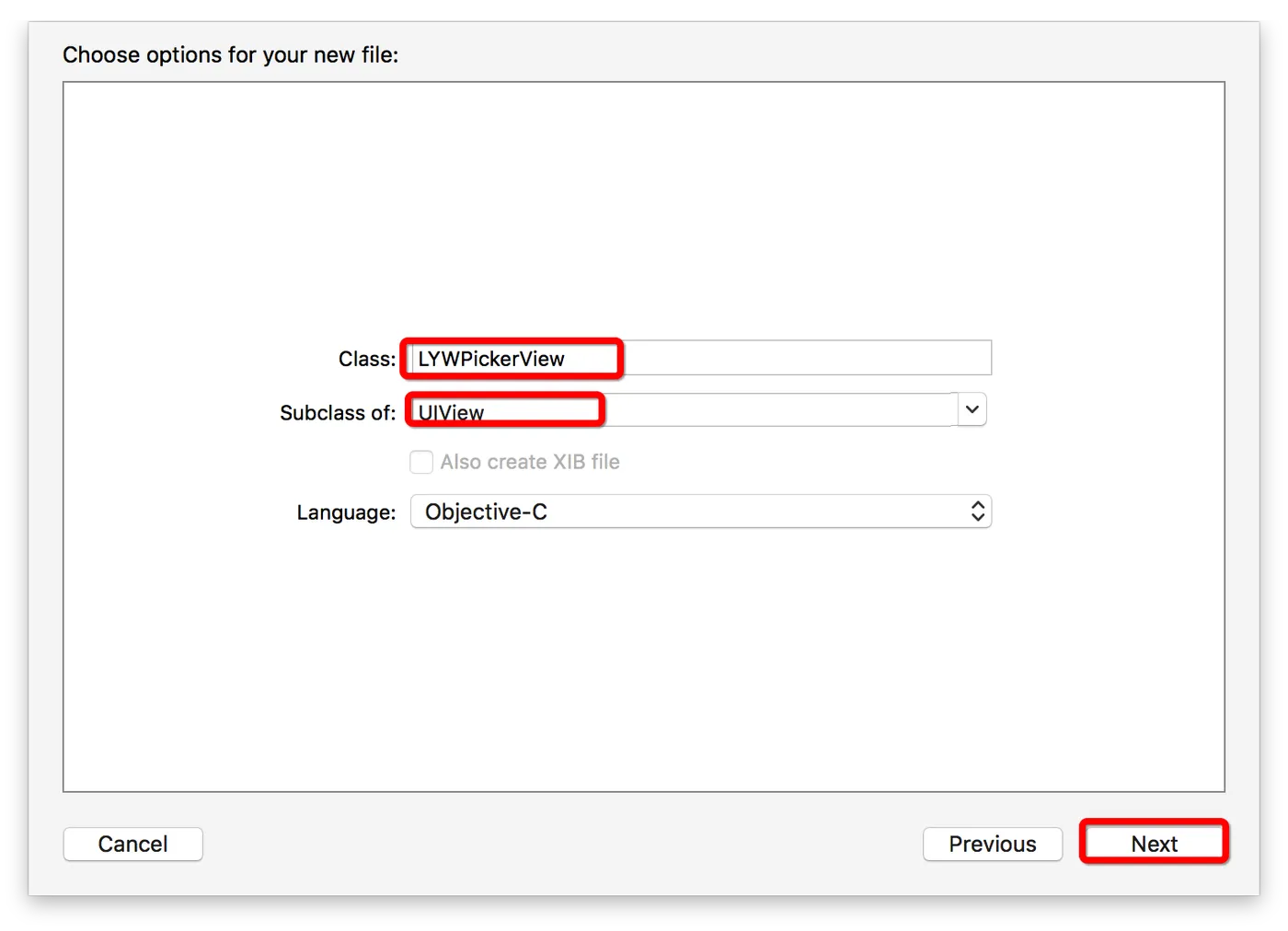
Snip20170417_1.png
第三步:在.h文件中
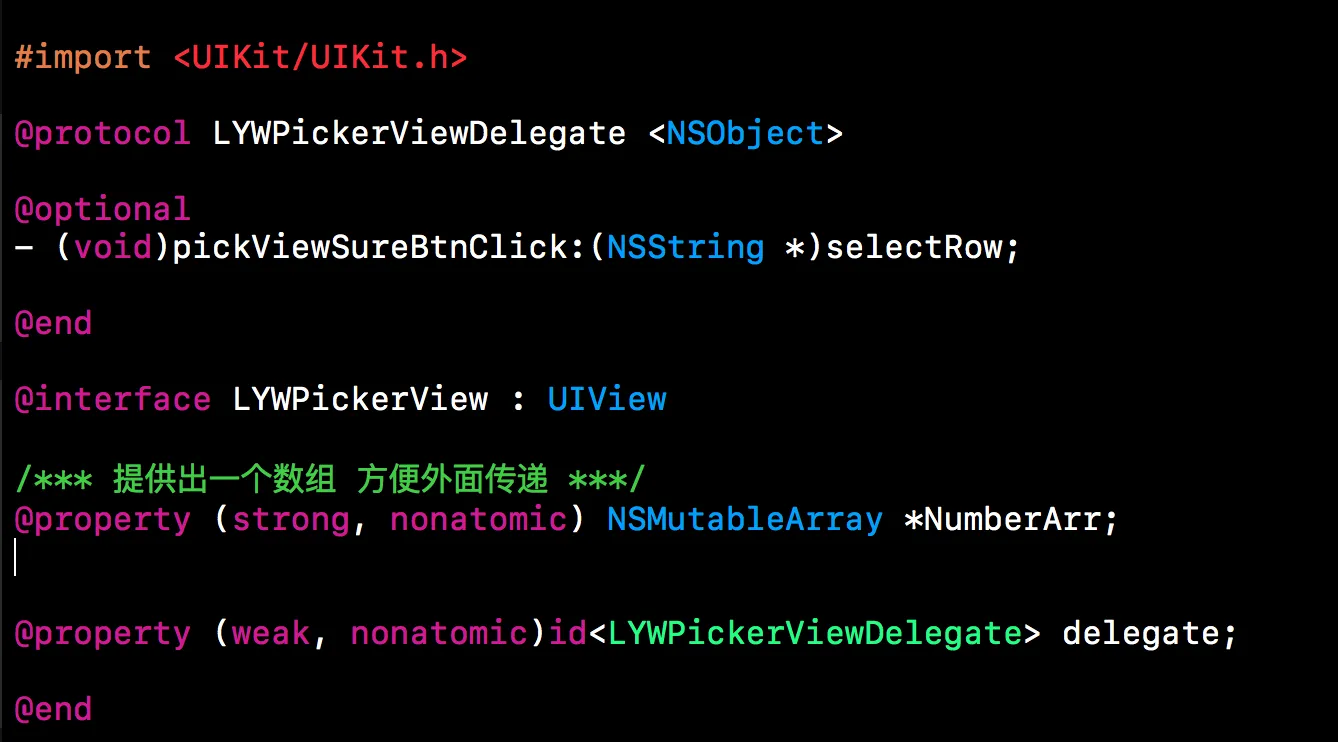
Snip20170417_2.png
#import <UIKit/UIKit.h>
@protocol LYWPickerViewDelegate <NSObject>
@optional
- (void)pickViewSureBtnClick:(NSString *)selectRow;
@end
@interface LYWPickerView : UIView
/*** 提供出一个数组 方便外面传递 ***/
@property (strong, nonatomic) NSMutableArray *NumberArr;
@property (weak, nonatomic)id<LYWPickerViewDelegate> delegate;
@end
第四步:在.m文件中代码实现
#import "LYWPickerView.h"
/*** 屏幕宽 ***/
#define kScreenWidth ([UIScreen mainScreen].bounds.size.width)
/*** 屏幕高 ***/
#define kScreenHeight ([UIScreen mainScreen].bounds.size.height)
// 超级紫色
#define PURPLECOLOR [UIColor colorWithRed:155 / 255.0 green:132 / 255.0 blue:188 / 255.0 alpha:1]
#define GREENCOLOR [UIColor colorWithRed:94 / 255.0 green:224 / 255.0 blue:180 / 255.0 alpha:1]
#define BlueColor [UIColor colorWithRed:20/255.0 green:124/255.0 blue:235/255.0 alpha:1]
@interface LYWPickerView ()<UIPickerViewDelegate,UIPickerViewDataSource>
@property (nonatomic, strong) UIPickerView *picker;
@property (nonatomic, strong)UIView *pickerView;
@property (nonatomic, strong)UIView *back;
@property (nonatomic, strong)NSString *title;
@property (nonatomic, strong)NSString *str;
@property (nonatomic, assign)NSInteger IdNum;
@end
@implementation LYWPickerView
- (instancetype)initWithFrame:(CGRect)frame
{
    if (self = [super initWithFrame:frame]) {
        [self creatCaverView];
        [self creatAnimation];
    }
    return self;
}
- (void)creatAnimation
{
    [UIView animateWithDuration:0.5 animations:^{
        _back.alpha = 0.3;
        _picker.frame = CGRectMake(0, kScreenHeight - kScreenWidth / 2., kScreenWidth, kScreenWidth / 2.);
        _pickerView.frame = CGRectMake(0, kScreenHeight - kScreenWidth / 2. - 30, kScreenHeight, 30);
    }];
}
//添加遮盖层
- (void)creatCaverView
{
    //添加一个遮盖UIView
    _back = [[UIView alloc] initWithFrame:[UIScreen mainScreen].bounds];
    _back.backgroundColor = [UIColor blackColor];
    _back.alpha = 0;
    [self addSubview:_back];
    UITapGestureRecognizer *tap = [[UITapGestureRecognizer alloc] initWithTarget:self action:@selector(cancelPicker)];
    tap.numberOfTapsRequired = 1;
    [_back addGestureRecognizer:tap];
    [self creatPickView];
}
//picker上面的取消和确定按钮
- (void)creatPickView
{
    _pickerView = [[UIView alloc] initWithFrame:CGRectMake(0, kScreenHeight, kScreenWidth, 30)];
    _pickerView.backgroundColor = [UIColor whiteColor];
    [self addSubview:_pickerView];
    UIView *headLine = [[UIView alloc] initWithFrame:CGRectMake(0, 0, kScreenWidth, 1)];
    headLine.backgroundColor = [UIColor lightGrayColor];
    [self addSubview:headLine];
    UIButton *leftButton = [UIButton buttonWithType:UIButtonTypeCustom];
    leftButton.frame = CGRectMake(10, 10, 80, 20);
    [leftButton setTitle:@"取消" forState:UIControlStateNormal];
    [leftButton setTitleColor:[UIColor lightGrayColor] forState:UIControlStateNormal];
    leftButton.titleLabel.font = [UIFont systemFontOfSize:18.];
    [_pickerView addSubview:leftButton];
    [leftButton addTarget:self action:@selector(cancelPicker) forControlEvents:UIControlEventTouchUpInside];
    UIButton *rightButton = [UIButton buttonWithType:UIButtonTypeCustom];
    rightButton.frame = CGRectMake(kScreenWidth - 30 - 60, 10, 80, 20);
    [rightButton setTitle:@"确定" forState:UIControlStateNormal];
    [rightButton setTitleColor:BlueColor forState:UIControlStateNormal];
    rightButton.titleLabel.font = [UIFont systemFontOfSize:18.];
    [_pickerView addSubview:rightButton];
    [rightButton addTarget:self action:@selector(confirm) forControlEvents:UIControlEventTouchUpInside];
    _picker = [[UIPickerView alloc] initWithFrame:CGRectMake(0, kScreenHeight + 30, kScreenWidth, kScreenWidth / 2.0)];
    _picker.delegate = self;
    _picker.dataSource = self;
    _picker.backgroundColor = [UIColor whiteColor];
    [self addSubview:_picker];
}
// picker确定按钮点击事件
- (void)confirm
{
    if (!_str) {
        _str = self.NumberArr[0];
        if([_delegate respondsToSelector:@selector(pickViewSureBtnClick:)])
            [_delegate pickViewSureBtnClick:_str];
    }
    else
    {
        if([_delegate respondsToSelector:@selector(pickViewSureBtnClick:)])
            [_delegate pickViewSureBtnClick:_str];
    }
    [self cancelPicker];
}
// 弹回picker
- (void)cancelPicker
{
    [UIView animateWithDuration:0.25 animations:^{
        _back.alpha = 0;
        _picker.frame = CGRectMake(0, kScreenHeight + 30, kScreenWidth, kScreenWidth / 2.);
        _pickerView.frame = CGRectMake(0, kScreenHeight, kScreenWidth, 30);
    }completion:^(BOOL finished) {
        [self removeFromSuperview];
    }];
}
#pragma mark - UIPickerViewDataSource
- (NSInteger)numberOfComponentsInPickerView:(UIPickerView *)pickerView
{
    return 1;
}
- (NSInteger)pickerView:(UIPickerView *)pickerView numberOfRowsInComponent:(NSInteger)component
{
    return self.NumberArr.count;
}
#pragma mark - UIPickerViewDelegate
// 告诉系统每一行显示什么内容
- (NSString *)pickerView:(UIPickerView *)pickerView titleForRow:(NSInteger)row forComponent:(NSInteger)component
{
    return [NSString stringWithFormat:@"%@",self.NumberArr[row]];
}
// 监听pickerView的选中
- (void)pickerView:(UIPickerView *)pickerView didSelectRow:(NSInteger)row inComponent:(NSInteger)component
{
    _str = [self.NumberArr objectAtIndex:row];
}
- (UIView *)pickerView:(UIPickerView *)pickerView viewForRow:(NSInteger)row forComponent:(NSInteger)component reusingView:(UIView *)view{
    UILabel* pickerLabel = (UILabel*)view;
    if (!pickerLabel){
        pickerLabel = [[UILabel alloc] init];
        pickerLabel.adjustsFontSizeToFitWidth = YES;
        [pickerLabel setTextAlignment:NSTextAlignmentCenter];
        [pickerLabel setBackgroundColor:[UIColor clearColor]];
        [pickerLabel setFont:[UIFont boldSystemFontOfSize:20]];
    }
    pickerLabel.text=[self pickerView:pickerView titleForRow:row forComponent:component];
    return pickerLabel;
}
@end
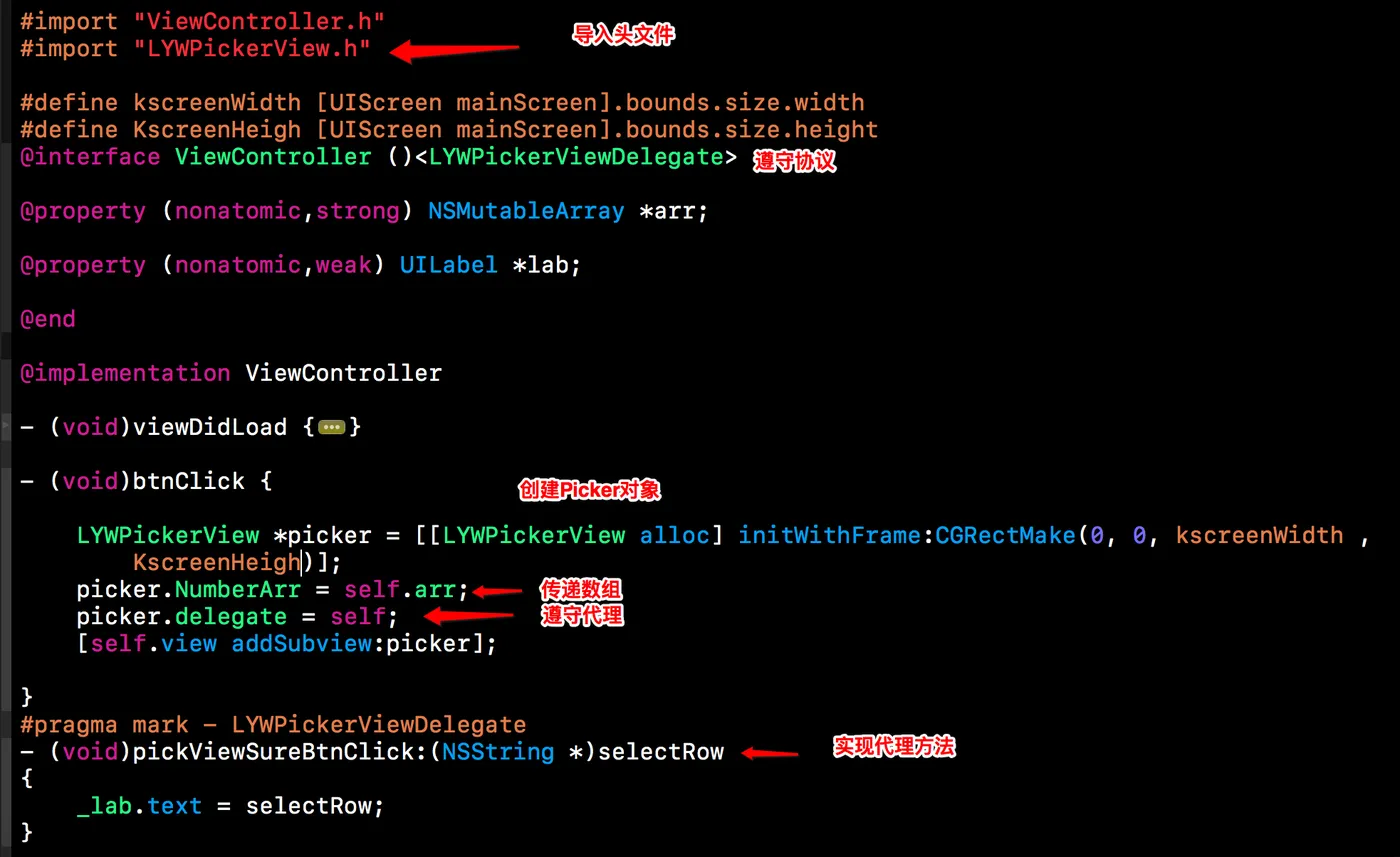
最后只需要把这个文件拖到你需要的工程就可以使用了
下面告诉大家怎么使用
Snip20170417_5.png


