
Preface
前几天听五条人的歌,女和声+乐队的组合就老让我有种既视感,想起了高三的时候天天听的歌。
决定自己写一个全平台都能听的在线播放器,也省的下载了。
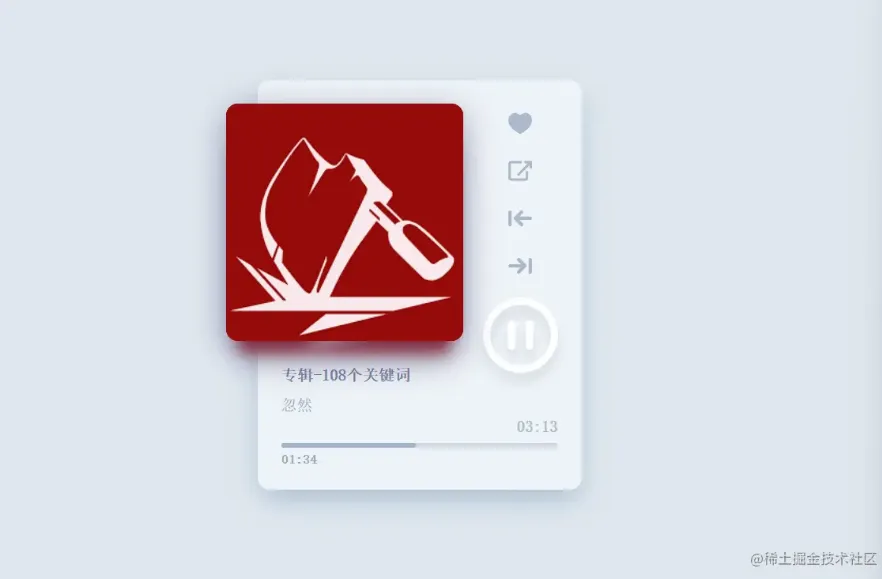
东拼西凑整了一个还算舒服的播放器,用到了Vue2.6,有二百多首歌,随机播放,就是电台的感觉,希望你们喜欢👀
源码可以看这里:Github
HTML
整体框架
🤡
<div class="wrapper" id="app">
  <div class="player">
    <div class="player__top">
      <!-- 封面,暂停/播放,上一首,下一首,❤,🔗 五个按钮-->
    </div>
    <div class="progress" ref="progress">
      <!-- 进度条,歌曲信息,当前播放时长,总时长-->
    </div>
  </div>
</div>
复制代码
按钮都是用SVG画的,这里把 path 都省略了。
网上都有,直接copy源码吧 Github
<svg xmlns="http://www.w3.org/2000/svg" hidden xmlns:xlink="http://www.w3.org/1999/xlink">
  <defs>
    <!-- 空心和实心的❤ -->
    <symbol id="icon-heart-o" viewBox="0 0 32 32">
      <title>icon-heart-o</title>
    </symbol>
    <symbol id="icon-heart" viewBox="0 0 32 32">
      <title>icon-heart</title>
    </symbol>
    <!-- 暂停和播放按钮 -->
    <symbol id="icon-pause" viewBox="0 0 32 32">
      <title>icon-pause</title>
    </symbol>
    <symbol id="icon-play" viewBox="0 0 32 32">
      <title>icon-play</title>
    </symbol>
    <!-- 链接按钮🔗 -->
    <symbol id="icon-link" viewBox="0 0 32 32">
      <title>link</title>
    </symbol>
    <!-- 上一首和下一首 -->
    <symbol id="icon-next" viewBox="0 0 32 32">
      <title>next</title>
    </symbol>
    <symbol id="icon-prev" viewBox="0 0 32 32">
      <title>prev</title>
    </symbol>
  </defs>
</svg>
复制代码
专辑封面
<div class="player-cover">
    <transition-group :name="transitionName">
        <div class="player-cover__item" v-if="$index === currentTrackIndex"
             :style="{ backgroundImage: `url(${track.cover})` }"
             v-for="(track, $index) in tracks" :key="$index">
        </div>
    </transition-group>
</div>
复制代码
播放 & 暂停
<div class="player-controls__item -xl js-play" @click="play">
    <svg class="icon">
        <use xlink:href="#icon-pause" v-if="isTimerPlaying"></use>
        <use xlink:href="#icon-play" v-else></use>
    </svg>
</div>
复制代码
上一首 & 下一首
<div class="player-controls__item" @click="prevTrack">
    <svg class="icon">
        <use xlink:href="#icon-prev"></use>
    </svg>
</div>
<div class="player-controls__item" @click="nextTrack">
    <svg class="icon">
        <use xlink:href="#icon-next"></use>
    </svg>
</div>
复制代码
❤ 🔗
<div class="player-controls__item -favorite"
     :class="{ active : currentTrack.favorited }"
     @click="favorite">
    <svg class="icon">
        <use xlink:href="#icon-heart-o"></use>
    </svg>
</div>
<a :href="currentTrack.url" target="_blank" class="player-controls__item">
    <svg class="icon">
        <use xlink:href="#icon-link"></use>
    </svg>
</a>
复制代码
歌曲信息 & 进度条
<div class="progress" ref="progress">
    <div class="progress__top">
        <div class="album-info" v-if="currentTrack">
            <div class="album-info__name">{{ currentTrack.artist }}</div>
            <div class="album-info__track">{{ currentTrack.name }}</div>
        </div>
        <div class="progress__duration">{{ duration }}</div>
    </div>
    <div class="progress__bar" @click="clickProgress">
        <div class="progress__current" :style="{ width : barWidth }"></div>
    </div>
    <div class="progress__time">{{ currentTime }}</div>
</div>
<div v-cloak></div>
复制代码
CSS
重点就是 @media 的适配,没啥好说的,代码就放一点儿吧,想看的去Github吧,图中是另一种样式。

body {
  background: #dfe7ef;
  font-family: "Bitter", serif;
}
* {
  box-sizing: border-box;
}
.icon {
  display: inline-block;
  width: 1em;
  height: 1em;
  stroke-width: 0;
  stroke: currentColor;
  fill: currentColor;
}
.wrapper {
  width: 100%;
  display: flex;
  align-items: center;
  justify-content: center;
  min-height: 100vh;
  background-size: cover;
  @media screen and (max-width: 700px), (max-height: 500px) {
    flex-wrap: wrap;
    flex-direction: column;
  }
}
复制代码
Vue
导入Github上找到的音源及Vue2.6:
<script src="https://cdn.jsdelivr.net/gh/nj-lizhi/song@master/audio/list.js"></script>
<script src="https://cdn.jsdelivr.net/npm/vue@2.6.14"></script>
复制代码
整体框架
new Vue({
  el: "#app",
  data() {
    return {
      audio: null,
      circleLeft: null,
      barWidth: null,
      duration: null,
      currentTime: null,
      isTimerPlaying: false,
      tracks: list,    // 导入的音源
      currentTrack: null,
      currentTrackIndex: 0,
      transitionName: null
    };
  },
  methods: {
    play() {
      // 播放 & 暂停
    },
    generateTime() {
      // 时长
    },
    updateBar(x) {
      // 进度条
    },
    clickProgress(e) {
      // 点击进度条调节进度
    },
    prevTrack() {
      // 上一首
    },
    nextTrack() {
      // 下一首
    },
    resetPlayer() {
      // 重置
    },
    favorite() {
      // ❤
    }
  },
  created() {
    let vm = this;
    // 第一首歌固定是“忽然”
    this.currentTrack = this.tracks[3];
    this.audio = new Audio();
    this.audio.src = this.currentTrack.url;
    this.audio.ontimeupdate = function () {
        vm.generateTime();
    };
    this.audio.onloadedmetadata = function () {
        vm.generateTime();
    };
    // 放完自动切换下一首
    this.audio.onended = function () {
        vm.nextTrack();
        this.isTimerPlaying = true;
    };
  }
});
复制代码
播放 & 暂停
play() {
    if (this.audio.paused) {
        this.audio.play();
        this.isTimerPlaying = true;
    } else {
        this.audio.pause();
        this.isTimerPlaying = false;
    }
},
复制代码
时长
generateTime() {
    let width = (100 / this.audio.duration) * this.audio.currentTime;
    this.barWidth = width + "%";
    this.circleLeft = width + "%";
    let durmin = Math.floor(this.audio.duration / 60);
    let dursec = Math.floor(this.audio.duration - durmin * 60);
    let curmin = Math.floor(this.audio.currentTime / 60);
    let cursec = Math.floor(this.audio.currentTime - curmin * 60);
    if (durmin < 10) {
        durmin = "0" + durmin;
    }
    if (dursec < 10) {
        dursec = "0" + dursec;
    }
    if (curmin < 10) {
        curmin = "0" + curmin;
    }
    if (cursec < 10) {
        cursec = "0" + cursec;
    }
    this.duration = durmin + ":" + dursec;
    this.currentTime = curmin + ":" + cursec;
},
复制代码
进度条
updateBar(x) {
    let progress = this.$refs.progress;
    let maxduration = this.audio.duration;
    let position = x - progress.offsetLeft;
    let percentage = (100 * position) / progress.offsetWidth;
    if (percentage > 100) {
        percentage = 100;
    }
    if (percentage < 0) {
        percentage = 0;
    }
    this.barWidth = percentage + "%";
    this.circleLeft = percentage + "%";
    this.audio.currentTime = (maxduration * percentage) / 100;
    this.audio.play();
},
复制代码
点击进度条调节进度
clickProgress(e) {
    this.isTimerPlaying = true;
    this.audio.pause();
    this.updateBar(e.pageX);
},
复制代码
上一首 & 下一首
我是这样设置的:下一首按随机播放来,上一首按顺序来 🏏
prevTrack() {
    this.transitionName = "scale-in";
    if (this.currentTrackIndex > 0) {
        this.currentTrackIndex--;
    } else {
        this.currentTrackIndex = this.tracks.length - 1;
    }
    this.currentTrack = this.tracks[this.currentTrackIndex];
    this.resetPlayer();
},
nextTrack() {
  this.transitionName = "scale-out";
    this.currentTrackIndex = parseInt(this.tracks.length * Math.random());
    this.currentTrack = this.tracks[this.currentTrackIndex];
    this.resetPlayer();
},
复制代码
重置
每次切歌的时候重置:
resetPlayer() {
    this.barWidth = 0;
    this.circleLeft = 0;
    this.audio.currentTime = 0;
    this.audio.src = this.currentTrack.url;
    setTimeout(() => {
        if (this.isTimerPlaying) {
            this.audio.play();
        } else {
            this.audio.pause();
        }
    }, 300);
},
复制代码
❤
点红心的功能弃置了,因为是大佬整理的音源没有相关项,而且这个功能比较鸡肋,没有记忆,❎掉就没了。
favorite() {
    this.tracks[this.currentTrackIndex].favorited = !this.tracks[
        this.currentTrackIndex
    ].favorited;
}
复制代码
Todo
还有一些有待完成的功能等我有时间再说吧😛:
- 暗黑模式
- 单曲循环,列表循环,列表顺序播放几种播放模式
- 列表显示全部歌曲
- ……
Summary
虽然我是个菜狗子,但还是被我整出来了。这就是站在前人的肩膀上吗,爱了爱了!
✔ 感谢以下大佬的开源项目:
如果对您有帮助,希望能给个👍评论收藏三连!
欢迎关注互相交流,有问题可以评论留言。
我是Mancuoj,更多有趣文章:Mancuoj 的个人主页
