1.类型选择器
通过创建一个选择器列表将同一组样式添加到许多元素上。 每个选择器都用逗号分隔
<style>
  h1,h2,p {
    text-align: center;
  }
</style>
body {
  background-color: burlywood;
}
body {
  background-image: url(https://cdn.freecodecamp.org/curriculum/css-cafe/beans.jpg);
}
2.链接 styles.css 文件
<link rel="stylesheet" href="styles.css">
为了使页面样式在移动端看起来与在桌面或笔记本电脑上相似,你需要添加一个带有特殊 content 属性的 meta 元素。
在 head 元素中添加以下内容:
<meta name="viewport" content="width=device-width, initial-scale=1.0" />
3.div 元素
主要用于设计布局
将 div 居中。 你可以通过把它的 margin-left 和 margin-right 属性设置为 auto 来做到这一点。 可以把页边距看作是元素周围不可见的空间。 使用这两个 margin 属性,将 div 元素置于 body 元素的中心。
div {
  width: 80%;
  background-color: burlywood;
  margin-left:  auto;
  margin-right: auto;
}
4.内联元素
对 p 元素应用一些样式,因此它们更像内联元素。 将值为 item 的 class 属性添加到 第一个 article 元素。
html
<article class="item">
   <p class="flavor">French Vanilla</p>
   <p class="price">3.00</p>
</article>
css
.item p {
  display: inline-block;
}
案例:
html:
<section>
          <h2>Coffee</h2>
          <article class="item">
            <p class="flavor">French Vanilla</p><p class="price">3.00</p>
          </article>
          <article class="item">
            <p class="flavor">Caramel Macchiato</p><p class="price">3.75</p>
          </article>
          <article class="item">
            <p class="flavor">Pumpkin Spice</p><p class="price">3.50</p>
          </article>
          <article class="item">
            <p class="flavor">Hazelnut</p><p class="price">4.00</p>
          </article>
          <article class="item">
            <p class="flavor">Mocha</p><p class="price">4.50</p>
          </article>
</section>
css:
.item p {
  display: inline-block;
}
.flavor {
  text-align: left;
  width: 75%;
}
.price {
  text-align: right;
  width: 25%
}
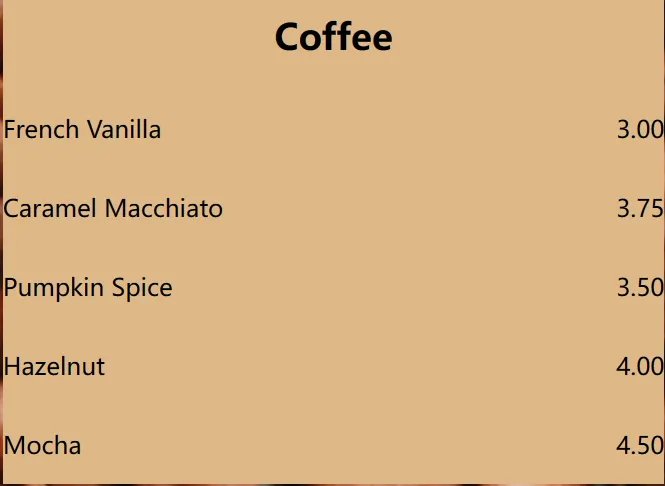
效果如图:
案例:
在菜单周围创建更多空间,请使用 padding 属性在 body 元素的内部添加 20px 空间
.menu {
  width: 80%;
  background-color: burlywood;
  margin-left: auto;
  margin-right: auto;
  padding-left: 20px;
  padding-right: 20px;
  padding-top:  20px;
  padding-bottom: 20px;
}
优化:
.menu {
  width: 80%;
  background-color: burlywood;
  margin-left: auto;
  margin-right: auto;
  padding: 20px;
5.font-family元素
字体
6. hr 元素
在不同内容的部分之间显示一个分隔符(自闭标签)
- height 属性:指定一个值来改变线条的高度
- borders属性:沿线边缘的灰色,元素的每一面都可以有不同的颜色,或者它们都可以相同
- border-width 属性:线条粗细,默认值为 1px
- height属性:线条高度
hr{
  height: 3px;
  background-color:  brown;
  border-color: brown;
  border-width: 5px;
  height: 2px; /* 总高度就变成了 4px */
}
7. footer元素
附加信息
8.margin 元素
缩小差距
.item p {
  display: inline-block;
  margin-top: 5px;
  margin-bottom: 5px;
  font-size: 18px;
}
9.链接颜色
链接在未点击状态下的默认颜色通常为蓝色。 已经在页面上被访问过的链接的默认颜色通常是紫色。
a  {
  color:  black;
}
10.伪选择器
- 当用户访问链接时,将页脚 文本 链接的颜色更改为 grey
a:visited {
  color:  grey;
}
- 当链接被实际点击时,将页脚 文本 链接的颜色更改为 white
a:active  {
  color:  white;
}
- 当用户将鼠标悬停在页脚 文本 链接上时,将其颜色更改为 brown
a:hover {
  color:  brown;
}
11.margin元素
- 顶部空间与菜单底部的地址空间不同, 这是由于浏览器对 h1 元素有一些默认顶部 margin,将 h1 元素的顶部 margin 更改为 0 以删除所有顶部 margin
h1 {
  font-size: 40px;
  margin-top: 0;
}
减少地址 p 元素下方的默认 margin 空间
.address {
  margin-bottom:  5px;
}
12.代码
- html
```handlebars
<!DOCTYPE html>
<html lang="en">
  <head>
    <meta charset="utf-8" />
    <meta name="viewport" content="width=device-width, initial-scale=1.0" />
    <title>Cafe Menu</title>
    <link href="styles.css" rel="stylesheet"/>
  </head>
  <body>
    <div class="menu">
      <main>
        <h1>CAMPER CAFE</h1>
        <p class="established">Est. 2020</p>
        <hr>
        <section>
          <h2>Coffee</h2>
          <img src="https://cdn.freecodecamp.org/curriculum/css-cafe/coffee.jpg" alt="coffee icon"/>
          <article class="item">
            <p class="flavor">French Vanilla</p><p class="price">3.00</p>
          </article>
          <article class="item">
            <p class="flavor">Caramel Macchiato</p><p class="price">3.75</p>
          </article>
          <article class="item">
            <p class="flavor">Pumpkin Spice</p><p class="price">3.50</p>
          </article>
          <article class="item">
            <p class="flavor">Hazelnut</p><p class="price">4.00</p>
          </article>
          <article class="item">
            <p class="flavor">Mocha</p><p class="price">4.50</p>
          </article>
        </section>
        <section>
          <h2>Desserts</h2>
          <img src="https://cdn.freecodecamp.org/curriculum/css-cafe/pie.jpg" alt="pie icon"/>
          <article class="item">
            <p class="dessert">Donut</p><p class="price">1.50</p>
          </article>
          <article class="item">
            <p class="dessert">Cherry Pie</p><p class="price">2.75</p>
          </article>
          <article class="item">
            <p class="dessert">Cheesecake</p><p class="price">3.00</p>
          </article>
          <article class="item">
            <p class="dessert">Cinnamon Roll</p><p class="price">2.50</p>
          </article>
        </section>
      </main>
      <hr class="bottom-line">
      <footer>
        <p>
          <a href="https://www.freecodecamp.org" target="_blank">Visit our website</a>
        </p>
        <p class="address">123 Free Code Camp Drive</p>
      </footer>
    </div>
  </body>
</html>
- css
body {
  background-image: url(https://cdn.freecodecamp.org/curriculum/css-cafe/beans.jpg);
  font-family: sans-serif;
  padding: 20px;
}
h1 {
  font-size: 40px;
  margin-top: 0;
  margin-bottom: 15px;
}
h2 {
  font-size: 30px;
}
.established {
  font-style: italic;
}
h1, h2, p {
  text-align: center;
}
.menu {
  width: 80%;
  background-color: burlywood;
  margin-left: auto;
  margin-right: auto;
  padding: 20px;
  max-width: 500px;
}
img {
  display: block;
  margin-left: auto;
  margin-right: auto;
  margin-top: -25px;
}
hr {
  height: 2px;
  background-color: brown;
  border-color: brown;
}
.bottom-line {
  margin-top: 25px;
}
h1, h2 {
  font-family: Impact, serif;
}
.item p {
  display: inline-block;
  margin-top: 5px;
  margin-bottom: 5px;
  font-size: 18px;
}
.flavor, .dessert {
  text-align: left;
  width: 75%;
}
.price {
  text-align: right;
  width: 25%;
}
/* FOOTER */
footer {
  font-size: 14px;
}
.address {
  margin-bottom: 5px;
}
a {
  color: black;
}
a:visited {
  color: black;
}
a:hover {
  color: brown;
}
a:active {
  color: brown;
}
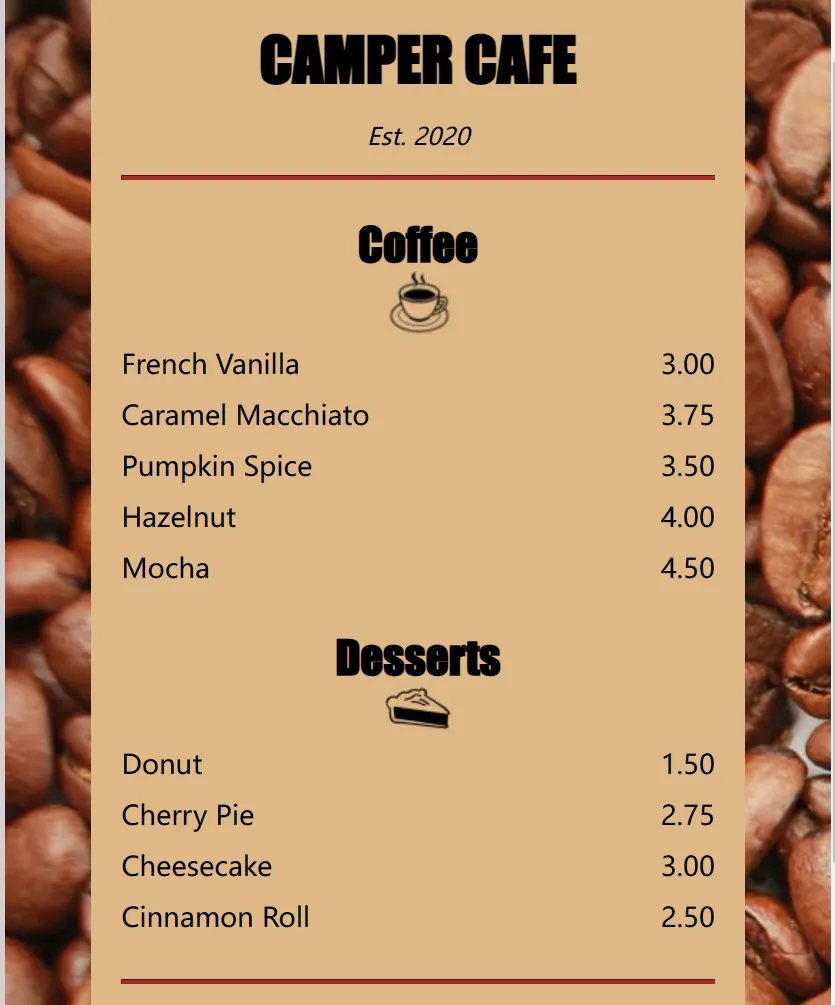
- 效果图
var code = “902bab2b-721b-4a69-90c2-1960ade27c41”
80