目录

前言
大家好,我是喵喵侠。Echarts是百度官方推出的一种常见的图表开发库,可以让前端开发快速的构建各式各样的图表。而Vue-Echarts是官方推出的Vue版本的Echarts,你可以直接在Vue项目中更好的创建图表。最近我经常接到图表开发相关的需求,在开发的过程中,发现很多配置都是公用的,个别地方稍微改下就好了,因此我用Vue-Echarts封装了组件,可以让其他页面模块,更快速的开发相应的图表。今天给大家带来的是面积图的开发,我会贴上完整可运行的代码,以及一些需要注意的点。
面积图实现
实现效果
实现思路
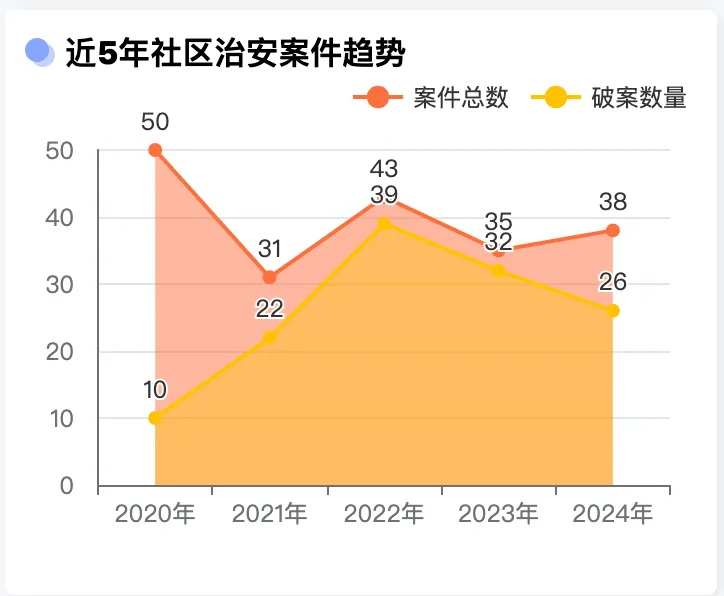
其实vue-echart的配置写法,跟普通的echarts大同小异。从上图可以看出,面积图的基本组成部分,包括轴线、网格线、刻度、折线图、面积区域等。简单说,只要你会写折线图,面积图自然也不在话下。
面积图需要额外写一个配置,那就是areaStyle。比方说我要设置面积区域是一个红色半透明,那么可以这样写:
areaStyle: {
  color: 'red', //颜色
  opacity: 0.5  //透明度
}
透明度也可以根据自身需要,设置更深或者更浅。
这里官方提供了一个demo,可以很快的对比出跟折线图的区别。
区域面积图 - 折线图 - 常用图表类型 - 应用篇 - 使用手册 - Apache ECharts
如果你想要面积从上至下渐变色的效果,比方说绿变红,可以这样写:
areaStyle: {
    color: new ets.graphic.LinearGradient(0, 0, 0, 1, [{
        offset: 0,
        color: 'green'
    }, {
        offset: 1,
        color: 'red'
    }])
}
完整代码
<!-- 折线图(支持一条或多条) -->
<template>
  <div class="vChartMultipleArea">
    <v-chart :auto-resize="true" autoresize :data="data" :option="defaultOption" />
  </div>
</template>
<script>
import { use } from "echarts/core";
import { CanvasRenderer } from "echarts/renderers";
import { BarChart } from "echarts/charts";
import { TitleComponent, TooltipComponent, LegendComponent } from "echarts/components";
import VChart from "vue-echarts";
use([CanvasRenderer, BarChart, TitleComponent, TooltipComponent, LegendComponent]);
export default {
  name: "vChartMultipleArea",
  components: { VChart },
  props: {
    option: {
      type: Object,
      default: function () {
        return {};
      }
    },
    data: {
      type: Object,
      default: function () {
        return {
          categories: ["4时", "8时", "12时", "16时", "20时", "24时"],
          series: [
            {
              name: "工单量1",
              data: [820, 932, 901, 934, 1290, 1330, 1320]
            },
            {
              name: "工单量2",
              data: [420, 632, 401, 434, 190, 530, 420]
            }
          ]
        };
      }
    }
  },
  data() {
    return {};
  },
  created() {},
  mounted() {},
  computed: {
    defaultOption() {
      let that = this;
      const colors = ["#FD6F3B", "#FFC300", "#8BC24A", "#4CAF50", "#00BCD4", "#039BE5", "#8E24AA", "#115488", "#F06292", "#E91E63"];
      const series = this.data.series.map((v, i) => ({
        name: that.data.series[i].name,
        data: that.data.series[i].data,
        type: "line",
        itemStyle: {
          borderWidth: 10,
          color: that.option.lineStyleColor ?? colors[i % 10]
        },
        symbol: "circle", //拐点样式
        symbolSize: 7, //拐点大小
        lineStyle: {
          color: that.option.lineStyleColor ?? colors[i % 10],
          width: 2,
          type: "solid"
        },
        areaStyle: {
          color: that.option.lineStyleColor ?? colors[i % 10],
          opacity: 0.5
        }
      }));
      var axisLabel = {};
      var xAxis = {
        type: "category",
        // boundaryGap: false,
        data: this.data.categories
      };
      // 展示全部x轴数据 并倾斜
      if (that.option.interval != undefined) {
        axisLabel = {
          interval: that.option.interval,
          rotate: that.option.rotate
        };
        xAxis.axisLabel = axisLabel;
      }
      return {
        grid: {
          left: "3%",
          right: "4%",
          top: that.option.top ? that.option.top : "15%",
          bottom: that.option.bottom ? that.option.bottom : "10%",
          containLabel: true
        },
        tooltip: {
          trigger: "axis",
          axisPointer: {
            type: "cross",
            label: {
              backgroundColor: "#6a7985"
            }
          }
        },
        legend: {
          data: series.map(v => v.name),
          right: "0"
        },
        xAxis: xAxis,
        yAxis: [
          {
            type: "value",
            name: that.option.yAxisName ?? "",
            position: "left",
            alignTicks: true,
            axisLine: {
              show: true
            },
            axisLabel: {
              formatter: "{value} "
            }
          }
        ],
        series: series.map(v => {
          return {
            ...v,
            label: { show: true } //顶部数字显示
          };
        })
      };
    }
  },
  watch: {},
  methods: {}
};
</script>
<style lang="less" scoped>
.vChartMultipleArea {
  width: 100%;
  height: 100%;
}
</style>
我的这个图表组件,支持多个面积图,会根据series来遍历出相应的配置。
代码中有个小技巧,我在上面52行,定义了一个colors数组,预制了10种颜色,接着在areaStyle.color里面,对数组索引进行了取余操作。这样保证了每一个折线和面积区域都有对应的颜色,而且尽可能不重复。
其他的配置,你可以在我的基础上进行修改,也可以参阅官方配置项文档,获取更详细的配置。
Documentation - Apache ECharts
总结
其实Echarts的使用并不难,主要是有很多配置需要查阅相关手册,如果不知道具体的名词和术语,三言两语很难知道功能具体怎么实现。所以需要多看文档和案例,看看其他人是怎么写的。写多了之后,可以封装成自己的Echarts组件,整理成自己的文章,方便下次开发。