引言
上一篇《在Cline上调用MCP服务之MCP实践篇》我们讲到如何调用MCP服务,这次我们就来自己写一个MCP服务。
在动手自己编写MCP Server之前建议还是先认真看一遍MCP官网的介绍。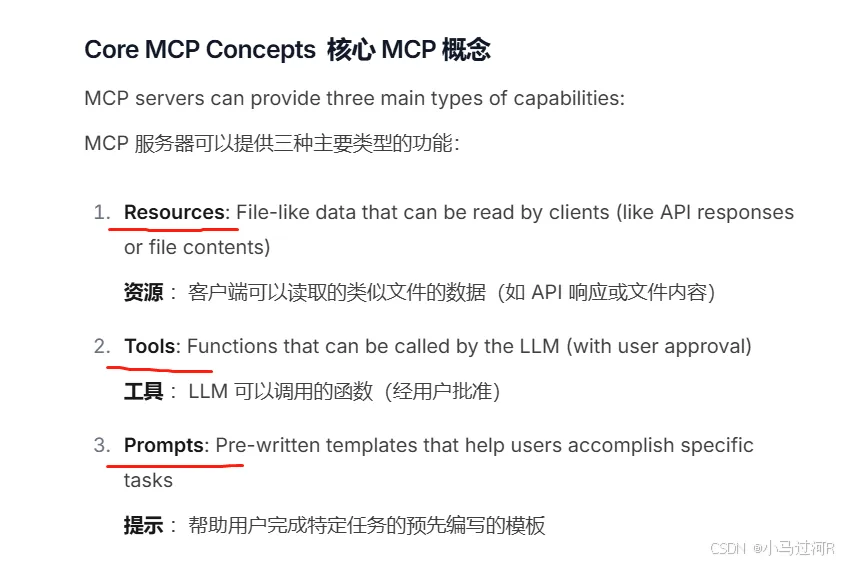
参考官方教程,我们计划编写一个名为“Echo”的MCP Server作为我们的MCP Server Hello world。
一、检查环境并初始化项目
首先我们要检查环境。对于本教程,您需要 Node.js 版本 16 或更高版本。
node --version
npm --version
现在,让我们创建并设置我们的项目:
# Window 的命令如下
# Create a new directory for our project
md echo
cd echo

# Initialize a new npm project
npm init -y

# Install dependencies
npm install @modelcontextprotocol/sdk zod
npm install -D @types/node typescript

# Create our files
md src
new-item src\index.ts
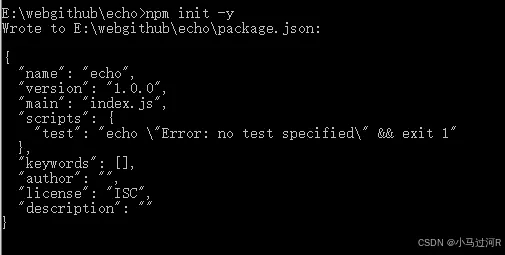
继续敲命令。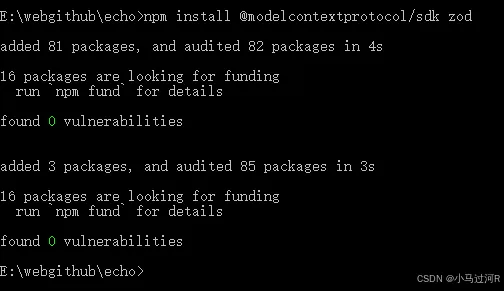
此时看一眼文件目录。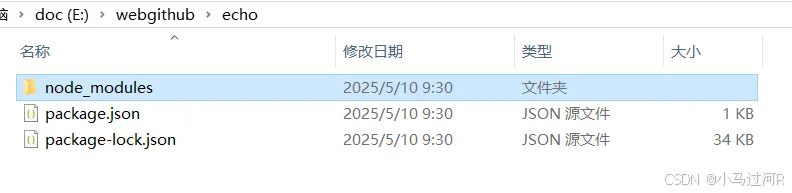
看看接下来我都遇到了什么。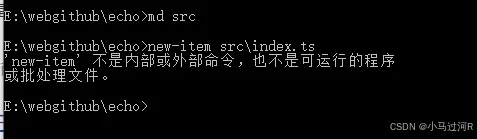
换到powershell执行,OK了。此时index.ts文件为空。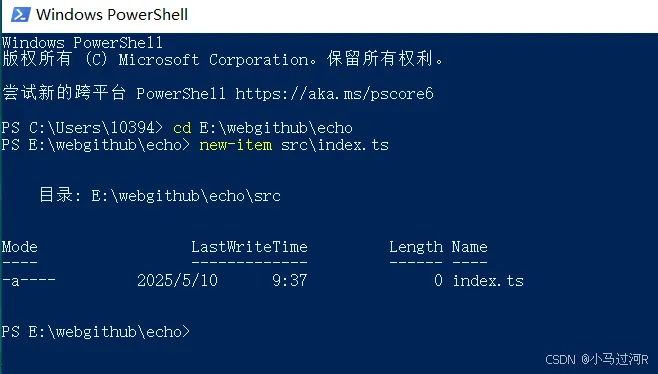
更新您的 package.json 以添加 type: “module” 和构建脚本:
{

  "name": "echo",
  "version": "1.0.0",
  "main": "index.js",
  "scripts": {

    "build": "tsc && chmod 755 build/index.js",
    "prepare": "npm run build",
    "dev": "tsc --watch",
    "start": "node build/index.js",
    "test": "echo \"Error: no test specified\" && exit 1"
  },
  "keywords": [],
  "author": "",
  "license": "ISC",
  "description": "",
  "dependencies": {

    "@modelcontextprotocol/sdk": "^1.11.1",
    "zod": "^3.24.4"
  },
  "devDependencies": {

    "@types/node": "^22.15.17",
    "typescript": "^5.8.3"
  },

  "type": "module",
  "bin": {

    "echo": "./build/index.js"
  },
  "files": [
    "build"
  ]
}
在项目的根目录中创建一个 tsconfig.json:
{

  "compilerOptions": {

    "target": "ES2022",
    "module": "Node16",
    "moduleResolution": "Node16",
    "outDir": "./build",
    "rootDir": "./src",
    "strict": true,
    "esModuleInterop": true,
    "skipLibCheck": true,
    "forceConsistentCasingInFileNames": true
  },
  "include": ["src/**/*"],
  "exclude": ["node_modules"]
}
二、构建MCP服务器
现在让我们开始构建您的服务器。
在src/index.ts文件导入包并设置server实例。
import {
    McpServer } from "@modelcontextprotocol/sdk/server/mcp.js";
import {
    StdioServerTransport } from "@modelcontextprotocol/sdk/server/stdio.js";
import {
    z } from "zod";

const server = new McpServer({

  name: "Echo",
  version: "1.0.0"
});

server.tool(
  "echo",
  {
    message: z.string() },
  async ({
    message }) => ({

    content: [{
    type: "text", text: `Tool echo: ${
    message}` }]
  })
);

server.prompt(
  "echo",
  {
    message: z.string() },
  ({
    message }) => ({

    messages: [{

      role: "user",
      content: {

        type: "text",
        text: `Please process this message: ${
    message}`
      }
    }]
  })
);
最后,实现 main 函数来运行服务器:
async function main() {

  const transport = new StdioServerTransport();
  await server.connect(transport);
  console.error("echo MCP Server running on stdio");
}

main().catch((error) => {

  console.error("Fatal error in main():", error);
  process.exit(1);
});
确保运行 npm run build 来构建您的服务器!这是让您的服务器连接非常重要的步骤。
但是提示这个玩意。也是,chomd 是属于Linux下的命令。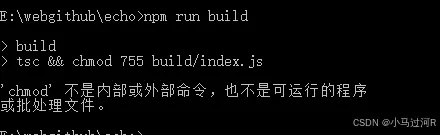
尝试换一下命令,并可以手动赋予编译文件权限(其实不操作问题也不大)。
{

  "name": "echo",
  "version": "1.0.0",
  "main": "index.js",
  "scripts": {

    "build": "tsc",
    "prepare": "npm run build",
    "dev": "tsc --watch",
    "start": "node build/index.js",
    "test": "echo \"Error: no test specified\" && exit 1"
  },
  "keywords": [],
  "author": "",
  "license": "ISC",
  "description": "",
  "dependencies": {

    "@modelcontextprotocol/sdk": "^1.11.1",
    "zod": "^3.24.4"
  },
  "devDependencies": {

    "@types/node": "^22.15.17",
    "typescript": "^5.8.3"
  },

  "type": "module",
  "bin": {

    "echo": "./build/index.js"
  },
  "files": [
    "build"
  ]
}
于是build成功啦。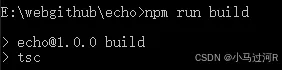
三、验证效果
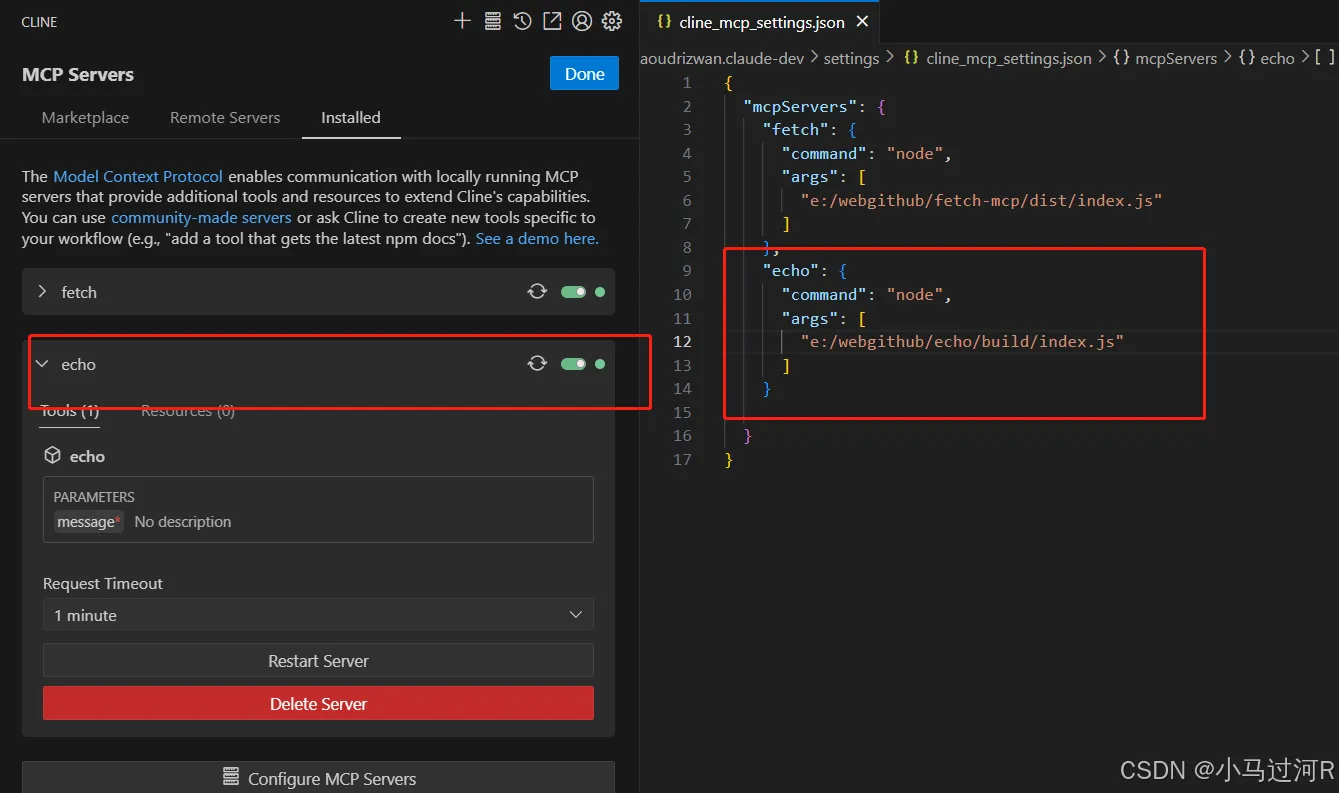
我们编写了MCP server此时需要一个MCP client 来支持调用和验证。于是我们刚好使用上一篇提的Cline插件来验证,我们发现绿灯亮起来了。
趁热打铁,我们问个问题试一下: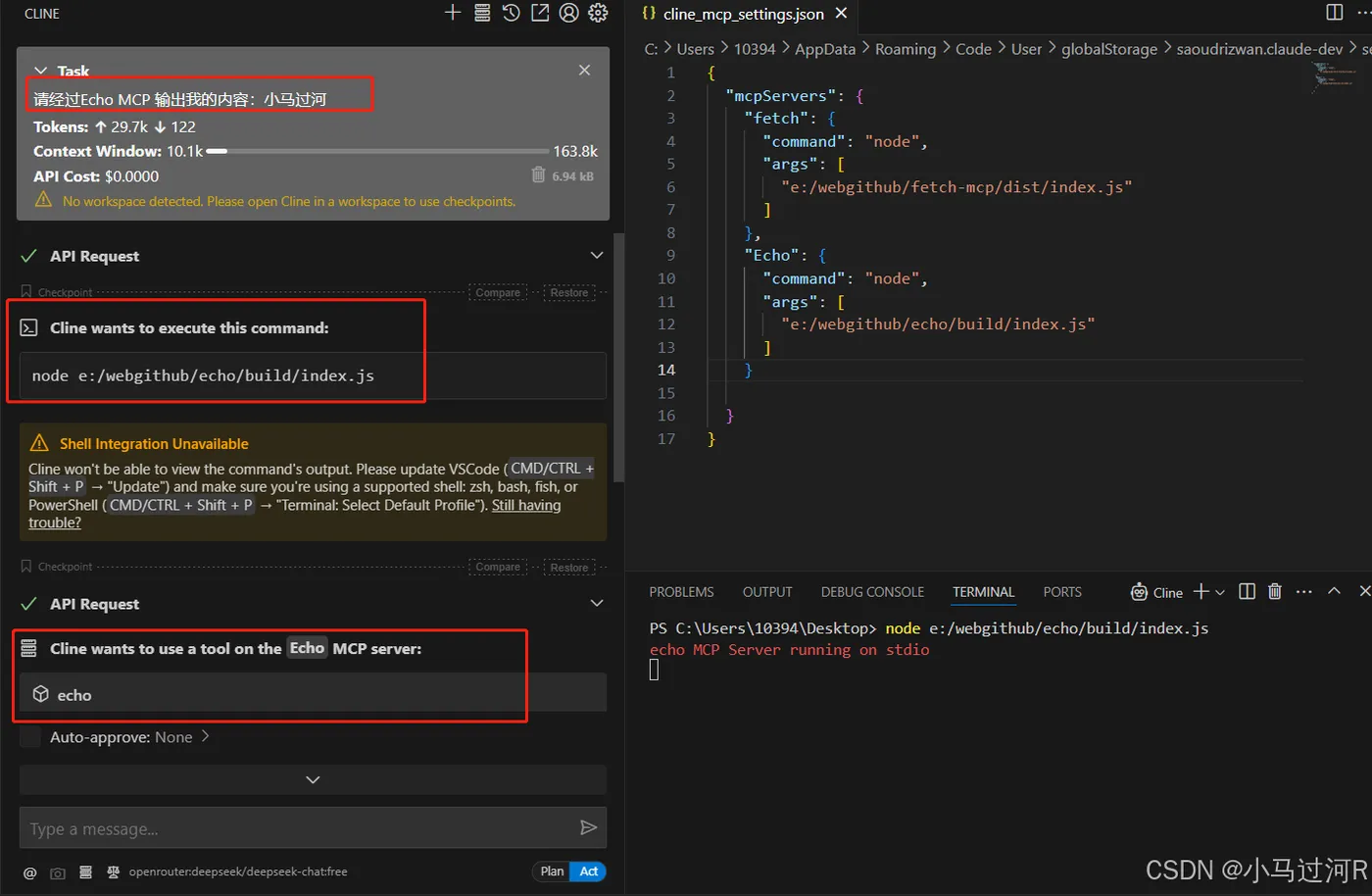
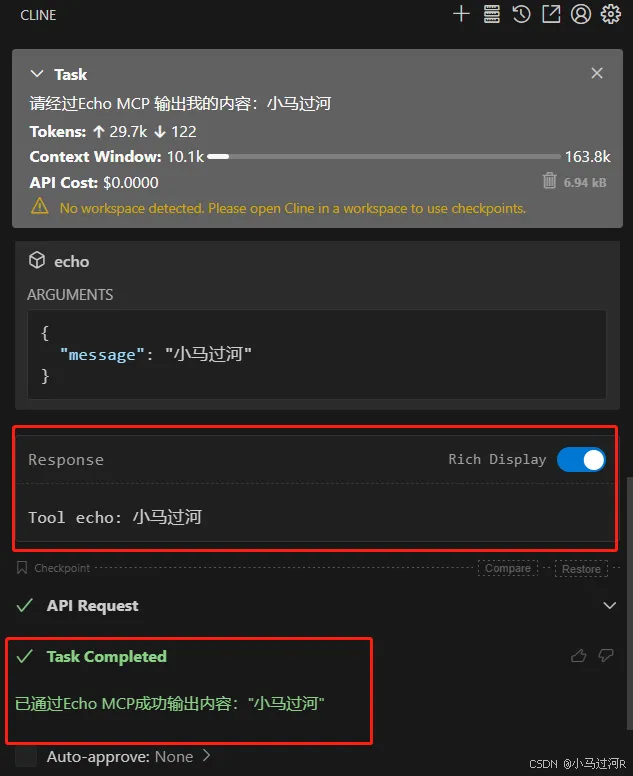
至此,第一个MCP Server之Hello world的简易demo结束了。
最后,关注一下官方目前提供的SDK语言支持哈。下一篇我们计划尝试来搞一个MCP Clients哈,拜了个拜,感谢品阅。