前言
代码案例基于Api13。
在之前的文章中,我们简单分析了弹性布局Flex,并使用Flex实现了一个简单的流式布局,今天这篇文章,我们就结合搜索框,完成一个常见的搜索页面,具体的效果如下图所示:
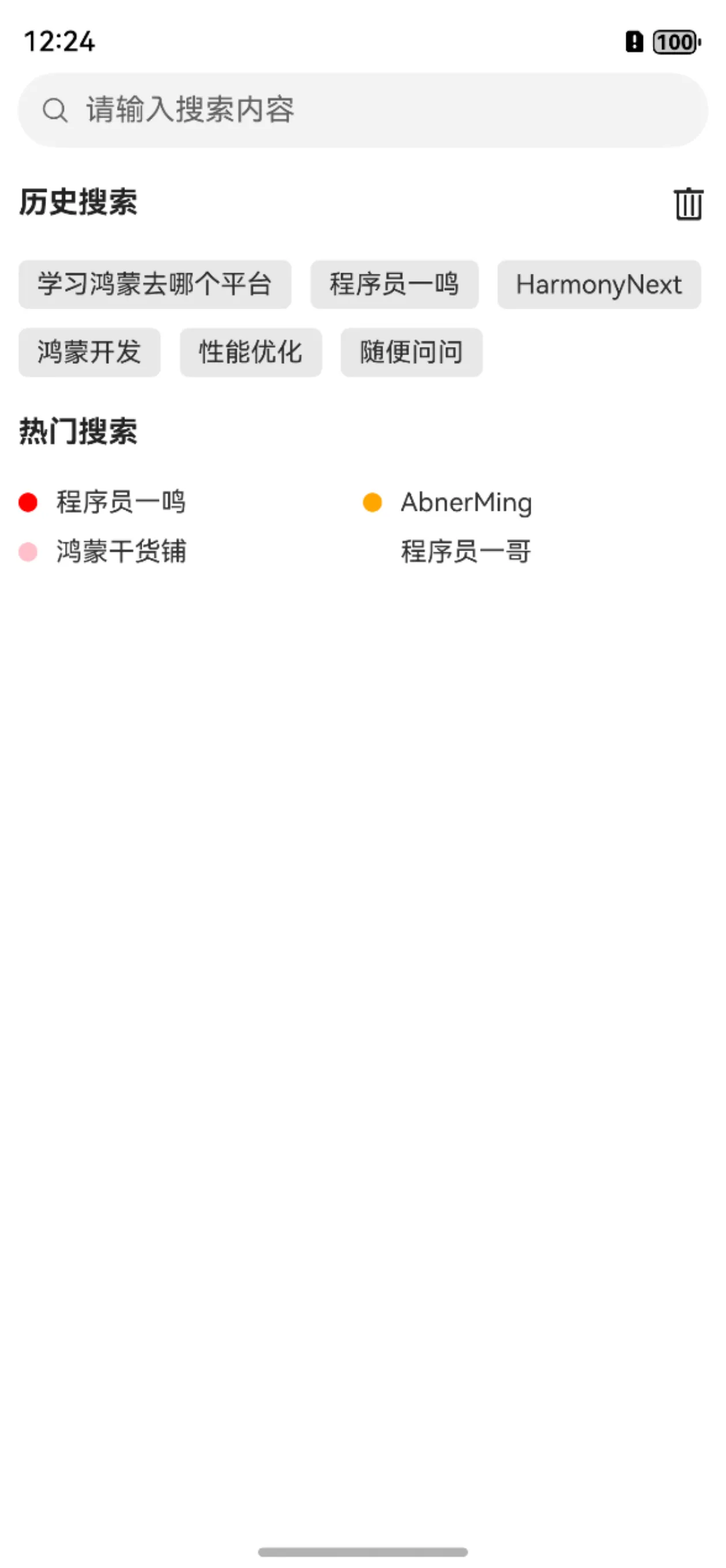
这样的一个模版,可以简单的分为,三个部分,分别是上边的搜索框,中间的历史搜索和下边的热门搜索,搜索框,我们直接可以使用系统的组件Search,历史搜索,由于是内容不一的搜索的内容,这里使用弹性布局Flex,下边的热门搜索,条目规格一致,这里我们直接使用Grid网格组件。
快速使用
目前已经上传到了中心仓库,大家可以直接远程依赖使用,当然,你也可以下载源码进行使用。
远程依赖方式,有两种方式可供选择,分别如下:
方式一:在Terminal窗口中,执行如下命令安装三方包,DevEco Studio会自动在工程的oh-package.json5中自动添加三方包依赖。
建议:在使用的模块路径下进行执行命令。
ohpm install @abner/search
方式二:在工程的oh-package.json5中设置三方包依赖,配置示例如下:
"dependencies": { "@abner/search": "^1.0.0"}
代码使用
总体来说就是一个UI组件,在需要的页面直接调用SearchLayout组件即可,相关代码如下:
import { HotBean, SearchLayout } from '@abner/search';
@Entry
  @Component
  struct Index {
    @State hotList: HotBean[] = []
    aboutToAppear(): void {
      this.hotList.push(new HotBean("程序员一鸣", { bgColor: Color.Red }))
      this.hotList.push(new HotBean("AbnerMing", { bgColor: Color.Orange }))
      this.hotList.push(new HotBean("鸿蒙干货铺", { bgColor: Color.Pink }))
      this.hotList.push(new HotBean("程序员一哥", { bgColor: Color.Gray }))
    }
    build() {
      RelativeContainer() {
        SearchLayout({
          hotList: this.hotList,
          onItemClick: (text: string) => {
            console.log("===条目点击:" + text)
          },
          onSearchAttribute: (attr) => {
            attr.onSubmit = (text) => {
              console.log("===点击搜索:" + text)
            }
          }
        })
          .alignRules({
            center: { anchor: '__container__', align: VerticalAlign.Center },
            middle: { anchor: '__container__', align: HorizontalAlign.Center }
          })
      }
      .height('100%')
        .width('100%')
    }
  }
源码分析
搜索组件
顶部的搜索组件直接使用系统的Search组件,虽然系统的已经满足了大部分的场景,但是考虑到其它的一些特殊场景,这里也暴露了左右两个自定义视图,可以在搜索组件的左右设置自己需要的组件,这里需要注意,关于Search组件的一些属性,我们该暴露的暴露,方便调用者进行使用。
RelativeContainer() {
        Column() {
          if (this.searchLeftView != undefined) {
            this.searchLeftView()
          }
        }.id("search_left")
        .height("100%")
        .justifyContent(FlexAlign.Center)
        Search({
          placeholder: this.searchAttribute.placeholder,
          value: this.searchText,
          icon: this.searchAttribute.icon,
          controller: this.controller
        })
          .placeholderFont(this.searchAttribute.placeholderFont)
          .placeholderColor(this.searchAttribute.placeholderColor)
          .textFont(this.searchAttribute.textFont)
          .textAlign(this.searchAttribute.textAlign)
          .copyOption(this.searchAttribute.copyOption)
          .searchIcon(this.searchAttribute.searchIcon)
          .cancelButton(this.searchAttribute.cancelButton)
          .fontColor(this.searchAttribute.fontColor)
          .caretStyle(this.searchAttribute.caretStyle)
          .enableKeyboardOnFocus(this.searchAttribute.enableKeyboardOnFocus)
          .selectionMenuHidden(this.searchAttribute.selectionMenuHidden)
          .maxLength(this.searchAttribute.maxLength)
          .enterKeyType(this.searchAttribute.enterKeyType)
          .type(this.searchAttribute.type)
          .alignRules({
            left: { anchor: "search_left", align: HorizontalAlign.End },
            right: { anchor: "search_right", align: HorizontalAlign.Start },
            center: { anchor: "__container__", align: VerticalAlign.Center }
          })
          .onSubmit((text: string) => {
            this.submit(text)
          })
          .onChange((value) => {
            this.searchResult = value
          })
        Column() {
          if (this.searchRightView != undefined) {
            this.searchRightView()
          }
        }.id("search_right")
        .height("100%")
        .alignRules({
          center: { anchor: "__container__", align: VerticalAlign.Center },
          right: { anchor: "__container__", align: HorizontalAlign.End }
        }).justifyContent(FlexAlign.Center)
      }.width("100%")
      .height(this.searchAttribute.height)
      .margin(this.searchAttribute.margin)
历史搜索
由于历史搜索的内容,每次的长度是不一样的,这里,我们使用弹性布局Flex来实现,设置wrap属性为FlexWrap.Wrap,支持多行展示。
需要注意的是,历史搜索需要把搜索的记录进行持久化存储,也就是用户退出应用再次进来,还是能够看到之前的搜索记录的,这里使用的用户首选项preferences.Preferences,在用户执行搜索的时候,先用临时变量用于存储,待页面退出的时候,进行存储,页面初始化的时候再进行取出展示。
在实际的开发中,每个历史搜索的条目,需要支持点击,方便调用者执行逻辑,这里需要把条目的点击事件进行暴露。
为了更好的展示UI视图,可以根据当前是否有历史记录进行动态的展示历史搜索组件。
RelativeContainer() {
        Text(this.historyTagAttribute.title)
          .fontColor(this.historyTagAttribute.fontColor)
          .fontSize(this.historyTagAttribute.fontSize)
          .fontWeight(this.historyTagAttribute.fontWeight)
        Image(this.historyTagAttribute.deleteSrc)
          .width(this.historyTagAttribute.imageWidth)
          .width(this.historyTagAttribute.imageHeight)
          .alignRules({
            center: { anchor: "__container__", align: VerticalAlign.Center },
            right: { anchor: "__container__", align: HorizontalAlign.End }
          }).onClick(() => {
          //删除
          this.historyList = []
          PreferencesUtil.getPreferencesUtil().delete("searchList")
        })
      }.margin(this.historyTagAttribute.margin)
      .height(this.historyTagAttribute.height)
      .visibility(this.historyList.length == 0 ? Visibility.None : Visibility.Visible)
      Flex({
        direction: FlexDirection.Row, wrap: FlexWrap.Wrap,
        space: { main: LengthMetrics.vp(10), cross: LengthMetrics.vp(10) }
      }) {
        ForEach(this.historyList, (item: string) => {
          Text(item)
            .padding(this.historyItemAttribute.padding)
            .borderRadius(this.historyItemAttribute.borderRadius)
            .fontColor(this.historyItemAttribute.fontColor)
            .fontSize(this.historyItemAttribute.fontSize)
            .fontWeight(this.historyItemAttribute.fontWeight)
            .backgroundColor(this.historyItemAttribute.backgroundColor)
            .onClick(() => {
              //历史搜索点击
              if (this.onItemClick != undefined) {
                this.onItemClick(item)
              }
            })
        })
      }
      .margin({ top: this.historyViewMarginTop, bottom: this.historyViewMarginBottom })
      .visibility(this.historyList.length == 0 ? Visibility.None : Visibility.Visible)
热门搜索
热门搜索就比较的简单的,就是一个Grid网格列表,需要注意的就是,条目的UI样式,这里使用的对象数据传递,方便前缀的label设置,当然,在实际的开发中,大家可以把子条目的UI暴露出去,由调用者传递,这样针对UI的展示则更加的灵活。
Text(this.hotTagAttribute.title)
        .fontColor(this.hotTagAttribute.fontColor)
        .fontSize(this.hotTagAttribute.fontSize)
        .fontWeight(this.hotTagAttribute.fontWeight)
        .margin(this.hotTagAttribute.margin)
      Grid() {
        ForEach(this.hotList, (item: HotBean) => {
          GridItem() {
            Row() {
              Text(item.label)
                .backgroundColor(item.labelBgColor)
                .width(this.hotItemAttribute.labelSize)
                .height(this.hotItemAttribute.labelSize)
                .textAlign(TextAlign.Center)
                .borderRadius(this.hotItemAttribute.labelSize)
                .margin({ right: this.hotItemAttribute.labelMarginRight })
              Text(item.name)
                .fontSize(this.hotItemAttribute.fontSize)
                .fontColor(this.hotItemAttribute.fontColor)
                .fontWeight(this.hotItemAttribute.fontWeight)
            }
            .width("100%")
            .backgroundColor(this.hotItemAttribute.backgroundColor)
            .justifyContent(FlexAlign.Start)
            .onClick(() => {
              //历史搜索点击
              if (this.onItemClick != undefined) {
                this.onItemClick(item.name!)
              }
            })
          }
        })
      }.columnsTemplate(this.hotItemAttribute.columnsTemplate)
      .margin({ top: this.hotViewMarginTop })
      .rowsGap(this.hotItemAttribute.rowsGap)
相关总结
在日常的组件封装中,如果把所有的属性,都统一暴露至自定义组件一级的属性中,我们会发现,属性设置的是非常之多,再有小组件独立的情况下,也显得杂乱不堪,针对这种情况,其实我们可以把单独的小组件属性,独立的封装出来,使用回调函数的形式进行逐一设置即可。就比如我们这个自定义搜索模版,里面就分了很多个小组件属性。
onSearchAttribute?: (attribute: SearchViewAttribute) => void //搜索属性
private searchAttribute: SearchViewAttribute = new SearchViewAttribute()
在需要设置搜索小组件属性的时候,直接调用onSearchAttribute即可:
SearchLayout({
        hotList: this.hotList,
        onItemClick: (text: string) => {
          console.log("===条目点击:" + text)
        },
        onSearchAttribute: (attr) => {
          //搜索属性
          attr.placeholder = "搜索"
          attr.onSubmit = (text) => {
            console.log("===点击搜索:" + text)
          }
        }
      })
有一点需要注意,在使用回调函数设置属性的时候,一定要记得初始化设置,也就是把我们初始化的属性回调出去,接收调用者的设置。
aboutToAppear(): void {

    if (this.onSearchAttribute != undefined) {
      this.onSearchAttribute(this.searchAttribute)
    }
  }