一、基本介绍
该软件里推流和视频保存使用FFMPEG库完成,界面框架采用QT,视频和音频可以同步推流和录制,FFMPEG本身支持跨平台编译开发,QT也支持跨平台,在Android、Linux、windows都运行良好,只需要在不同平台编译对应的ffmpeg库即可,逻辑代码部分通用。
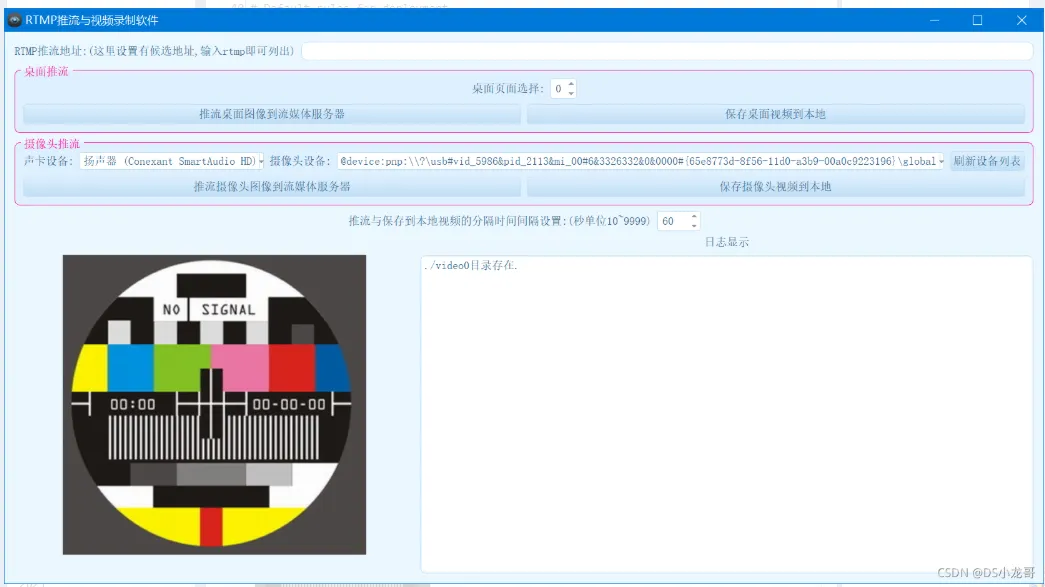
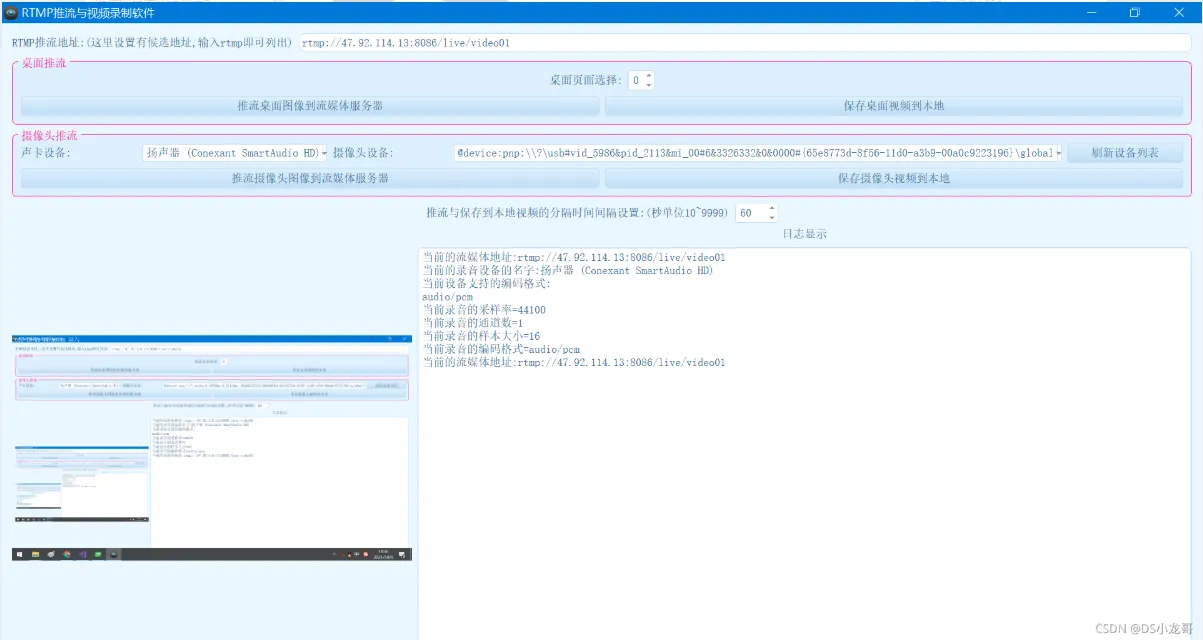
该源码在2021年完成了新版本的更新,支持桌面推流和视频录制,效果图在文章的第四章可以查看。
二、windows下软件运行效果
(1)主界面效果
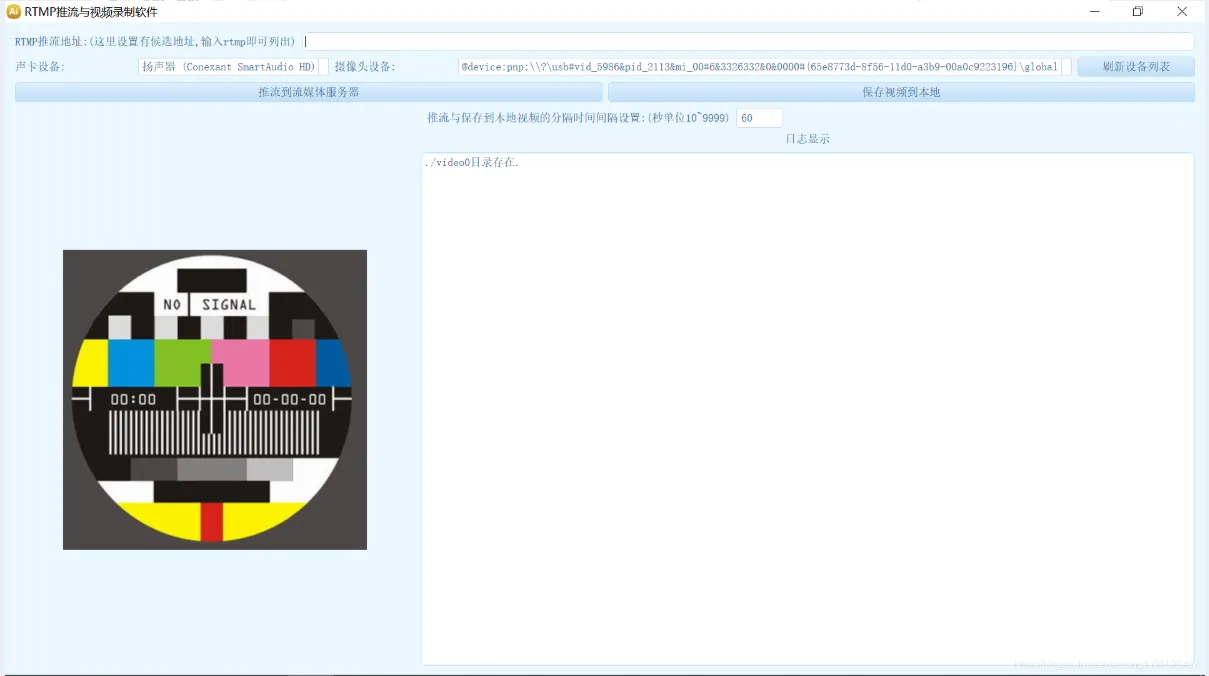
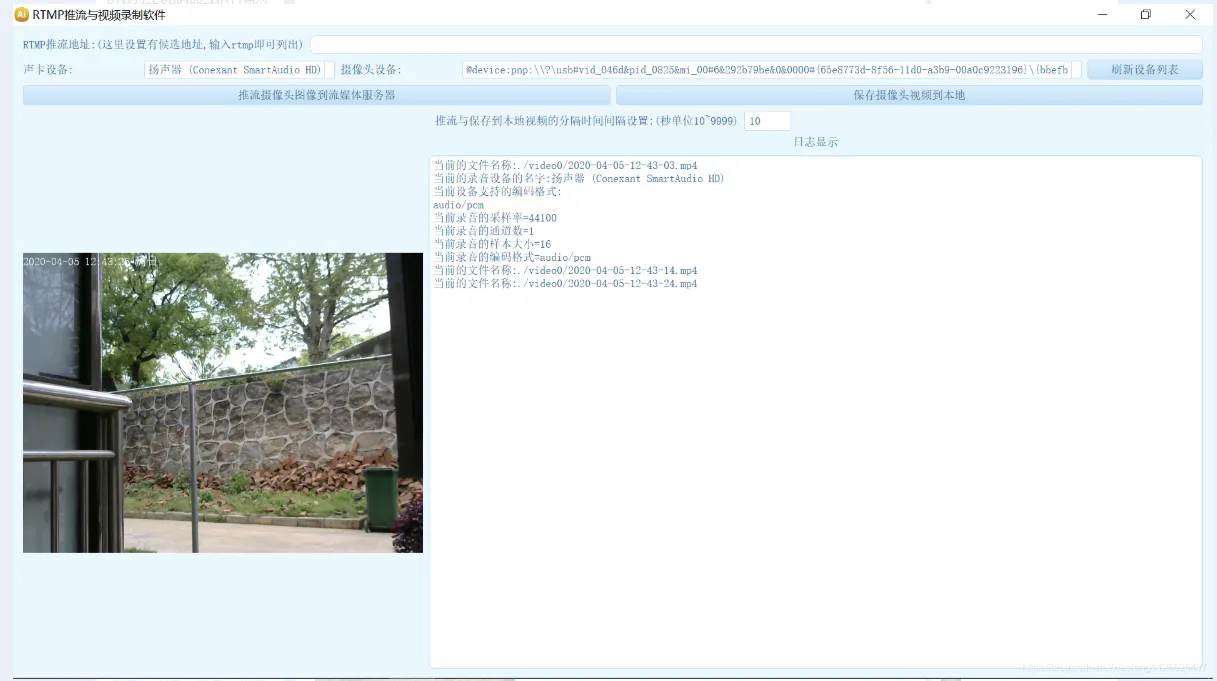
(2)保存视频到本地,设置录制间隔为10秒一个视频
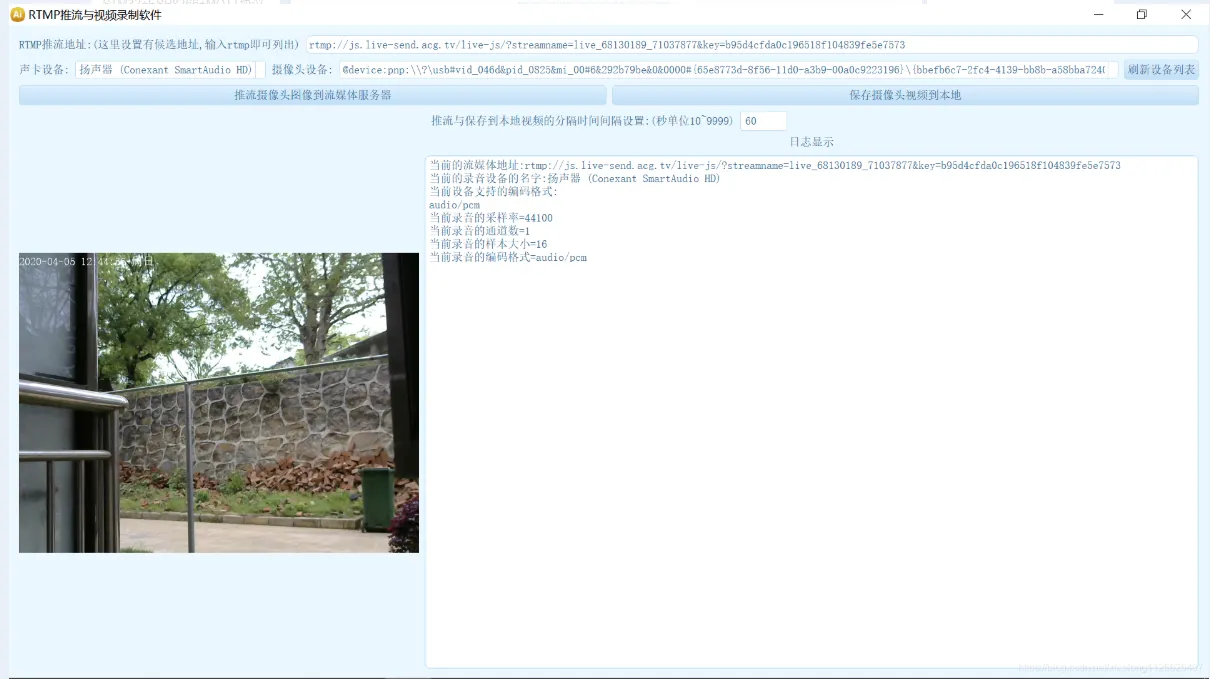
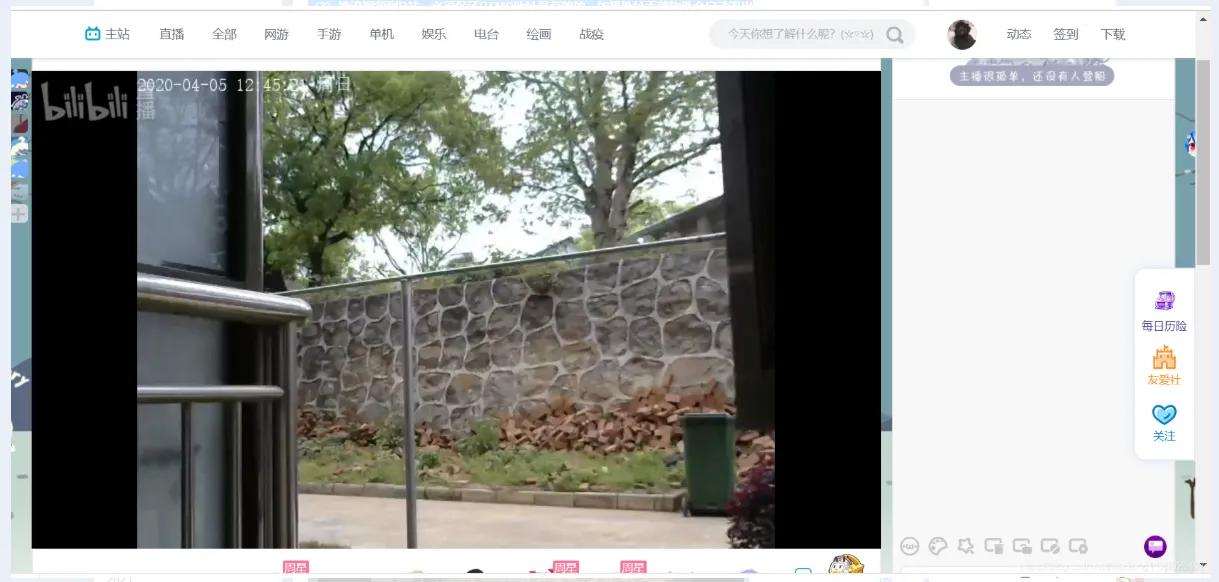
(3)推流视频到B站,必须保证RTMP地址是有效的,如果地址无效软件会自动退出
三、核心代码
代码里除了FFMEG代码之外,主要的核心代码是摄像头颜色转换代码,因为不同的摄像头输出的原始格式不一样,代码里还需要做颜色转换。
void VideoReadThread_0::slotOnProbeFrame(const QVideoFrame &frame)
{
   QVideoFrame cloneFrame(frame);
   cloneFrame.map(QAbstractVideoBuffer::ReadOnly);
  // qDebug()<<"height:"<<cloneFrame.height();
  // qDebug()<<"width:"<<cloneFrame.width();
   //qDebug()<<"bytesPerLine:"<<cloneFrame.bytesPerLine();
   //qDebug()<<"mappedBytes:"<<cloneFrame.mappedBytes();
   //qDebug()<<"pixelFormat:"<<cloneFrame.pixelFormat();
   unsigned char rgb_buffer[VIDEO_WIDTH*VIDEO_HEIGHT*3];
   if(cloneFrame.pixelFormat()==QVideoFrame::Format_NV21)
   {
        NV21_TO_RGB24(cloneFrame.bits(),rgb_buffer,cloneFrame.width(),cloneFrame.height());
   }
   else if(cloneFrame.pixelFormat()==QVideoFrame::Format_YUYV)
   {
       yuyv_to_rgb(cloneFrame.bits(),rgb_buffer,cloneFrame.width(),cloneFrame.height());
   }
   else if(cloneFrame.pixelFormat()==QVideoFrame::Format_RGB24)
   {
        memcpy(rgb_buffer,cloneFrame.bits(),sizeof(rgb_buffer));
   }
   else if(cloneFrame.pixelFormat()==QVideoFrame::Format_BGR24)
   {
        memcpy(rgb_buffer,cloneFrame.bits(),sizeof(rgb_buffer));
   }
   else if(cloneFrame.pixelFormat()==QVideoFrame::Format_Jpeg)
   {
   }
   else
   {
       qDebug("当前格式编码为%1,暂时不支持转换.\n");
   }
    //加载图片数据
    QImage image(rgb_buffer,
                       cloneFrame.width(),
                       cloneFrame.height(),
                       QImage::Format_RGB888);
    if(cloneFrame.pixelFormat()==QVideoFrame::Format_BGR24)
    {
        image=image.rgbSwapped(); //BGR格式转RGB
        image=image.mirrored(false, true);
    }
    if(cloneFrame.pixelFormat()==QVideoFrame::Format_Jpeg)
    {
        image.loadFromData((const uchar *)cloneFrame.bits(),cloneFrame.mappedBytes());
    }
    //绘制图片水印
    QDateTime dateTime(QDateTime::currentDateTime());
    //时间效果: 2020-03-05 16:25::04 周一
    QString qStr="";
    qStr+=dateTime.toString("yyyy-MM-dd hh:mm:ss ddd");
    QPainter pp(&image);
    QPen pen = QPen(Qt::white);
    pp.setPen(pen);
    pp.drawText(QPointF(0,20),qStr);
    //提取RGB数据
    unsigned char *p=rgb_buffer;
    for(int i=0;i<image.height();i++)
    {
        for(int j=0;j<image.width();j++)
        {
            QRgb rgb=image.pixel(j,i);
            *p++=qRed(rgb);
            *p++=qGreen(rgb);
            *p++=qBlue(rgb);
        }
    }
    videoaudioencode_0.video_encode_mutex.lock();
    RGB24_TO_YUV420(rgb_buffer,image.width(),image.height(),video_yuv420p_buff);
    videoaudioencode_0.video_encode_mutex.unlock();
    videoaudioencode_0.video_WaitConditon.wakeAll();
    emit VideoDataOutput(image); //发送信号
    cloneFrame.unmap();
}
xxx.pro工程文件代码:
QT       += core gui
QT       += multimediawidgets
QT       += xml
QT       += multimedia
QT       += network
QT       += widgets
QT       += serialport
greaterThan(QT_MAJOR_VERSION, 4): QT += widgets
CONFIG += c++11
# The following define makes your compiler emit warnings if you use
# any Qt feature that has been marked deprecated (the exact warnings
# depend on your compiler). Please consult the documentation of the
# deprecated API in order to know how to port your code away from it.
DEFINES += QT_DEPRECATED_WARNINGS
# You can also make your code fail to compile if it uses deprecated APIs.
# In order to do so, uncomment the following line.
# You can also select to disable deprecated APIs only up to a certain version of Qt.
#DEFINES += QT_DISABLE_DEPRECATED_BEFORE=0x060000    # disables all the APIs deprecated before Qt 6.0.0
SOURCES += \
    Color_conversion.cpp \
    audio_video_encode_0.cpp \
    ffmpeg_code.cpp \
    main.cpp \
    widget.cpp
HEADERS += \
    Color_conversion.h \
    audio_video_encode_0.h \
    config.h \
    ffmpeg_code.h \
    widget.h
FORMS += \
    widget.ui
# Default rules for deployment.
qnx: target.path = /tmp/$${TARGET}/bin
else: unix:!android: target.path = /opt/$${TARGET}/bin
!isEmpty(target.path): INSTALLS += target
RC_ICONS=log.ico
win32
{
    message('运行win32版本')
    INCLUDEPATH+=$$PWD/ffmpeg-win32-shared-dll/include
    LIBS+=$$PWD/ffmpeg-win32-shared-dll/bin/av*
    LIBS+=$$PWD/ffmpeg-win32-shared-dll/bin/sw*
    LIBS+=$$PWD/ffmpeg-win32-shared-dll/bin/pos*
}
RESOURCES += \
    image.qrc
四、更新版本界面