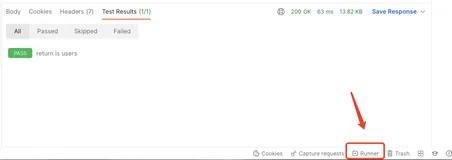
先补充刚才测试的部分截图余下,后续详细补充内容。
API Test.jmx 如下:

<?xml version="1.0" encoding="UTF-8"?> <jmeterTestPlan version="1.2" properties="2.8" jmeter="2.13 r1665067"> <hashTree> <TestPlan guiclass="TestPlanGui" testclass="TestPlan" testname="测试计划" enabled="true"> <stringProp name="TestPlan.comments"></stringProp> <boolProp name="TestPlan.functional_mode">false</boolProp> <boolProp name="TestPlan.serialize_threadgroups">false</boolProp> <elementProp name="TestPlan.user_defined_variables" elementType="Arguments" guiclass="ArgumentsPanel" testclass="Arguments" testname="用户定义的变量" enabled="true"> <collectionProp name="Arguments.arguments"/> </elementProp> <stringProp name="TestPlan.user_define_classpath"></stringProp> </TestPlan> <hashTree> <ThreadGroup guiclass="ThreadGroupGui" testclass="ThreadGroup" testname="线程组" enabled="true"> <stringProp name="ThreadGroup.on_sample_error">continue</stringProp> <elementProp name="ThreadGroup.main_controller" elementType="LoopController" guiclass="LoopControlPanel" testclass="LoopController" testname="循环控制器" enabled="true"> <boolProp name="LoopController.continue_forever">false</boolProp> <stringProp name="LoopController.loops">1</stringProp> </elementProp> <stringProp name="ThreadGroup.num_threads">100</stringProp> <stringProp name="ThreadGroup.ramp_time">1</stringProp> <longProp name="ThreadGroup.start_time">1505206849000</longProp> <longProp name="ThreadGroup.end_time">1505206849000</longProp> <boolProp name="ThreadGroup.scheduler">false</boolProp> <stringProp name="ThreadGroup.duration"></stringProp> <stringProp name="ThreadGroup.delay"></stringProp> </ThreadGroup> <hashTree> <HeaderManager guiclass="HeaderPanel" testclass="HeaderManager" testname="HTTP信息头管理器" enabled="true"> <collectionProp name="HeaderManager.headers"> <elementProp name="" elementType="Header"> <stringProp name="Header.name">SESSIONID</stringProp> <stringProp name="Header.value">E13F76A3626BB79833E97EDE6C2D8669</stringProp> </elementProp> </collectionProp> </HeaderManager> <hashTree/> <HTTPSamplerProxy guiclass="HttpTestSampleGui" testclass="HTTPSamplerProxy" testname="HTTP请求" enabled="true"> <elementProp name="HTTPsampler.Arguments" elementType="Arguments" guiclass="HTTPArgumentsPanel" testclass="Arguments" testname="用户定义的变量" enabled="true"> <collectionProp name="Arguments.arguments"/> </elementProp> <stringProp name="HTTPSampler.domain"></stringProp> <stringProp name="HTTPSampler.port"></stringProp> <stringProp name="HTTPSampler.connect_timeout"></stringProp> <stringProp name="HTTPSampler.response_timeout"></stringProp> <stringProp name="HTTPSampler.protocol"></stringProp> <stringProp name="HTTPSampler.contentEncoding"></stringProp> <stringProp name="HTTPSampler.path">https://test.lifeccp.com/portal/tasks/menuTask?createEnd=2017-09-12&createFrom=2017-09-05&currentPage=1&currentSize=15&hospitalId=3&st=0&st=1&st=2&st=3&st=4</stringProp> <stringProp name="HTTPSampler.method">GET</stringProp> <boolProp name="HTTPSampler.follow_redirects">true</boolProp> <boolProp name="HTTPSampler.auto_redirects">false</boolProp> <boolProp name="HTTPSampler.use_keepalive">true</boolProp> <boolProp name="HTTPSampler.DO_MULTIPART_POST">false</boolProp> <boolProp name="HTTPSampler.monitor">false</boolProp> <stringProp name="HTTPSampler.embedded_url_re"></stringProp> </HTTPSamplerProxy> <hashTree/> <ResultCollector guiclass="StatVisualizer" testclass="ResultCollector" testname="聚合报告" enabled="true"> <boolProp name="ResultCollector.error_logging">false</boolProp> <objProp> <name>saveConfig</name> <value class="SampleSaveConfiguration"> <time>true</time> <latency>true</latency> <timestamp>true</timestamp> <success>true</success> <label>true</label> <code>true</code> <message>true</message> <threadName>true</threadName> <dataType>true</dataType> <encoding>false</encoding> <assertions>true</assertions> <subresults>true</subresults> <responseData>false</responseData> <samplerData>false</samplerData> <xml>false</xml> <fieldNames>false</fieldNames> <responseHeaders>false</responseHeaders> <requestHeaders>false</requestHeaders> <responseDataOnError>false</responseDataOnError> <saveAssertionResultsFailureMessage>false</saveAssertionResultsFailureMessage> <assertionsResultsToSave>0</assertionsResultsToSave> <bytes>true</bytes> <threadCounts>true</threadCounts> </value> </objProp> <stringProp name="filename"></stringProp> </ResultCollector> <hashTree/> <ResultCollector guiclass="GraphVisualizer" testclass="ResultCollector" testname="图形结果" enabled="true"> <boolProp name="ResultCollector.error_logging">false</boolProp> <objProp> <name>saveConfig</name> <value class="SampleSaveConfiguration"> <time>true</time> <latency>true</latency> <timestamp>true</timestamp> <success>true</success> <label>true</label> <code>true</code> <message>true</message> <threadName>true</threadName> <dataType>true</dataType> <encoding>false</encoding> <assertions>true</assertions> <subresults>true</subresults> <responseData>false</responseData> <samplerData>false</samplerData> <xml>false</xml> <fieldNames>false</fieldNames> <responseHeaders>false</responseHeaders> <requestHeaders>false</requestHeaders> <responseDataOnError>false</responseDataOnError> <saveAssertionResultsFailureMessage>false</saveAssertionResultsFailureMessage> <assertionsResultsToSave>0</assertionsResultsToSave> <bytes>true</bytes> <threadCounts>true</threadCounts> </value> </objProp> <stringProp name="filename"></stringProp> </ResultCollector> <hashTree/> <Summariser guiclass="SummariserGui" testclass="Summariser" testname="生成概要结果" enabled="true"/> <hashTree/> <ResultCollector guiclass="ViewResultsFullVisualizer" testclass="ResultCollector" testname="察看结果树" enabled="true"> <boolProp name="ResultCollector.error_logging">false</boolProp> <objProp> <name>saveConfig</name> <value class="SampleSaveConfiguration"> <time>true</time> <latency>true</latency> <timestamp>true</timestamp> <success>true</success> <label>true</label> <code>true</code> <message>true</message> <threadName>true</threadName> <dataType>true</dataType> <encoding>false</encoding> <assertions>true</assertions> <subresults>true</subresults> <responseData>false</responseData> <samplerData>false</samplerData> <xml>false</xml> <fieldNames>false</fieldNames> <responseHeaders>false</responseHeaders> <requestHeaders>false</requestHeaders> <responseDataOnError>false</responseDataOnError> <saveAssertionResultsFailureMessage>false</saveAssertionResultsFailureMessage> <assertionsResultsToSave>0</assertionsResultsToSave> <bytes>true</bytes> <threadCounts>true</threadCounts> </value> </objProp> <stringProp name="filename"></stringProp> </ResultCollector> <hashTree/> </hashTree> </hashTree> </hashTree> </jmeterTestPlan>
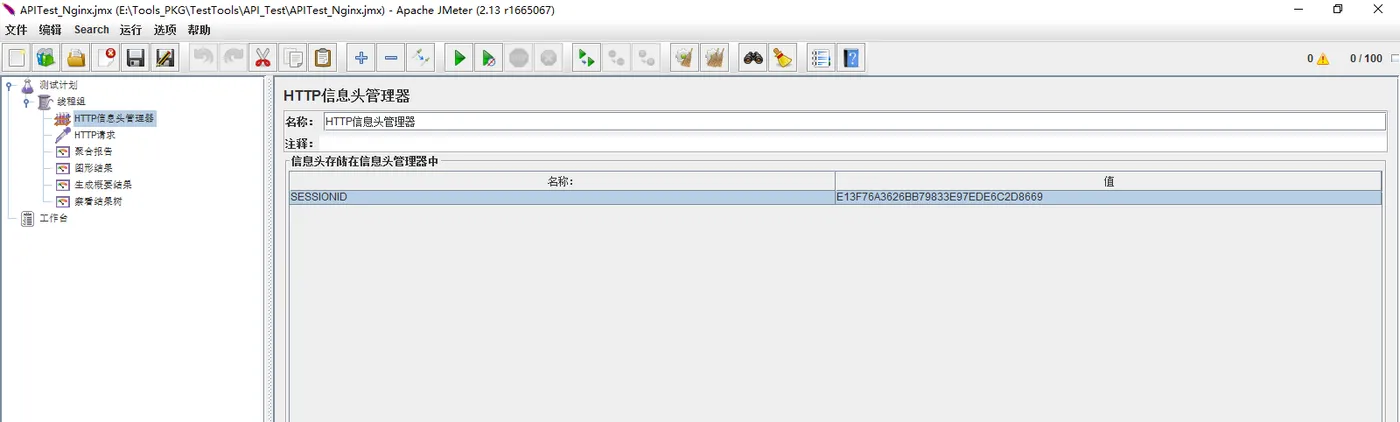
1. 增加:HTTP信息头管理器,并增加SESSIONID信息,如图:
参数增加:SESSIONID:E13F76A3626BB79833E97EDE6C2D8669
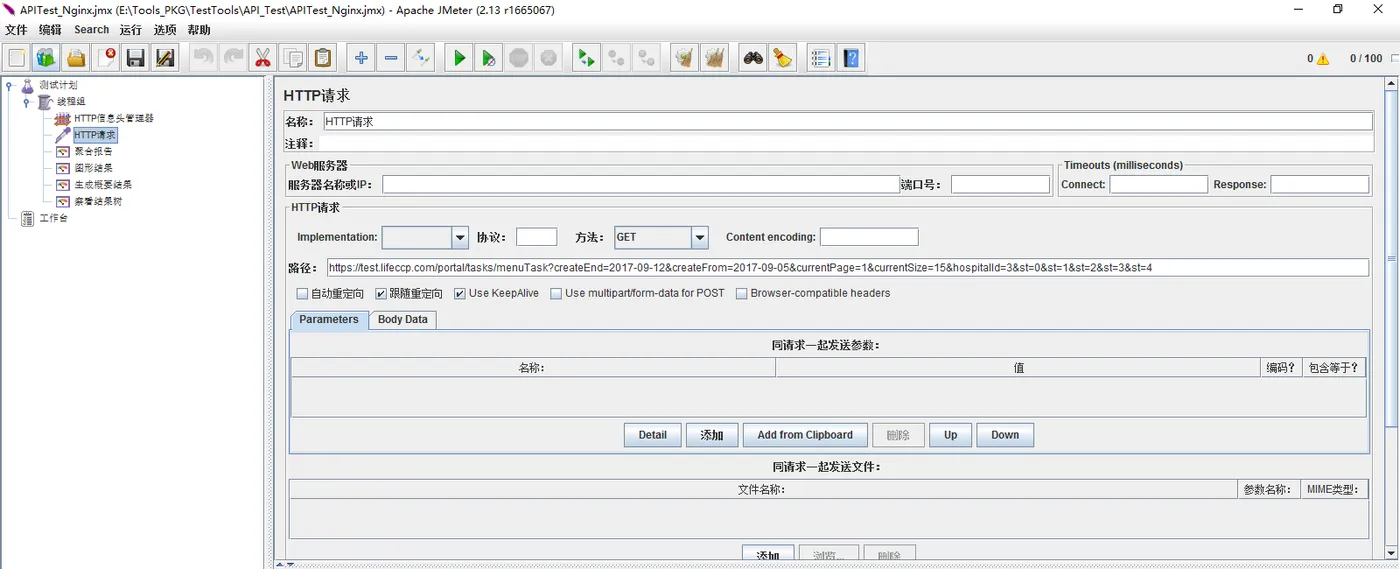
2.增加"HTTP请求",
路径配置:https://test.lifeccp.com/portal/tasks/menuTask?createEnd=2017-09-12&createFrom=2017-09-05¤tPage=1¤tSize=15&hospitalId=3&st=0&st=1&st=2&st=3&st=4
如图:
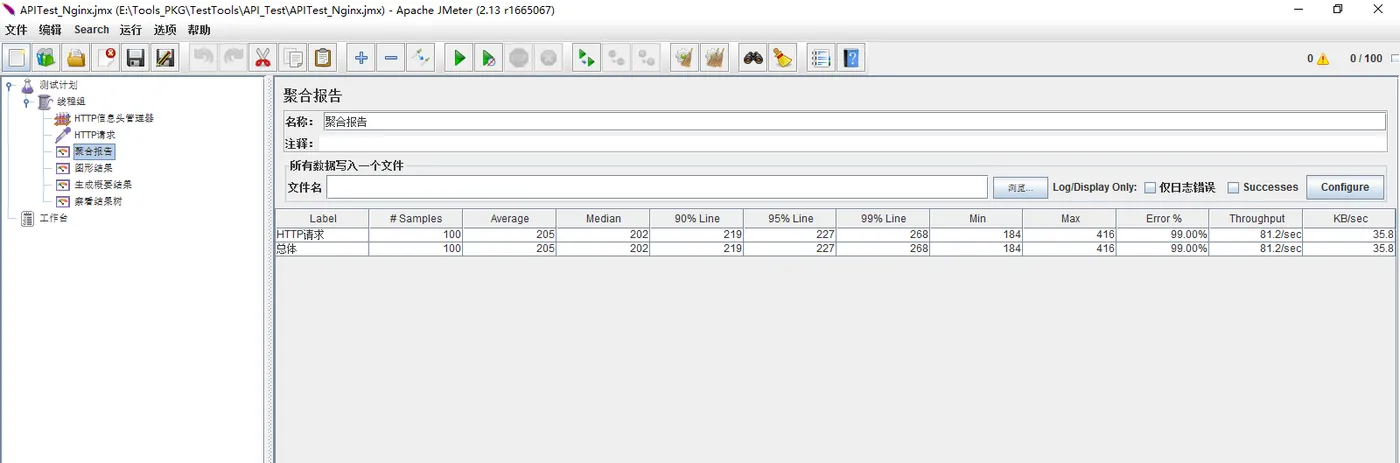
3.增加聚合报告:
4.增加“图形结果”
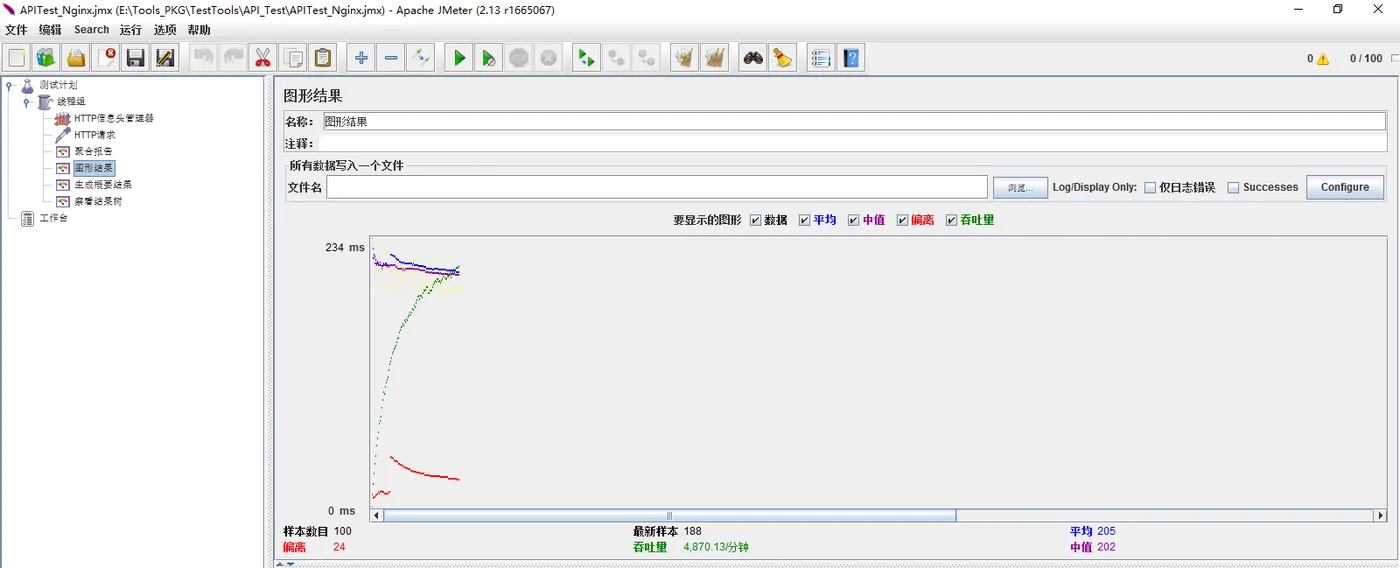
5.生成概要
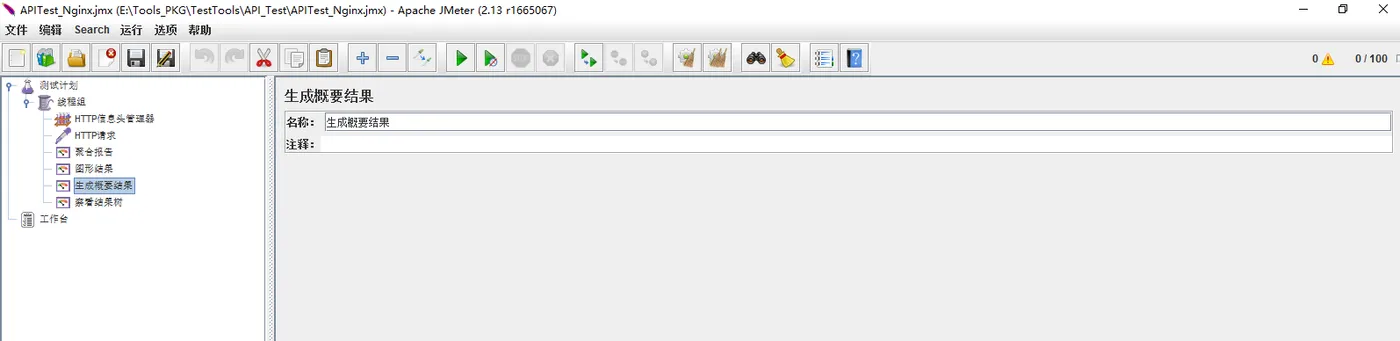
6.查看结果树
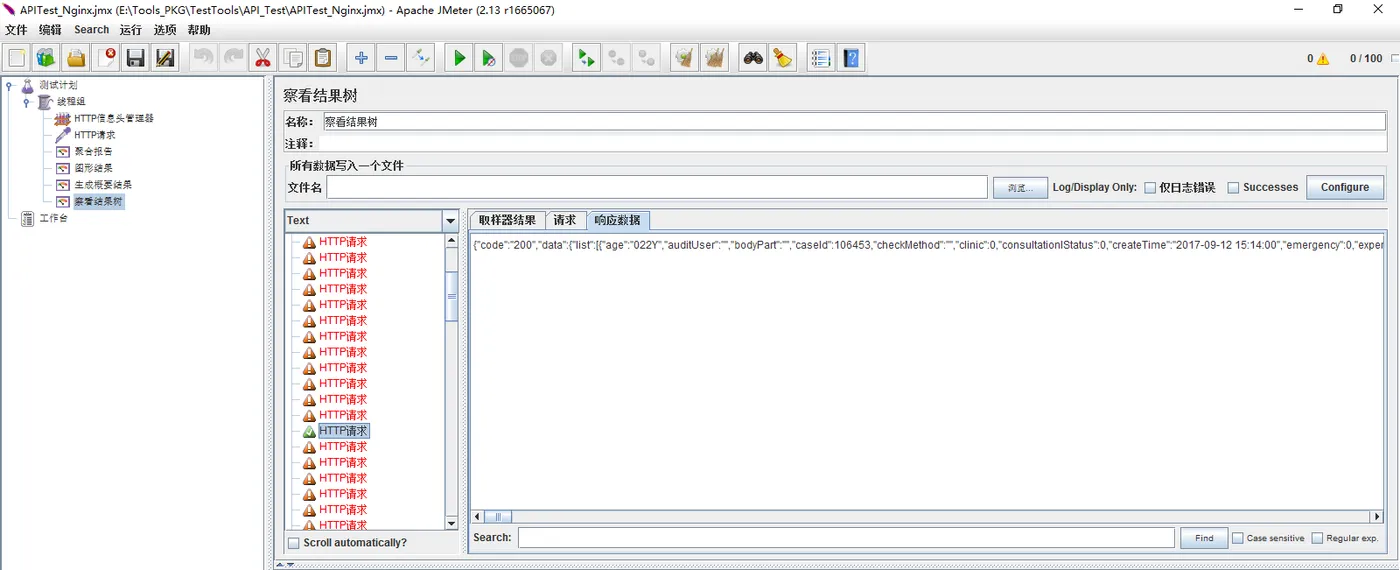
7.失败场景:
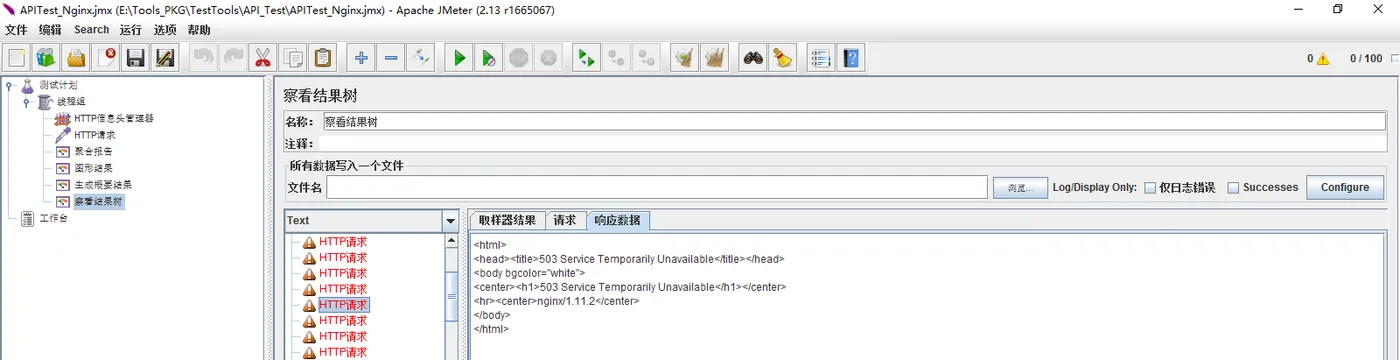
本文转自 念槐聚 博客园博客,原文链接:http://www.cnblogs.com/haochuang/p/7511393.html,如需转载请自行联系原作者