
1. 背景
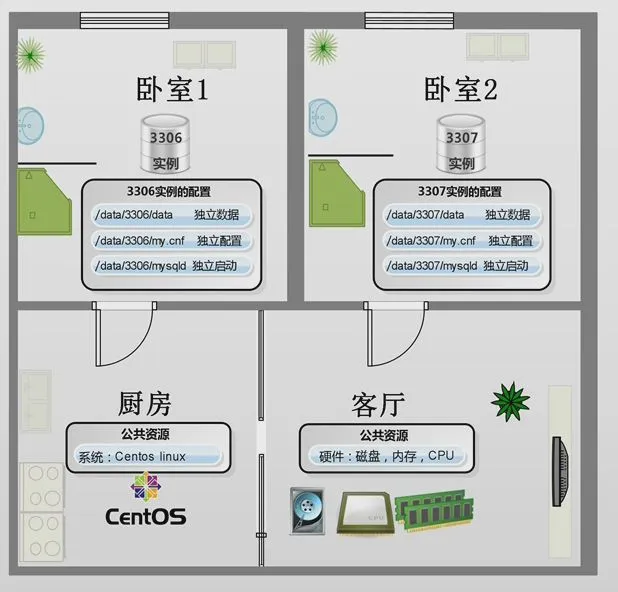
* MySQL数据库的集中化运维,可以通过在一台服务器上,部署运行多个MySQL服务进程,通过不同的socket监听不同的服务端口来提供各自的服务。各个实例之间是相互独立的,每个实例的datadir, port, socket, pid都是不同的。
* 网上多实例一般通过实例版本相同实现,此次以不同版本来实现多实例部署(5.5、5.6、5.7)。
2. 多实例特点
* 有效利用服务器资源,当单个服务器资源有剩余时,可以充分利用剩余的资源提供更多的服务。
* 资源互相抢占问题,当某个服务实例服务并发很高时或者开启慢查询时,会消耗更多的内存、CPU、磁盘IO资源,导致服务器上的其他实例提供服务的质量下降。
3. 环境 [ 关闭SeLinux ]
|
1
2
3
4
5
6
7
8
|
[root@MySQL ~]
# cat /etc/redhat-release
CentOS release 6.9 (Final)
[root@MySQL ~]
# uname -r
2.6.32-504.el6.x86_64
[root@MySQL ~]
# getenforce
Disabled
|
4. MySQL 二进制包准备
* 下载官方5.5二进制安装包
|
1
|
[root@MySQL ~]
# wget https://dev.mysql.com/get/Downloads/MySQL-5.5/mysql-5.5.57-linux-glibc2.12-x86_64.tar.gz
|
* 下载官方5.6二进制安装包
|
1
|
[root@MySQL ~]
# wget https://dev.mysql.com/get/Downloads/MySQL-5.6/mysql-5.6.37-linux-glibc2.12-x86_64.tar.gz
|
* 下载官方5.7二进制安装包
|
1
|
[root@MySQL ~]
# wget https://dev.mysql.com/get/Downloads/MySQL-5.7/mysql-5.7.19-linux-glibc2.12-x86_64.tar
|
5. mysql 版本初始化并统一修改密码
* 创建 MySQL 用户
|
1
|
[root@MySQL ~]
# useradd -r -s /sbin/nologin mysql
|
* 创建MySQL数据目录
|
1
2
3
4
5
|
[root@MySQL ~]
# mkdir -vp /data/mysql_data_{5..7}
mkdir
: created directory `
/data
'
mkdir
: created directory `
/data/mysql_data_5
'
mkdir
: created directory `
/data/mysql_data_6
'
mkdir
: created directory `
/data/mysql_data_7
'
|
* 修改MySQL 数据目录所属用户与所属组
|
1
|
[root@MySQL ~]
# chown mysql.mysql -R /data/mysql_data_*
|
* 解压MySQL 各版本至 /usr/local 目录
|
1
2
3
|
[root@MySQL ~]
# tar zxf mysql-5.5.57-linux-glibc2.12-x86_64.tar.gz -C /usr/local/
[root@MySQL ~]
# tar zxf mysql-5.6.37-linux-glibc2.12-x86_64.tar.gz -C /usr/local/
[root@MySQL ~]
# tar xf mysql-5.7.19-linux-glibc2.12-x86_64.tar -C /usr/local/
|
* MySQL 5.5 初始化
|
1
2
|
[root@MySQL ~]
# chown mysql.mysql -R /usr/local/mysql-5.5.57-linux-glibc2.12-x86_64
[root@MySQL ~]
# /usr/local/mysql-5.5.57-linux-glibc2.12-x86_64/scripts/mysql_install_db --user=mysql --datadir=/data/mysql_data_5 --basedir=/usr/local/mysql-5.5.57-linux-glibc2.12-x86_64
|
* MySQL 5.5 修改密码
|
1
2
3
4
5
6
7
8
9
10
11
12
13
14
15
16
17
18
19
|
[root@MySQL ~]
# /usr/local/mysql-5.5.57-linux-glibc2.12-x86_64/bin/mysqld_safe --datadir=/data/mysql_data_5 &
[root@MySQL ~]
# /usr/local/mysql-5.5.57-linux-glibc2.12-x86_64/bin/mysql
Welcome to the MySQL monitor. Commands end with ; or \g.
Your MySQL connection
id
is 1
Server version: 5.5.57 MySQL Community Server (GPL)
Copyright (c) 2000, 2017, Oracle and
/or
its affiliates. All rights reserved.
Oracle is a registered trademark of Oracle Corporation and
/or
its
affiliates. Other names may be trademarks of their respective
owners.
Type
'help;'
or
'\h'
for
help. Type
'\c'
to
clear
the current input statement.
mysql>
set
password = password(
'123'
);
Query OK, 0 rows affected (0.00 sec)
mysql> quit
Bye
[root@MySQL ~]
# killall mysqld
|
* MySQL 5.6 初始化
|
1
2
|
[root@MySQL ~]
# chown mysql.mysql -R /usr/local/mysql-5.6.37-linux-glibc2.12-x86_64
[root@MySQL ~]
# /usr/local/mysql-5.6.37-linux-glibc2.12-x86_64/scripts/mysql_install_db --user=mysql --datadir=/data/mysql_data_6 --basedir=/usr/local/mysql-5.6.37-linux-glibc2.12-x86_64
|
* MySQL 5.6修改密码
|
1
2
3
4
5
6
7
8
9
10
11
12
13
14
15
16
17
18
19
20
|
[root@MySQL ~]
# /usr/local/mysql-5.6.37-linux-glibc2.12-x86_64/bin/mysqld_safe --datadir=/data/mysql_data_6 &
[root@MySQL ~]
# /usr/local/mysql-5.6.37-linux-glibc2.12-x86_64/bin/mysql
Welcome to the MySQL monitor. Commands end with ; or \g.
Your MySQL connection
id
is 1
Server version: 5.6.37 MySQL Community Server (GPL)
Copyright (c) 2000, 2017, Oracle and
/or
its affiliates. All rights reserved.
Oracle is a registered trademark of Oracle Corporation and
/or
its
affiliates. Other names may be trademarks of their respective
owners.
Type
'help;'
or
'\h'
for
help. Type
'\c'
to
clear
the current input statement.
mysql>
set
password = password(
'123'
);
Query OK, 0 rows affected (0.00 sec)
mysql> quit
Bye
[root@MySQL ~]
# killall mysqld
|
* MySQL 5.7 初始化 [ 注意初始化提示的随机密码 ]
|
1
2
3
4
|
[root@MySQL ~]
# mkdir /usr/local/mysql-5.7.19-linux-glibc2.12-x86_64/mysql-files
[root@MySQL ~]
# chown root.mysql -R /usr/local/mysql-5.7.19-linux-glibc2.12-x86_64
[root@MySQL ~]
# chown mysql.mysql -R /data/mysql_data_7 /usr/local/mysql-5.7.19-linux-glibc2.12-x86_64/mysql-files
[root@MySQL ~]
# /usr/local/mysql-5.7.19-linux-glibc2.12-x86_64/bin/mysqld --initialize --user=mysql --datadir=/data/mysql_data_7 --basedir=/usr/local/mysql-5.7.19-linux-glibc2.12-x86_64
|
* MySQL 5.7修改密码
|
1
2
3
4
5
6
7
8
9
10
11
12
13
14
15
16
17
18
19
20
21
|
[root@MySQL ~]
# /usr/local/mysql-5.7.19-linux-glibc2.12-x86_64/bin/mysqld_safe --datadir=/data/mysql_data_7 &
[root@MySQL ~]
# /usr/local/mysql-5.7.19-linux-glibc2.12-x86_64/bin/mysql -p'INoGk(hoj9>/'
mysql: [Warning] Using a password on the
command
line interface can be insecure.
Welcome to the MySQL monitor. Commands end with ; or \g.
Your MySQL connection
id
is 4
Server version: 5.7.18
Copyright (c) 2000, 2017, Oracle and
/or
its affiliates. All rights reserved.
Oracle is a registered trademark of Oracle Corporation and
/or
its
affiliates. Other names may be trademarks of their respective
owners.
Type
'help;'
or
'\h'
for
help. Type
'\c'
to
clear
the current input statement.
mysql>
set
password =
'123'
;
Query OK, 0 rows affected (0.00 sec)
mysql> quit
Bye
[root@MySQL ~]
# killall mysqld
|
6. 多版本部署
* 编辑/etc/my.cnf
|
1
2
3
4
5
6
7
8
9
10
11
12
13
14
15
16
17
18
19
20
21
22
23
24
25
26
27
28
29
30
31
32
33
34
35
36
37
38
39
40
41
42
43
44
45
46
47
48
49
50
51
|
[client]
# 设置登陆用户
user = root
# 设置登陆用户密码
password = 123
[mysqld]
# mysql 运行用户
user = mysql
# 设置 mysql 监听 IP 地址
bind_address = 0.0.0.0
# 关闭 DNS 反解析
skip-name-resolve = 0
# 关闭监听
performance_schema = off
# 设置buffer pool 大小
innodb_buffer_pool_size = 32M
# 设置错误日志文件名
log_error = error.log
[mysqld_multi]
# 设置multi 日志
log =
/tmp/mysql_multi
.log
[mysqld5]
# 设置实例所在目录
basedir =
/usr/local/mysql-5
.5.57-linux-glibc2.12-x86_64
# 设置mysql 运行程序所在路径
mysqld =
/usr/local/mysql-5
.5.57-linux-glibc2.12-x86_64
/bin/mysqld
# 设置mysql 管理运行程序所在路径
mysqladmin =
/usr/local/mysql-5
.5.57-linux-glibc2.12-x86_64
/bin/mysqladmin
# 设置实例数据目录 -- 多实例中一定要不同
datadir =
/data/mysql_data_5
# 设置socket 文件路径 -- 多实例中一定要不同
socket =
/tmp/mysql
.sock5
# 设置实例监听端口 -- 多实例中一定要不同
port = 3305
[mysqld6]
basedir =
/usr/local/mysql-5
.6.37-linux-glibc2.12-x86_64
mysqld =
/usr/local/mysql-5
.6.37-linux-glibc2.12-x86_64
/bin/mysqld
mysqladmin =
/usr/local/mysql-5
.6.37-linux-glibc2.12-x86_64
/bin/mysqladmin
datadir =
/data/mysql_data_6
socket =
/tmp/mysql
.sock6
port = 3306
[mysqld7]
basedir =
/usr/local/mysql-5
.7.19-linux-glibc2.12-x86_64
datadir =
/data/mysql_data_7
socket =
/tmp/mysql
.sock7
port = 3307
|
* 从随意版本二进制包中support-files目录下复制mysqld_multi.server启动脚本至 /etc/init.d/
|
1
2
|
[root@MySQL ~]
# cp /usr/local/mysql-5.7.19-linux-glibc2.12-x86_64/support-files/mysqld_multi.server /etc/init.d/mysqld_multi
[root@MySQL ~]
# chmod +x /etc/init.d/mysqld_multi
|
* 随意版本创始软链接,并设置环境变量
|
1
2
|
[root@MySQL ~]
# ln -s /usr/local/mysql-5.7.19-linux-glibc2.12-x86_64 /usr/local/mysql
[root@MySQL ~]
# export PATH=/usr/local/mysql/bin:$PATH
|
7. 测试
* 查看多实例状态
|
1
2
3
4
5
|
[root@MySQL ~]
# /etc/init.d/mysqld_multi report
Reporting MySQL servers
MySQL server from group: mysqld5 is not running
MySQL server from group: mysqld6 is not running
MySQL server from group: mysqld7 is not running
|
* 启动多实例 [ 需等候几秒 ]
|
1
2
3
4
5
6
7
8
9
10
|
[root@MySQL ~]
# /etc/init.d/mysqld_multi start
[root@MySQL ~]
# /etc/init.d/mysqld_multi report
Reporting MySQL servers
MySQL server from group: mysqld5 is running
MySQL server from group: mysqld6 is running
MySQL server from group: mysqld7 is running
[root@MySQL ~]
# netstat -lntp | grep mysqld
tcp 0 0 0.0.0.0:3305 0.0.0.0:* LISTEN 43750
/mysqld
tcp 0 0 0.0.0.0:3306 0.0.0.0:* LISTEN 43753
/mysqld
tcp 0 0 0.0.0.0:3307 0.0.0.0:* LISTEN 43756
/mysqld
|
* 分别连接实例
|
1
2
3
4
5
6
7
8
9
10
11
12
13
14
15
16
17
18
19
20
21
22
23
24
25
26
27
28
29
30
31
32
33
34
35
36
37
38
39
40
41
42
43
44
45
46
47
|
[root@MySQL ~]
# mysql -S /tmp/mysql.sock5
Welcome to the MySQL monitor. Commands end with ; or \g.
Your MySQL connection
id
is 4
Server version: 5.7.18 MySQL Community Server (GPL)
Copyright (c) 2000, 2017, Oracle and
/or
its affiliates. All rights reserved.
Oracle is a registered trademark of Oracle Corporation and
/or
its
affiliates. Other names may be trademarks of their respective
owners.
Type
'help;'
or
'\h'
for
help. Type
'\c'
to
clear
the current input statement.
mysql> quit
Bye
[root@MySQL ~]
# mysql -S /tmp/mysql.sock6
Welcome to the MySQL monitor. Commands end with ; or \g.
Your MySQL connection
id
is 4
Server version: 5.7.18 MySQL Community Server (GPL)
Copyright (c) 2000, 2017, Oracle and
/or
its affiliates. All rights reserved.
Oracle is a registered trademark of Oracle Corporation and
/or
its
affiliates. Other names may be trademarks of their respective
owners.
Type
'help;'
or
'\h'
for
help. Type
'\c'
to
clear
the current input statement.
mysql> quit
Bye
[root@MySQL ~]
# mysql -S /tmp/mysql.sock7
Welcome to the MySQL monitor. Commands end with ; or \g.
Your MySQL connection
id
is 4
Server version: 5.7.18 MySQL Community Server (GPL)
Copyright (c) 2000, 2017, Oracle and
/or
its affiliates. All rights reserved.
Oracle is a registered trademark of Oracle Corporation and
/or
its
affiliates. Other names may be trademarks of their respective
owners.
Type
'help;'
or
'\h'
for
help. Type
'\c'
to
clear
the current input statement.
mysql> quit
Bye
|
* 停止多实例
|
1
2
3
4
5
6
|
[root@MySQL ~]
# /etc/init.d/mysqld_multi stop
[root@MySQL ~]
# /etc/init.d/mysqld_multi report
Reporting MySQL servers
MySQL server from group: mysqld5 is not running
MySQL server from group: mysqld6 is not running
MySQL server from group: mysqld7 is not running
|
8. 总结
以需求驱动技术,技术本身没有优略之分,只有业务之分。
本文转自asd1123509133 51CTO博客,原文链接:http://blog.51cto.com/lisea/1948537,如需转载请自行联系原作者
