
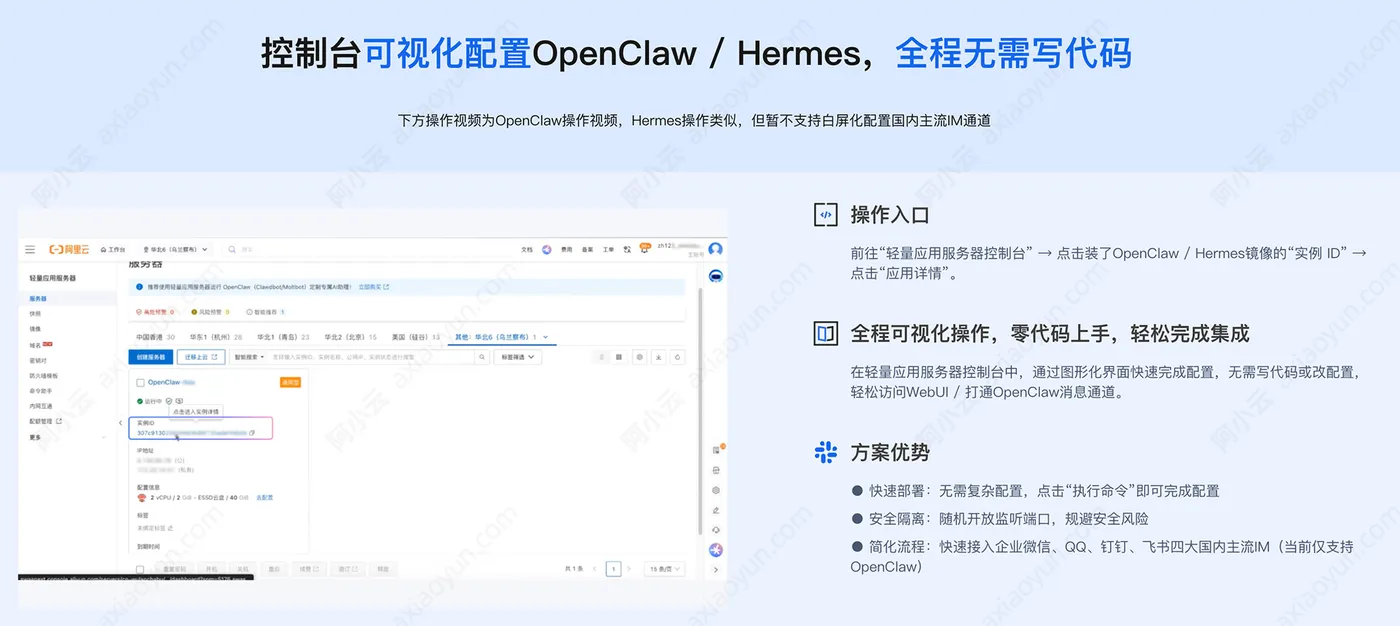
OpenClaw 是一个开源的个人 AI 助手平台,支持通过多种IM消息渠道 AI 交互。通过配置可接入阿里云百炼平台上的 AI 模型,AI模型支持按量付费、Coding Plan、Token Plan 团队版三种接入方式。本文阿小云以本地Mac OS操作系统为例,现在本地电脑安装OpenClaw,然后调用阿里云百炼平台的Token,调用百炼API Key有三种方法,最后接入飞书全流程。如果是云端部署OpenClaw,可以参考阿里云官方关于OpenClaw的部署教程:https://www.aliyun.com/activity/ecs/clawdbot
一、安装 OpenClaw
1、检查并安装Node.js
OpenClaw 需要 Node.js 22 或更高版本。可通过以下命令检查 Node.js 版本,打开终端,执行命令:
node --version
如果未安装或版本过低,请访问 Node.js 官网下载安装。
2、安装OpenClaw
推荐使用官方安装脚本:
curl -fsSL https://openclaw.ai/install.sh | bash
或通过 npm 全局安装:
npm install -g openclaw@latest
首次安装后,OpenClaw 会自动启动配置向导,完成初始设置。也可以手动执行openclaw onboard命令进行配置。
配置项 |
建议配置 |
I understand this is powerful and inherently risky. Continue? |
选择 Yes |
Onboarding mode |
选择 QuickStart |
Model/auth provider |
选择 Skip for now(稍后配置百炼模型) |
Filter models by provider |
选择 All providers |
Default model |
选择 Keep current |
Select channel (QuickStart) |
选择 Skip for now(稍后配置渠道) |
Configure skills now? (recommended) |
选择 No |
Enable hooks? |
按空格键选中选项,按回车键进入下一步 |
How do you want to hatch your bot? |
选择 Do this later |
二、订阅百炼AI模型API Key
接入阿里云百炼平台AI模型的API Key有三种方式,可以开通Token Plan、Coding Plan或者按量付费使用Token,三种方法如下,以下三种方法三选一:
方法1、接入Token Plan 团队版
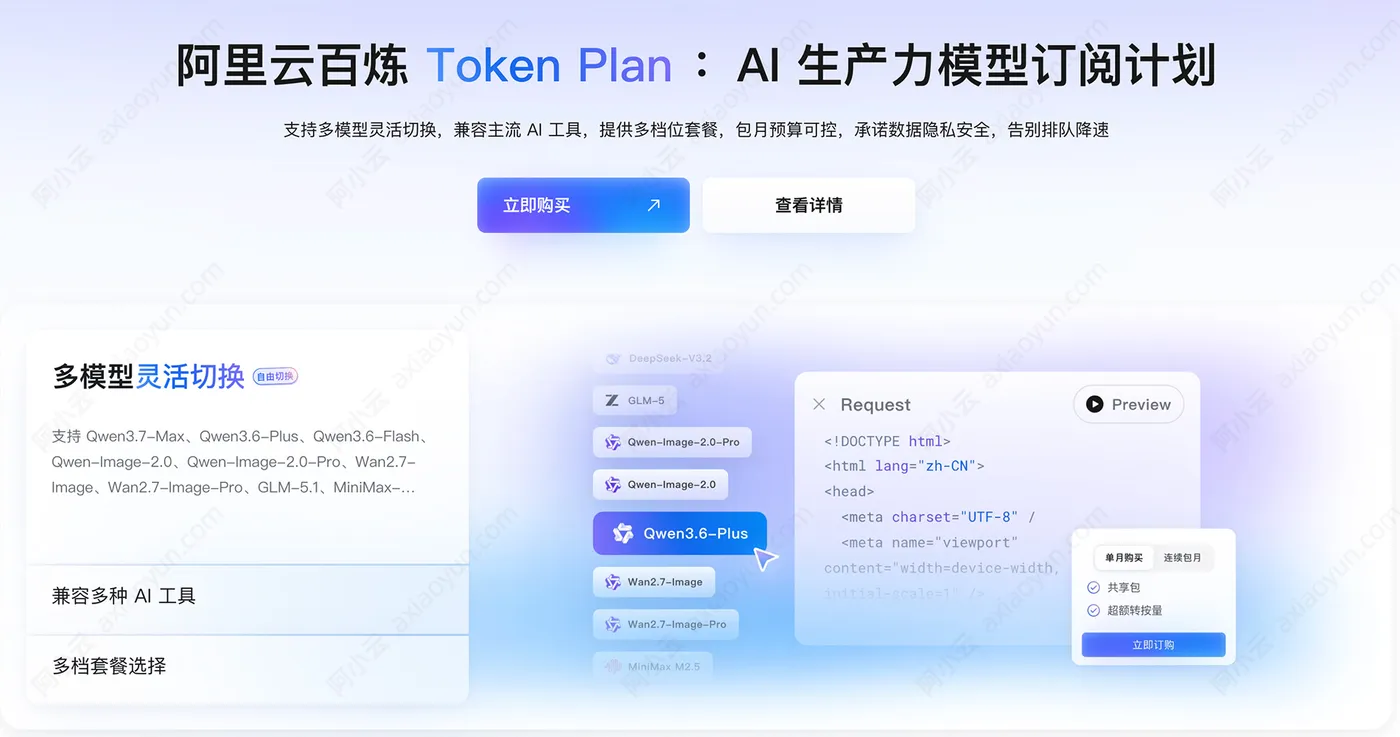
阿里云百炼TokenPlan团队版官网:https://www.aliyun.com/benefit/scene/tokenplan 需要先购买套餐,目前最低是198元1个月,如下图:
订阅之后获取 Token Plan 团队版专属 API Key,TokenPlan的API Key如下:
API Key |
Token Plan 团队版专属API Key |
Base URL |
|
可用模型 |
Token Plan 团队版支持的模型 |
配置文件位于 ~/.openclaw/openclaw.json,OpenClaw 启动时会自动读取。查看:Token Plan 团队版专属API Key获取方法
获取到阿里云百炼Token Plan团队版的API Key后,跳转到【三、配置AI模型的API Key】
方法2、接入Coding Plan 团队版
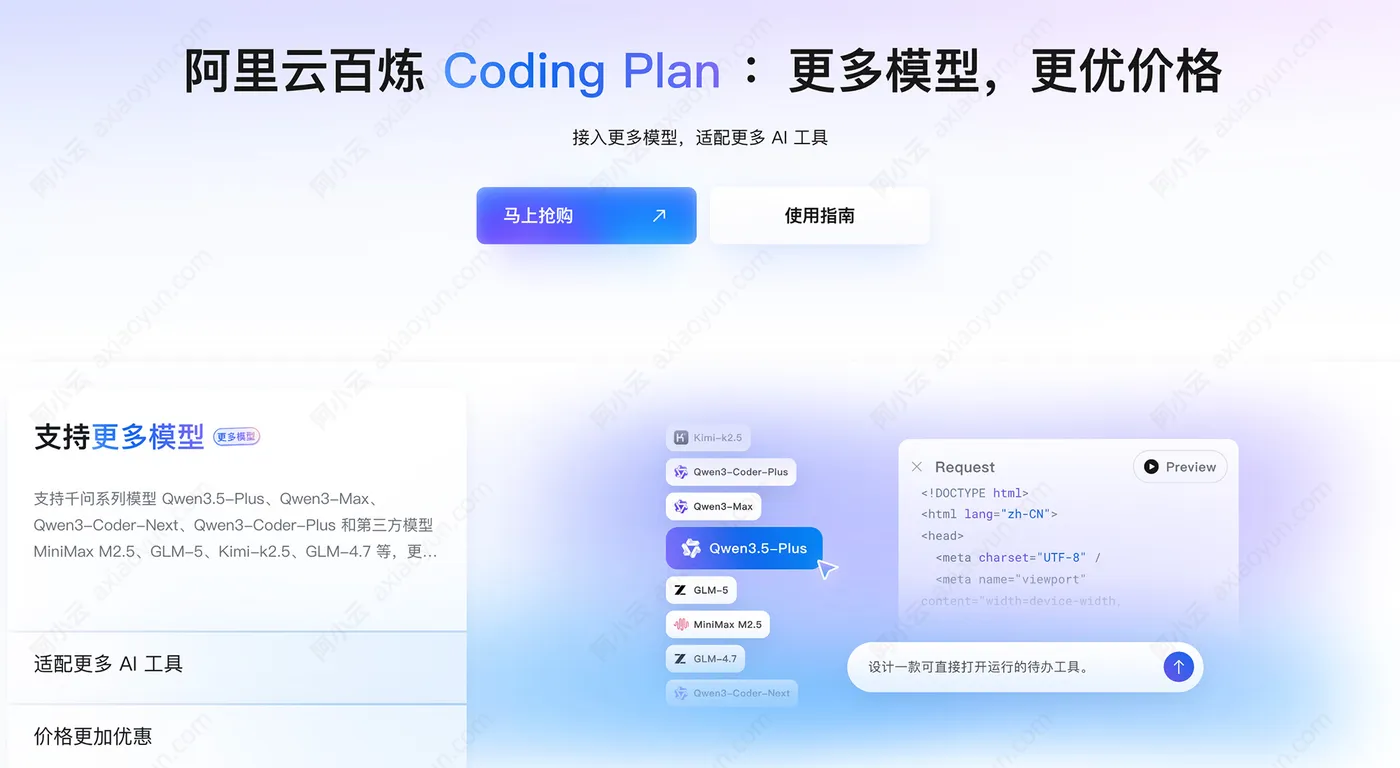
阿里云Coding Plan官网:https://www.aliyun.com/benefit/scene/codingplan 如下图,目前只有Pro高级版,费用是200元1个月,如下图:
订阅之后,获取CodingPlan的API Key:
获取Coding Plan的API Key,然后跳转到【三、配置AI模型的API Key】
方法3、按量使用百炼Token
在阿里云百炼平台:https://www.aliyun.com/product/bailian 获取到API Key:https://help.aliyun.com/zh/model-studio/get-api-key
API Key |
阿里云百炼 API Key,格式为 sk-xxxxx |
Base URL |
请确保 Base URL、API Key 和模型归属同一地域:
|
可用模型 |
填入模型广场中支持的模型 |
以下配置以华北2(北京)地域为例,如使用其他地域请替换 baseUrl 为上表中对应地域的 URL。
配置文件位于 ~/.openclaw/openclaw.json,OpenClaw 启动时会自动读取。
三、配置AI模型的API Key
1、Mac电脑打开终端,打开配置文件:
nano ~/.openclaw/openclaw.json
2、写入配置,首次配置:复制以下内容到配置文件,将 YOUR_API_KEY 替换为【Token Plan的API Key】、【CodingPlan的API Key】或者【百炼按量计费的API Key】,三选一:
{
  "meta": {
    "lastTouchedVersion": "2026.2.1",
    "lastTouchedAt": "2026-02-03T08:20:00.000Z"
  },
  "models": {
    "mode": "merge",
    "providers": {
      "bailian-token-plan": {
        "baseUrl": "https://token-plan.cn-beijing.maas.aliyuncs.com/apps/anthropic",
        "apiKey": "YOUR_API_KEY",
        "api": "anthropic-messages",
        "models": [
          {
            "id": "qwen3.7-max",
            "name": "qwen3.7-max",
            "reasoning": false,
            "input": ["text"],
            "contextWindow": 1000000,
            "maxTokens": 65536,
            "cost": { "input": 0, "output": 0, "cacheRead": 0, "cacheWrite": 0 },
            "compat": { "thinkingFormat": "openai" }
          },
          {
            "id": "qwen3.7-plus",
            "name": "qwen3.7-plus",
            "reasoning": false,
            "input": ["text", "image"],
            "contextWindow": 1000000,
            "maxTokens": 65536,
            "cost": { "input": 0, "output": 0, "cacheRead": 0, "cacheWrite": 0 },
            "compat": { "thinkingFormat": "openai" }
          },
          {
            "id": "qwen3.6-plus",
            "name": "qwen3.6-plus",
            "reasoning": false,
            "input": ["text", "image"],
            "contextWindow": 1000000,
            "maxTokens": 65536,
            "cost": { "input": 0, "output": 0, "cacheRead": 0, "cacheWrite": 0 },
            "compat": { "thinkingFormat": "openai" }
          },
          {
            "id": "qwen3.6-flash",
            "name": "qwen3.6-flash",
            "reasoning": false,
            "input": ["text", "image"],
            "contextWindow": 1000000,
            "maxTokens": 32768,
            "cost": { "input": 0, "output": 0, "cacheRead": 0, "cacheWrite": 0 },
            "compat": { "thinkingFormat": "openai" }
          },
          {
            "id": "deepseek-v4-pro",
            "name": "deepseek-v4-pro",
            "reasoning": false,
            "input": ["text"],
            "contextWindow": 163840,
            "maxTokens": 32768,
            "cost": { "input": 0, "output": 0, "cacheRead": 0, "cacheWrite": 0 }
          },
          {
            "id": "deepseek-v4-flash",
            "name": "deepseek-v4-flash",
            "reasoning": false,
            "input": ["text"],
            "contextWindow": 163840,
            "maxTokens": 16384,
            "cost": { "input": 0, "output": 0, "cacheRead": 0, "cacheWrite": 0 }
          },
          {
            "id": "deepseek-v3.2",
            "name": "deepseek-v3.2",
            "reasoning": false,
            "input": ["text"],
            "contextWindow": 163840,
            "maxTokens": 16384,
            "cost": { "input": 0, "output": 0, "cacheRead": 0, "cacheWrite": 0 },
            "compat": { "thinkingFormat": "openai" }
          },
          {
            "id": "kimi-k2.7-code",
            "name": "kimi-k2.7-code",
            "reasoning": false,
            "input": ["text", "image"],
            "contextWindow": 262144,
            "maxTokens": 32768,
            "cost": { "input": 0, "output": 0, "cacheRead": 0, "cacheWrite": 0 },
            "compat": { "thinkingFormat": "openai" }
          },
          {
            "id": "kimi-k2.6",
            "name": "kimi-k2.6",
            "reasoning": false,
            "input": ["text", "image"],
            "contextWindow": 262144,
            "maxTokens": 16384,
            "cost": { "input": 0, "output": 0, "cacheRead": 0, "cacheWrite": 0 },
            "compat": { "thinkingFormat": "openai" }
          },
          {
            "id": "kimi-k2.5",
            "name": "kimi-k2.5",
            "reasoning": false,
            "input": ["text", "image"],
            "contextWindow": 262144,
            "maxTokens": 16384,
            "cost": { "input": 0, "output": 0, "cacheRead": 0, "cacheWrite": 0 },
            "compat": { "thinkingFormat": "openai" }
          },
          {
            "id": "glm-5.2",
            "name": "glm-5.2",
            "reasoning": false,
            "input": ["text"],
            "contextWindow": 1000000,
            "maxTokens": 16384,
            "cost": { "input": 0, "output": 0, "cacheRead": 0, "cacheWrite": 0 },
            "compat": { "thinkingFormat": "openai" }
          },
          {
            "id": "glm-5.1",
            "name": "glm-5.1",
            "reasoning": false,
            "input": ["text"],
            "contextWindow": 202752,
            "maxTokens": 16384,
            "cost": { "input": 0, "output": 0, "cacheRead": 0, "cacheWrite": 0 },
            "compat": { "thinkingFormat": "openai" }
          },
          {
            "id": "glm-5",
            "name": "glm-5",
            "reasoning": false,
            "input": ["text"],
            "contextWindow": 202752,
            "maxTokens": 16384,
            "cost": { "input": 0, "output": 0, "cacheRead": 0, "cacheWrite": 0 },
            "compat": { "thinkingFormat": "openai" }
          },
          {
            "id": "MiniMax-M2.5",
            "name": "MiniMax-M2.5",
            "reasoning": false,
            "input": ["text"],
            "contextWindow": 204800,
            "maxTokens": 131072,
            "cost": { "input": 0, "output": 0, "cacheRead": 0, "cacheWrite": 0 }
          }
        ]
      }
    }
  },
  "agents": {
    "defaults": {
      "model": {
        "primary": "bailian-token-plan/qwen3.7-plus"
      },
      "models": {
        "bailian-token-plan/qwen3.7-max": {},
        "bailian-token-plan/qwen3.7-plus": {},
        "bailian-token-plan/qwen3.6-plus": {},
        "bailian-token-plan/qwen3.6-flash": {},
        "bailian-token-plan/deepseek-v4-pro": {},
        "bailian-token-plan/deepseek-v4-flash": {},
        "bailian-token-plan/deepseek-v3.2": {},
        "bailian-token-plan/kimi-k2.7-code": {},
        "bailian-token-plan/kimi-k2.6": {},
        "bailian-token-plan/kimi-k2.5": {},
        "bailian-token-plan/glm-5.2": {},
        "bailian-token-plan/glm-5.1": {},
        "bailian-token-plan/glm-5": {},
        "bailian-token-plan/MiniMax-M2.5": {}
      }
    }
  },
  "gateway": {
    "mode": "local",
    "auth": { "mode": "none" }
  }
}
3、保存并退出,按 Ctrl+X,按 Y 确认保存,按 Enter 确认文件名
4、使配置生效,运行以下命令重启网关,使配置生效
openclaw gateway restart
四、接入飞书
步骤一:创建飞书应用
- 访问飞书开放平台,单击创建企业自建应用,填写应用名称和描述,选择应用图标,单击创建。
- 左侧导航栏单击凭证与基础信息 页面,复制App ID(格式如
cli_xxx)和App Secret。 - 左侧导航栏单击 权限管理页面,单击批量导入/导出权限 按钮,粘贴以下 JSON 配置,单击下一步,确认新增权限,单击申请开通。
JSON配置文件内容:
   {
     "scopes": {
       "tenant": [
         "aily:file:read",
         "aily:file:write",
         "application:application.app_message_stats.overview:readonly",
         "application:application:self_manage",
         "application:bot.menu:write",
         "cardkit:card:write",
         "contact:user.employee_id:readonly",
         "corehr:file:download",
         "docs:document.content:read",
         "event:ip_list",
         "im:chat",
         "im:chat.access_event.bot_p2p_chat:read",
         "im:chat.members:bot_access",
         "im:message",
         "im:message.group_at_msg:readonly",
         "im:message.group_msg",
         "im:message.p2p_msg:readonly",
         "im:message:readonly",
         "im:message:send_as_bot",
         "im:resource",
         "sheets:spreadsheet",
         "wiki:wiki:readonly"
       ],
       "user": ["aily:file:read", "aily:file:write", "im:chat.access_event.bot_p2p_chat:read"]
     }
   }
- 左侧导航栏中单击, 选择按能力添加页签,找到机器人卡片,单击配置。
- 配置事件订阅。
- 在飞书开放平台左侧导航栏单击事件与回调,在事件配置页签中单击订阅方式,选择使用 长连接 接收事件,单击保存。
- 在事件配置页面,单击添加事件,搜索事件
im.message.receive_v1(接收消息),单击确认添加。
- 在 版本管理与发布 页面创建版本,填写应用版本号和更新说明,单击保存,提交审核并发布。
步骤二:配置飞书机器人
1、在终端中输入以下命令配置飞书渠道
openclaw channels add
根据界面交互提示,完成以下配置。
- 选择 Feishu
- 输入 App ID
- 输入 App Secret
配置完成后,重启网关。 2. 创建群聊或在已有群聊中添加机器人,在飞书群中@机器人进行对话,或通过搜索的方式与机器人私聊进行测试。 3. 在群聊中添加机器人:设置。 4. 单击机器人头像,单击发送消息,可向机器人私发一条消息,机器人会回复一条包含配对码的消息。 5. 复制消息的最后一行,在 OpenClaw 对话中发送,OpenClaw 会自动完成飞书机器人配对。
步骤三:测试
1、执行以下命令重启网关。
openclaw gateway restart
2、执行以下命令检查飞书渠道状态
openclaw status
在 Channels 部分,Feishu 应显示为 ON 且状态为 OK。
3. 在飞书中发送消息进行测试。
至此在MacOS电脑上安装OpenClaw龙虾AI助手,使用阿里云百炼AI模型的API Key调用模型,并接入飞书的全流程完毕。