前言:工欲善其事,必先利其器
想象一下这两个场景:
场景A:你花了一个下午在代码里找一个“幽灵 Bug”——变量名拼错了、括号少了一半、导入了没用的模块……而旁边的老同事用编辑器插件 3 秒就高亮出来了。
场景B:线上突然出问题,同事用命令行三下五除二就定位到问题,而你还在一层一层点文件夹找日志。
差距在哪里?不是智力,是工具熟练度。
开发工具就像工匠的锤子和锯子。用好工具,你的编码效率、调试速度、协作质量都会大幅提升。
本文将系统讲解初级程序员必须掌握的 5 大类开发工具:
编辑器/IDE:VS Code、WebStorm、Cursor 等核心功能
终端/命令行:文件操作、进程管理、网络诊断
版本控制:Git 图形化工具与命令行结合
调试工具:浏览器 DevTools、Node.js 调试
效率工具:代码片段、快捷键、自动化
每一部分都有详细的原理说明、快捷键操作和实战技巧。
一、编辑器与 IDE:每天工作 8 小时的“战场”
1.1 编辑器 vs IDE
现实建议:VS Code 是目前最通用的选择,覆盖面最广。但有些场景 IDE 更合适:
Java → IntelliJ IDEA
iOS → Xcode
.NET → Visual Studio
大数据 → PyCharm Professional
1.2 VS Code 核心配置
基础配置(settings.json)
{
  // 编辑器外观
  "workbench.colorTheme": "One Dark Pro",
  "workbench.iconTheme": "material-icon-theme",
  "editor.fontFamily": "Fira Code, Menlo, Monaco, 'Courier New', monospace",
  "editor.fontSize": 14,
  "editor.fontLigatures": true,  // 连字特性,把 !== 显示为 ≠

  // 编辑器行为
  "editor.tabSize": 2,
  "editor.formatOnSave": true,      // 保存时自动格式化
  "editor.formatOnPaste": true,     // 粘贴时格式化
  "editor.codeActionsOnSave": {
    "source.organizeImports": true   // 保存时整理 import
  },

  // 自动补全
  "editor.quickSuggestions": {
    "other": "on",
    "comments": "off",
    "strings": "on"
  },
  "editor.suggestOnTriggerCharacters": true,

  // 文件管理
  "files.autoSave": "onFocusChange",  // 失焦时自动保存
  "files.exclude": {
    "**/node_modules": true,
    "**/.git": true,
    "**/dist": true
  },

  // 终端
  "terminal.integrated.defaultProfile.osx": "zsh",
  "terminal.integrated.fontSize": 13,

  // Git
  "git.autofetch": true,
  "git.enableSmartCommit": true
}
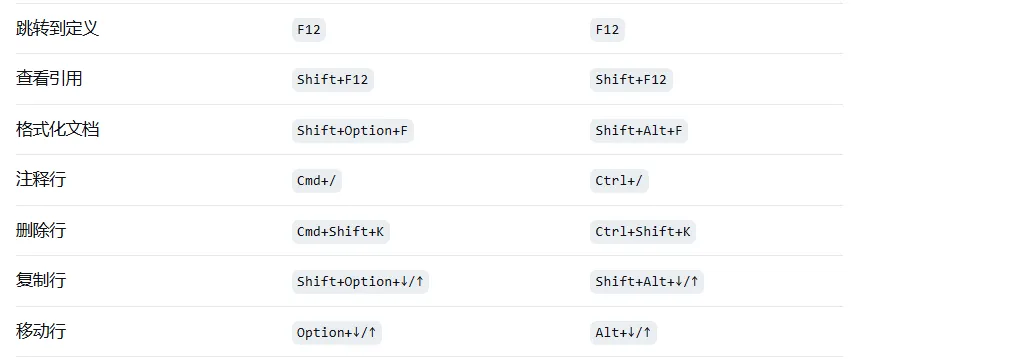
快捷键速查表(macOS / Windows)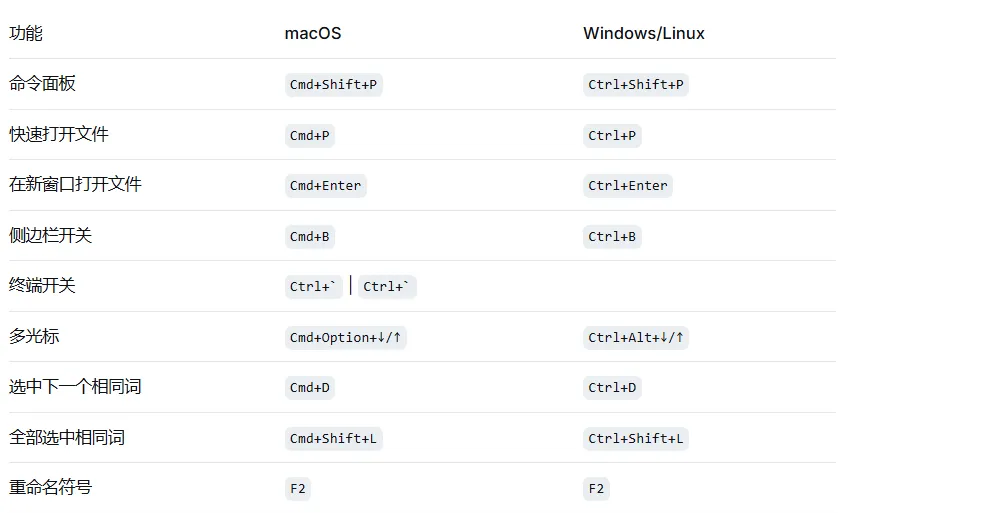
必备插件清单
# 1. 主题与美化
- One Dark Pro           # 最流行的暗色主题
- Material Icon Theme    # 文件图标
- Bracket Pair Colorizer # 括号颜色配对
- Indent Rainbow         # 缩进彩色高亮

# 2. 代码增强
- Prettier               # 代码格式化
- ESLint                 # JavaScript 语法检查
- Live Server            # 本地静态服务器
- Path Intellisense      # 路径自动补全

# 3. Git 相关
- GitLens                # Git 增强(看每行代码的作者)
- Git Graph              # 可视化 Git 历史

# 4. 语言特定
- Python                 # Python 官方插件
- Tailwind CSS IntelliSense  # Tailwind 提示
- Thunder Client         # 轻量级 API 测试

# 5. 效率工具
- Code Runner            # 直接运行代码片段
- Project Manager        # 项目管理
- Bookmarks              # 代码书签
- TODO Highlight         # 高亮 TODO/FIXME
- Import Cost            # 显示导入包的大小
代码片段(Snippets)
// 创建自己的代码片段:cmd+shift+p → Configure User Snippets

// JavaScript 片段示例
{
  "React Functional Component": {
    "prefix": "rfc",
    "body": [
      "import React from 'react';",
      "",
      "interface ${1:ComponentName}Props {",
      "  $2",
      "}",
      "",
      "const ${1:ComponentName}: React.FC<${1:ComponentName}Props> = ({ $3 }) => {",
      "  return (",
      "    <div>",
      "      $0",
      "    </div>",
      "  );",
      "};",
      "",
      "export default ${1:ComponentName};"
    ],
    "description": "Create React Functional Component with TypeScript"
  },

  "Console Log": {
    "prefix": "cl",
    "body": ["console.log('$1', $1);"],
    "description": "Console log with variable name"
  },

  "Async Function": {
    "prefix": "afn",
    "body": [
      "async function ${1:functionName}($2) {",
      "  try {",
      "    const result = await $3;",
      "    return result;",
      "  } catch (error) {",
      "    console.error(error);",
      "    throw error;",
      "  }",
      "}"
    ],
    "description": "Async function with try-catch"
  }
}
1.3 Cursor:AI 原生编辑器
Cursor 是 VS Code 的 AI 增强版,集成了 GPT-4,正在改变编程方式。
# 核心快捷键
Cmd+K          # 打开 AI 编辑面板(选中代码后修改)
Cmd+L          # 打开 AI 聊天面板(粘贴代码提问)
Tab            # 接受 AI 建议的补全
Cmd+Shift+L    # 将当前文件传给 AI
典型用法:
# 1. 生成函数
选中空白区域 → Cmd+K → 输入:
"创建一个防抖函数,延迟 300ms,支持立即执行选项"

# AI 输出:
function debounce(func, delay = 300, immediate = false) {
  let timer;
  return function(...args) {
    const callNow = immediate && !timer;
    clearTimeout(timer);
    timer = setTimeout(() => {
      timer = null;
      if (!immediate) func.apply(this, args);
    }, delay);
    if (callNow) func.apply(this, args);
  };
}

# 2. 解释代码
选中一段复杂代码 → Cmd+L → 输入:"解释这段代码的作用"

# 3. 重构代码
选中函数 → Cmd+K → 输入:"把这段代码改成更函数式的写法"