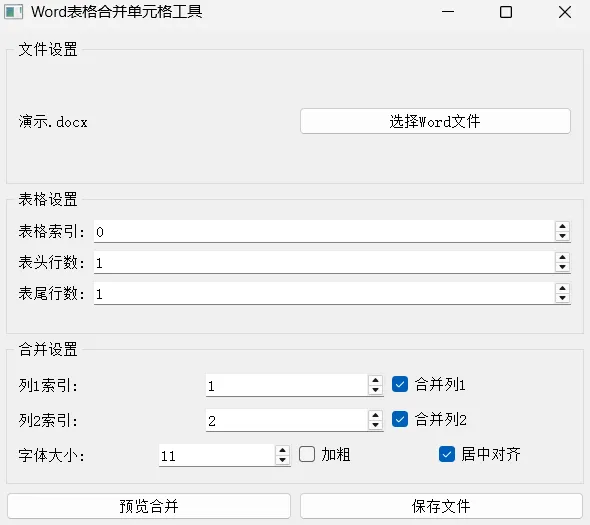
一:效果展示:
本项目是基于
PyQt5和python-docx库开发的图形界面应用程序,用于处理Word文档中的表格,主要功能是合并指定列中内容相同的单元格,并支持多种格式设置选项
二:功能描述:
1. 核心功能
(1)文件选择功能
- 选择Word文件:用户可以通过文件对话框选择要处理的
.docx文件 - 文件路径显示:显示当前选择的文件路径
- 文件加载验证:检查文件是否能正常加载,并给出反馈
(2)表格设置功能
- 表格索引选择:指定要处理的文档中的表格(支持多个表格的文档)
- 表头行数设置:指定表格中不参与合并的表头行数
- 表尾行数设置:指定表格中不参与合并的表尾行数
(3)合并设置功能
- 指定要合并的列索引
启用/禁用该列的合并功能
字体大小设置(8-72磅)
- 文本加粗选项
- 单元格内容居中对齐选项
(4)操作功能
- 预览合并:显示将要执行的合并操作信息,但不实际修改文件
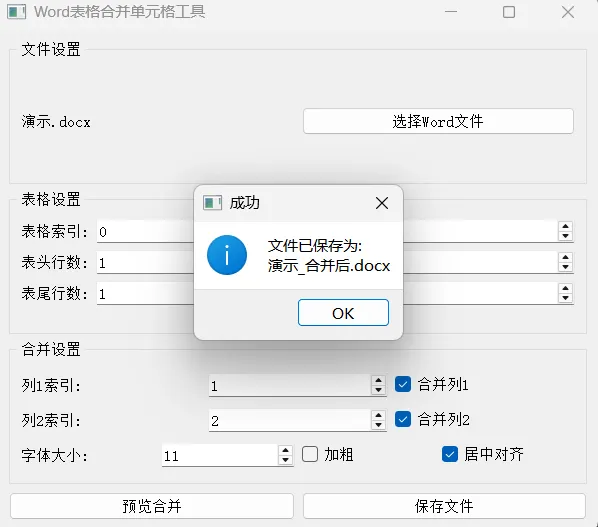
- 保存文件:处理完成后保存新文件,自动添加"_合并后"后缀
2. 核心处理逻辑
(1)表格处理流程
- 验证文档和表格是否存在
- 根据设置的表头和表尾行数确定数据行范围
- 对选定的每一列执行合并操作
(2)单元格合并实现
- 收集指定列中所有单元格的内容
- 识别连续相同内容的单元格范围
- 使用
python-docx的merge方法合并单元格 - 对合并后的单元格应用统一的格式设置
(3)格式应用
- 居中对齐
- 字体大小和加粗设置
3. 技术特点
- 图形用户界面:使用
PyQt5构建直观易用的界面 - 文档处理:基于
python-docx库操作Word文档 - 错误处理:对各种操作提供错误提示和警告
- 非破坏性操作:原始文件保持不变,生成新文件
- 灵活性:支持多表格文档,可自定义表头表尾行数
4. 使用场景
- 需要合并Word表格中相同内容的单元格
- 标准化表格格式(字体、对齐方式等)
- 批量处理包含多个相似表格的Word文档
- 需要保留表头和表尾不参与合并的特殊表格
三:完整代码:
import sys
import os
from PyQt5.QtWidgets import (QApplication, QMainWindow, QWidget, QVBoxLayout, QHBoxLayout, QLabel, QPushButton, QSpinBox, QComboBox, QCheckBox, QFileDialog, QMessageBox, QGroupBox, QFormLayout)
from docx import Document
from docx.shared import Pt
from docx.enum.text import WD_PARAGRAPH_ALIGNMENT
from docx.enum.table import WD_ALIGN_VERTICAL

class WordTableMerger(QMainWindow):
    def __init__(self):
        super().__init__()
        self.setWindowTitle("Word表格合并单元格工具")
        self.setGeometry(100, 100, 600, 500)
        self.initUI()

    def initUI(self):
        main_widget = QWidget()
        main_layout = QVBoxLayout()
        file_group = QGroupBox("文件设置")
        file_layout = QHBoxLayout()
        self.file_label = QLabel("未选择文件")
        self.file_button = QPushButton("选择Word文件")
        self.file_button.clicked.connect(self.select_file)
        file_layout.addWidget(self.file_label)
        file_layout.addWidget(self.file_button)
        file_group.setLayout(file_layout)
        table_group = QGroupBox("表格设置")
        table_layout = QFormLayout()
        self.table_index_spin = QSpinBox()
        self.table_index_spin.setRange(0, 10)
        self.table_index_spin.setValue(0)
        self.header_rows_spin = QSpinBox()
        self.header_rows_spin.setRange(0, 10)
        self.header_rows_spin.setValue(1)
        self.footer_rows_spin = QSpinBox()
        self.footer_rows_spin.setRange(0, 10)
        self.footer_rows_spin.setValue(1)
        table_layout.addRow("表格索引:", self.table_index_spin)
        table_layout.addRow("表头行数:", self.header_rows_spin)
        table_layout.addRow("表尾行数:", self.footer_rows_spin)
        table_group.setLayout(table_layout)
        merge_group = QGroupBox("合并设置")
        merge_layout = QVBoxLayout()
        col1_layout = QHBoxLayout()
        col1_layout.addWidget(QLabel("列1索引:"))
        self.col1_spin = QSpinBox()
        self.col1_spin.setRange(0, 20)
        self.col1_spin.setValue(1)
        col1_layout.addWidget(self.col1_spin)
        self.col1_merge = QCheckBox("合并列1")
        self.col1_merge.setChecked(True)
        col1_layout.addWidget(self.col1_merge)
        col2_layout = QHBoxLayout()
        col2_layout.addWidget(QLabel("列2索引:"))
        self.col2_spin = QSpinBox()
        self.col2_spin.setRange(0, 20)
        self.col2_spin.setValue(2)
        col2_layout.addWidget(self.col2_spin)
        self.col2_merge = QCheckBox("合并列2")
        self.col2_merge.setChecked(True)
        col2_layout.addWidget(self.col2_merge)
        font_layout = QHBoxLayout()
        font_layout.addWidget(QLabel("字体大小:"))
        self.font_size_spin = QSpinBox()
        self.font_size_spin.setRange(8, 72)
        self.font_size_spin.setValue(11)
        font_layout.addWidget(self.font_size_spin)
        self.bold_check = QCheckBox("加粗")
        font_layout.addWidget(self.bold_check)
        self.center_check = QCheckBox("居中对齐")
        self.center_check.setChecked(True)
        font_layout.addWidget(self.center_check)
        merge_layout.addLayout(col1_layout)
        merge_layout.addLayout(col2_layout)
        merge_layout.addLayout(font_layout)
        merge_group.setLayout(merge_layout)
        button_layout = QHBoxLayout()
        self.preview_button = QPushButton("预览合并")
        self.preview_button.clicked.connect(self.preview_merge)
        self.save_button = QPushButton("保存文件")
        self.save_button.clicked.connect(self.save_file)
        button_layout.addWidget(self.preview_button)
        button_layout.addWidget(self.save_button)
        main_layout.addWidget(file_group)
        main_layout.addWidget(table_group)
        main_layout.addWidget(merge_group)
        main_layout.addLayout(button_layout)
        main_widget.setLayout(main_layout)
        self.setCentralWidget(main_widget)
        self.doc = None
        self.file_path = ""

    def select_file(self):
        options = QFileDialog.Options()
        file_path, _ = QFileDialog.getOpenFileName(
            self, "选择Word文件", "",
            "Word文件 (*.docx);;所有文件 (*)",
            options=options
        )

        if file_path:
            self.file_path = file_path
            self.file_label.setText(file_path.split("/")[-1])
            try:
                self.doc = Document(file_path)
                QMessageBox.information(self, "成功", "文件加载成功!")
            except Exception as e:
                QMessageBox.critical(self, "错误", f"无法加载文件:\n{str(e)}")

    def merge_cells(self, table, col_index, start_row, end_row):
        if start_row >= end_row:
            return

        cells_info = []
        for row_idx in range(start_row, end_row):
            cell = table.cell(row_idx, col_index)
            text = self.get_cell_text(cell)
            cells_info.append((row_idx, text, cell))

        if not cells_info:
            return

        current_value = cells_info[0][1]
        merge_start = start_row
        last_value = current_value

        for i in range(1, len(cells_info)):
            row_idx, text, cell = cells_info[i]
            if text != current_value:
                if merge_start < row_idx - 1:
                    self.merge_and_format(table, col_index, merge_start, row_idx - 1, last_value)
                else:
                    self.apply_cell_format(table.cell(merge_start, col_index))

                current_value = text
                merge_start = row_idx
            last_value = text

        last_row = end_row - 1
        if merge_start < last_row:
            self.merge_and_format(table, col_index, merge_start, last_row, last_value)
        else:
            self.apply_cell_format(table.cell(merge_start, col_index))

    def merge_and_format(self, table, col_index, start_row, end_row, value):
        merged_cell = table.cell(start_row, col_index).merge(table.cell(end_row, col_index))
        merged_cell.text = ""
        paragraph = merged_cell.paragraphs[0]
        run = paragraph.add_run(value)
        self.apply_cell_format(merged_cell)

    def get_cell_text(self, cell):
        text_parts = []
        for paragraph in cell.paragraphs:
            text_parts.append(paragraph.text.strip())
        return " ".join(text_parts).strip()

    def apply_cell_format(self, cell):
        cell.vertical_alignment = WD_ALIGN_VERTICAL.CENTER

        if not cell.paragraphs:
            cell.add_paragraph()

        paragraph = cell.paragraphs[0]

        if self.center_check.isChecked():
            paragraph.alignment = WD_PARAGRAPH_ALIGNMENT.CENTER
        else:
            paragraph.alignment = WD_PARAGRAPH_ALIGNMENT.LEFT

        text = self.get_cell_text(cell)
        paragraph.clear()
        run = paragraph.add_run(text)
        run.font.size = Pt(self.font_size_spin.value())
        run.bold = self.bold_check.isChecked()

    def process_table(self, preview_mode=False):
        if not self.doc:
            QMessageBox.warning(self, "警告", "请先选择Word文件!")
            return False

        try:
            table_index = self.table_index_spin.value()
            if table_index >= len(self.doc.tables):
                QMessageBox.warning(self, "警告", f"文档中只有 {len(self.doc.tables)} 个表格!")
                return False

            table = self.doc.tables[table_index]
            header_rows = self.header_rows_spin.value()
            footer_rows = self.footer_rows_spin.value()

            if len(table.rows) <= header_rows + footer_rows:
                QMessageBox.warning(self, "警告", "表格行数不足!")
                return False

            start_row = header_rows
            end_row = len(table.rows) - footer_rows

            if preview_mode:
                info = "将要执行以下合并操作:\n"
                if self.col1_merge.isChecked():
                    info += f"- 列 {self.col1_spin.value()} 将合并相同内容的单元格\n"
                if self.col2_merge.isChecked():
                    info += f"- 列 {self.col2_spin.value()} 将合并相同内容的单元格\n"
                info += f"\n表格索引: {table_index}\n"
                info += f"数据行范围: 行 {start_row + 1} 到行 {end_row} (共 {end_row - start_row} 行)\n"
                info += f"表头行数: {header_rows}\n"
                info += f"表尾行数: {footer_rows}"

                QMessageBox.information(self, "预览", info)
                return True

            if self.col1_merge.isChecked():
                self.merge_cells(table, self.col1_spin.value(), start_row, end_row)
            if self.col2_merge.isChecked():
                self.merge_cells(table, self.col2_spin.value(), start_row, end_row)

            return True

        except Exception as e:
            QMessageBox.critical(self, "错误", f"处理表格时出错:\n{str(e)}")
            return False

    def preview_merge(self):
        self.process_table(preview_mode=True)

    def save_file(self):
        if not self.process_table():
            return

        if not self.file_path:
            QMessageBox.warning(self, "警告", "没有原始文件路径!")
            return

        try:
            path, filename = os.path.split(self.file_path)
            name, ext = os.path.splitext(filename)
            new_filename = f"{name}_合并后{ext}"
            new_path = os.path.join(path, new_filename)

            if os.path.exists(new_path):
                reply = QMessageBox.question(
                    self, "文件已存在",
                    f"文件 {new_filename} 已存在,是否覆盖?",
                    QMessageBox.Yes | QMessageBox.No
                )
                if reply == QMessageBox.No:
                    return

            self.doc.save(new_path)
            QMessageBox.information(self, "成功", f"文件已保存为:\n{new_filename}")

        except Exception as e:
            QMessageBox.critical(self, "错误", f"保存文件时出错:\n{str(e)}")

if __name__ == "__main__":
    app = QApplication(sys.argv)
    window = WordTableMerger()
    window.show()
    sys.exit(app.exec_())
四:代码分析:
1. 用户界面初始化
def initUI(self):
    # 创建主部件和布局
    main_widget = QWidget()
    main_layout = QVBoxLayout()

    # 文件选择区域
    # 使用QGroupBox和布局管理器组织界面元素
    file_group = QGroupBox("文件设置")
    file_layout = QHBoxLayout()
    self.file_label = QLabel("未选择文件")
    self.file_button = QPushButton("选择Word文件")
    self.file_button.clicked.connect(self.select_file)
    file_layout.addWidget(self.file_label)
    file_layout.addWidget(self.file_button)
    file_group.setLayout(file_layout)

    # 表格设置区域
    table_group = QGroupBox("表格设置")
    table_layout = QFormLayout()
    self.table_index_spin = QSpinBox()
    self.table_index_spin.setRange(0, 10)
    self.table_index_spin.setValue(0)
    self.header_rows_spin = QSpinBox()
    self.header_rows_spin.setRange(0, 10)
    self.header_rows_spin.setValue(1)
    self.footer_rows_spin = QSpinBox()
    self.footer_rows_spin.setRange(0, 10)
    self.footer_rows_spin.setValue(1)
    table_layout.addRow("表格索引:", self.table_index_spin)
    table_layout.addRow("表头行数:", self.header_rows_spin)
    table_layout.addRow("表尾行数:", self.footer_rows_spin)
    table_group.setLayout(table_layout)

    # 合并设置区域
    merge_group = QGroupBox("合并设置")
    merge_layout = QVBoxLayout()

    # 列1设置
    col1_layout = QHBoxLayout()
    col1_layout.addWidget(QLabel("列1索引:"))
    self.col1_spin = QSpinBox()
    self.col1_spin.setRange(0, 20)
    self.col1_spin.setValue(1)
    col1_layout.addWidget(self.col1_spin)
    self.col1_merge = QCheckBox("合并列1")
    self.col1_merge.setChecked(True)
    col1_layout.addWidget(self.col1_merge)

    # 列2设置
    col2_layout = QHBoxLayout()
    col2_layout.addWidget(QLabel("列2索引:"))
    self.col2_spin = QSpinBox()
    self.col2_spin.setRange(0, 20)
    self.col2_spin.setValue(2)
    col2_layout.addWidget(self.col2_spin)
    self.col2_merge = QCheckBox("合并列2")
    self.col2_merge.setChecked(True)
    col2_layout.addWidget(self.col2_merge)

    # 字体和对齐设置
    font_layout = QHBoxLayout()
    font_layout.addWidget(QLabel("字体大小:"))
    self.font_size_spin = QSpinBox()
    self.font_size_spin.setRange(8, 72)
    self.font_size_spin.setValue(11)
    font_layout.addWidget(self.font_size_spin)
    self.bold_check = QCheckBox("加粗")
    font_layout.addWidget(self.bold_check)
    self.center_check = QCheckBox("居中对齐")
    self.center_check.setChecked(True)
    font_layout.addWidget(self.center_check)

    merge_layout.addLayout(col1_layout)
    merge_layout.addLayout(col2_layout)
    merge_layout.addLayout(font_layout)
    merge_group.setLayout(merge_layout)

    # 按钮区域
    button_layout = QHBoxLayout()
    self.preview_button = QPushButton("预览合并")
    self.preview_button.clicked.connect(self.preview_merge)
    self.save_button = QPushButton("保存文件")
    self.save_button.clicked.connect(self.save_file)
    button_layout.addWidget(self.preview_button)
    button_layout.addWidget(self.save_button)

    # 组装主界面
    main_layout.addWidget(file_group)
    main_layout.addWidget(table_group)
    main_layout.addWidget(merge_group)
    main_layout.addLayout(button_layout)
    main_widget.setLayout(main_layout)
    self.setCentralWidget(main_widget)

    # 初始化文档变量
    self.doc = None
    self.file_path = ""
2. 文件选择功能
def select_file(self):
    # 使用QFileDialog打开文件选择对话框
    options = QFileDialog.Options()
    file_path, _ = QFileDialog.getOpenFileName(
        # 限制文件类型为.docx或所有文件
        self, "选择Word文件", "",
        "Word文件 (*.docx);;所有文件 (*)",
        options=options
    )

    if file_path:
        self.file_path = file_path
        self.file_label.setText(file_path.split("/")[-1])
        try:
            self.doc = Document(file_path)
            QMessageBox.information(self, "成功", "文件加载成功!")
        except Exception as e:
            QMessageBox.critical(self, "错误", f"无法加载文件:\n{str(e)}")
3. 单元格合并核心功能
def merge_cells(self, table, col_index, start_row, end_row):
    if start_row >= end_row:
        return

    # 收集单元格信息
    cells_info = []
    for row_idx in range(start_row, end_row):
        cell = table.cell(row_idx, col_index)
        text = self.get_cell_text(cell)
        cells_info.append((row_idx, text, cell))

    if not cells_info:
        return

    # 合并相同内容的单元格
    current_value = cells_info[0][1]
    merge_start = start_row
    last_value = current_value

    for i in range(1, len(cells_info)):
        row_idx, text, cell = cells_info[i]
        if text != current_value:
            if merge_start < row_idx - 1:
                self.merge_and_format(table, col_index, merge_start, row_idx - 1, last_value)
            else:
                self.apply_cell_format(table.cell(merge_start, col_index))

            current_value = text
            merge_start = row_idx
        last_value = text

    # 处理最后一组单元格
    last_row = end_row - 1
    if merge_start < last_row:
        self.merge_and_format(table, col_index, merge_start, last_row, last_value)
    else:
        self.apply_cell_format(table.cell(merge_start, col_index))

def merge_and_format(self, table, col_index, start_row, end_row, value):
    # 执行单元格合并
    merged_cell = table.cell(start_row, col_index).merge(table.cell(end_row, col_index))
    merged_cell.text = ""
    paragraph = merged_cell.paragraphs[0]
    run = paragraph.add_run(value)
    self.apply_cell_format(merged_cell)

def get_cell_text(self, cell):
    # 获取单元格文本(合并所有段落)
    text_parts = []
    for paragraph in cell.paragraphs:
        text_parts.append(paragraph.text.strip())
    return " ".join(text_parts).strip()
4. 单元格格式设置
def apply_cell_format(self, cell):
    # 设置垂直对齐方式
    cell.vertical_alignment = WD_ALIGN_VERTICAL.CENTER

    # 确保有段落
    if not cell.paragraphs:
        cell.add_paragraph()

    paragraph = cell.paragraphs[0]

    # 设置水平对齐方式
    if self.center_check.isChecked():
        paragraph.alignment = WD_PARAGRAPH_ALIGNMENT.CENTER
    else:
        paragraph.alignment = WD_PARAGRAPH_ALIGNMENT.LEFT

    # 设置字体格式
    text = self.get_cell_text(cell)
    paragraph.clear()
    run = paragraph.add_run(text)
    run.font.size = Pt(self.font_size_spin.value())
    run.bold = self.bold_check.isChecked()
5. 表格处理功能
def process_table(self, preview_mode=False):
    if not self.doc:
        QMessageBox.warning(self, "警告", "请先选择Word文件!")
        return False

    try:
        # 获取表格索引并验证
        table_index = self.table_index_spin.value()
        if table_index >= len(self.doc.tables):
            QMessageBox.warning(self, "警告", f"文档中只有 {len(self.doc.tables)} 个表格!")
            return False

        table = self.doc.tables[table_index]
        header_rows = self.header_rows_spin.value()
        footer_rows = self.footer_rows_spin.value()

        # 验证表格行数
        if len(table.rows) <= header_rows + footer_rows:
            QMessageBox.warning(self, "警告", "表格行数不足!")
            return False

        # 计算数据行范围
        start_row = header_rows
        end_row = len(table.rows) - footer_rows

        # 预览模式只显示信息
        if preview_mode:
            info = "将要执行以下合并操作:\n"
            if self.col1_merge.isChecked():
                info += f"- 列 {self.col1_spin.value()} 将合并相同内容的单元格\n"
            if self.col2_merge.isChecked():
                info += f"- 列 {self.col2_spin.value()} 将合并相同内容的单元格\n"
            info += f"\n表格索引: {table_index}\n"
            info += f"数据行范围: 行 {start_row + 1} 到行 {end_row} (共 {end_row - start_row} 行)\n"
            info += f"表头行数: {header_rows}\n"
            info += f"表尾行数: {footer_rows}"

            QMessageBox.information(self, "预览", info)
            return True

        # 实际执行合并
        if self.col1_merge.isChecked():
            self.merge_cells(table, self.col1_spin.value(), start_row, end_row)
        if self.col2_merge.isChecked():
            self.merge_cells(table, self.col2_spin.value(), start_row, end_row)

        return True

    except Exception as e:
        QMessageBox.critical(self, "错误", f"处理表格时出错:\n{str(e)}")
        return False
6. 预览和保存功能
def preview_merge(self):
    self.process_table(preview_mode=True)

def save_file(self):
    if not self.process_table():
        return

    if not self.file_path:
        QMessageBox.warning(self, "警告", "没有原始文件路径!")
        return

    try:
        # 生成新文件名
        path, filename = os.path.split(self.file_path)
        name, ext = os.path.splitext(filename)
        new_filename = f"{name}_合并后{ext}"
        new_path = os.path.join(path, new_filename)

        # 检查文件是否已存在
        if os.path.exists(new_path):
            reply = QMessageBox.question(
                self, "文件已存在",
                f"文件 {new_filename} 已存在,是否覆盖?",
                QMessageBox.Yes | QMessageBox.No
            )
            if reply == QMessageBox.No:
                return

        # 保存文件
        self.doc.save(new_path)
        QMessageBox.information(self, "成功", f"文件已保存为:\n{new_filename}")

    except Exception as e:
        QMessageBox.critical(self, "错误", f"保存文件时出错:\n{str(e)}")