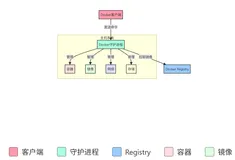
容器相关的命令
先有个认知: 有镜像才能创建容器

下载一个centos的基础镜像
我们来看个例子 : 下载一个centos的基础镜像
[root@VM-0-7-centos ~]# docker pull centos
Using default tag: latest
latest: Pulling from library/centos
a1d0c7532777: Pull complete
Digest: sha256:a27fd8080b517143cbbbab9dfb7c8571c40d67d534bbdee55bd6c473f432b177
Status: Downloaded newer image for centos:latest
docker.io/library/centos:latest
[root@VM-0-7-centos ~]#
[root@VM-0-7-centos ~]#
[root@VM-0-7-centos ~]# docker images
REPOSITORY   TAG       IMAGE ID       CREATED       SIZE
centos       latest    5d0da3dc9764   2 weeks ago   231MB
[root@VM-0-7-centos ~]#

新建容器并启动 docker run
https://docs.docker.com/engine/reference/commandline/run/

操作说明
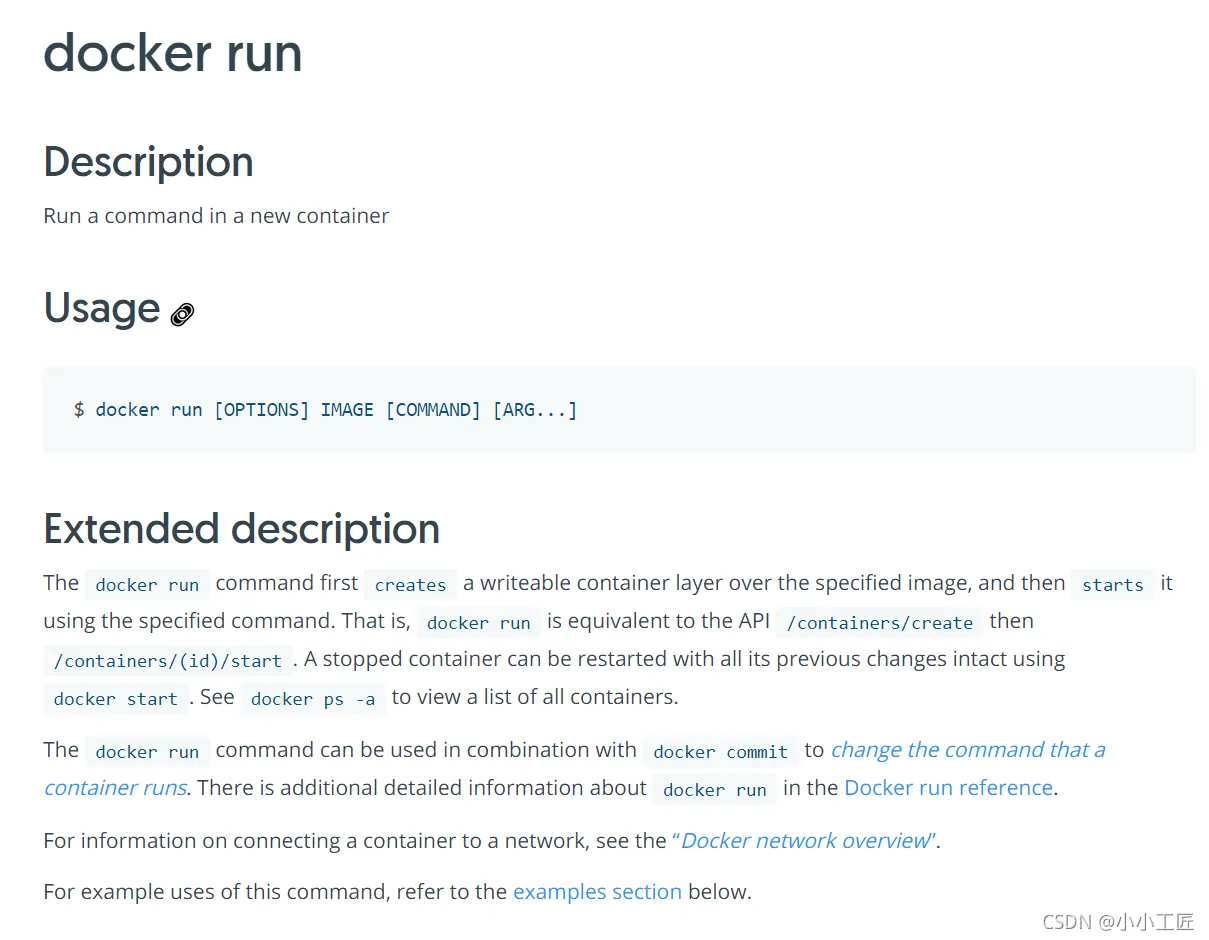
Option 太多了,看官文吧 ,这里挑几个常用的
$ docker run [OPTIONS] IMAGE [COMMAND] [ARG...]
# 参数说明
--name="Name"    容器名字 ,任意指定,用来区分容器
-d               后台方式运行
-it              使用交互方式运行,进入容器查看内容
-p               指定容器端口  -p 8080:8080
    -p ip:主机端口:容器端口
    -p 主机端口:容器端口  (常用)
    -p 容器端口
    容器端口
-P               随机指定端口
启动并进入容器
[root@VM-0-7-centos ~]# docker images
REPOSITORY   TAG       IMAGE ID       CREATED       SIZE
centos       latest    5d0da3dc9764   2 weeks ago   231MB
[root@VM-0-7-centos ~]#
[root@VM-0-7-centos ~]#
#  启动并进入容器
[root@VM-0-7-centos ~]# docker run -it centos /bin/bash
[root@23e62436c0c5 /]# ls
bin  dev  etc  home  lib  lib64  lost+found  media  mnt  opt  proc  root  run  sbin  srv  sys  tmp  usr  var
[root@23e62436c0c5 /]# pwd
/
# 从容器中退回主机
[root@23e62436c0c5 /]# exit
exit
[root@VM-0-7-centos ~]# pwd
/root
[root@VM-0-7-centos ~]#
[root@VM-0-7-centos ~]#

查看当前有哪些容器正在运行 docker ps
https://docs.docker.com/engine/reference/commandline/ps/
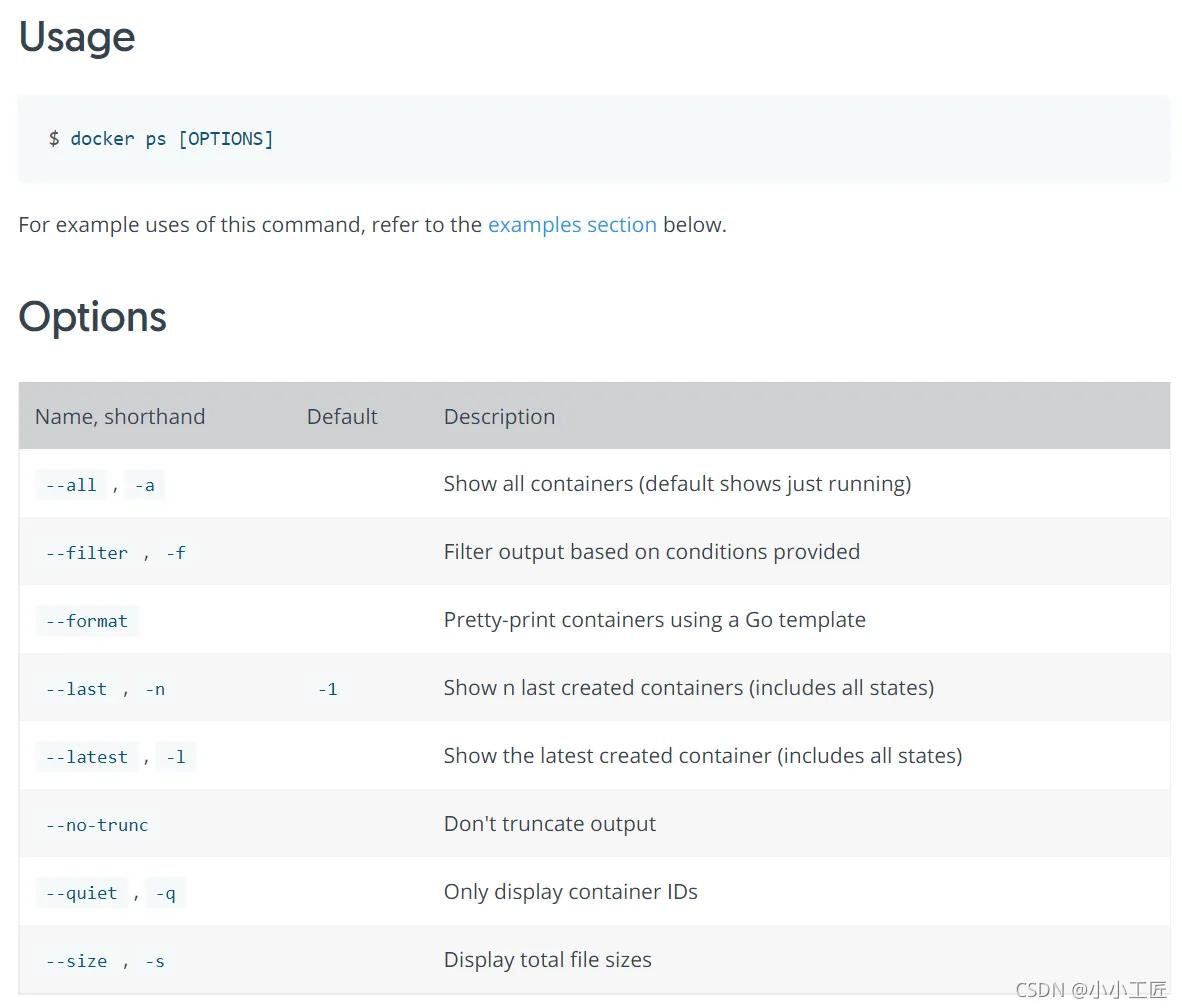
# docker ps 显示正常运行的容器
-a   # 显示当前正在运行的容器 + 历史运行过的容器
-n=? # 显示最近创建的容器
-q   # 只显示容器的编号
[root@VM-0-7-centos ~]# 显示正常运行的容器
[root@VM-0-7-centos ~]# docker ps
CONTAINER ID   IMAGE     COMMAND   CREATED   STATUS    PORTS     NAMES
[root@VM-0-7-centos ~]#
[root@VM-0-7-centos ~]#  显示当前正在运行的容器 + 历史运行过的容器
[root@VM-0-7-centos ~]# docker ps -a
CONTAINER ID   IMAGE          COMMAND       CREATED         STATUS                     PORTS     NAMES
23e62436c0c5   centos         "/bin/bash"   3 minutes ago   Exited (0) 3 minutes ago             admiring_austin
95a5e684ea82   feb5d9fea6a5   "/hello"      44 hours ago    Exited (0) 44 hours ago              dazzling_davinci
[root@VM-0-7-centos ~]#
[root@VM-0-7-centos ~]#
[root@VM-0-7-centos ~]#
[root@VM-0-7-centos ~]#  查看帮助
[root@VM-0-7-centos ~]# docker ps --help
Usage:  docker ps [OPTIONS]
List containers
Options:
  -a, --all             Show all containers (default shows just running)
  -f, --filter filter   Filter output based on conditions provided
      --format string   Pretty-print containers using a Go template
  -n, --last int        Show n last created containers (includes all states) (default -1)
  -l, --latest          Show the latest created container (includes all states)
      --no-trunc        Don't truncate output
  -q, --quiet           Only display container IDs
  -s, --size            Display total file sizes
[root@VM-0-7-centos ~]# docker ps -n=1
CONTAINER ID   IMAGE     COMMAND       CREATED         STATUS                     PORTS     NAMES
23e62436c0c5   centos    "/bin/bash"   4 minutes ago   Exited (0) 4 minutes ago             admiring_austin
[root@VM-0-7-centos ~]#
[root@VM-0-7-centos ~]#
[root@VM-0-7-centos ~]#
[root@VM-0-7-centos ~]# docker ps -aq
23e62436c0c5
95a5e684ea82
[root@VM-0-7-centos ~]#
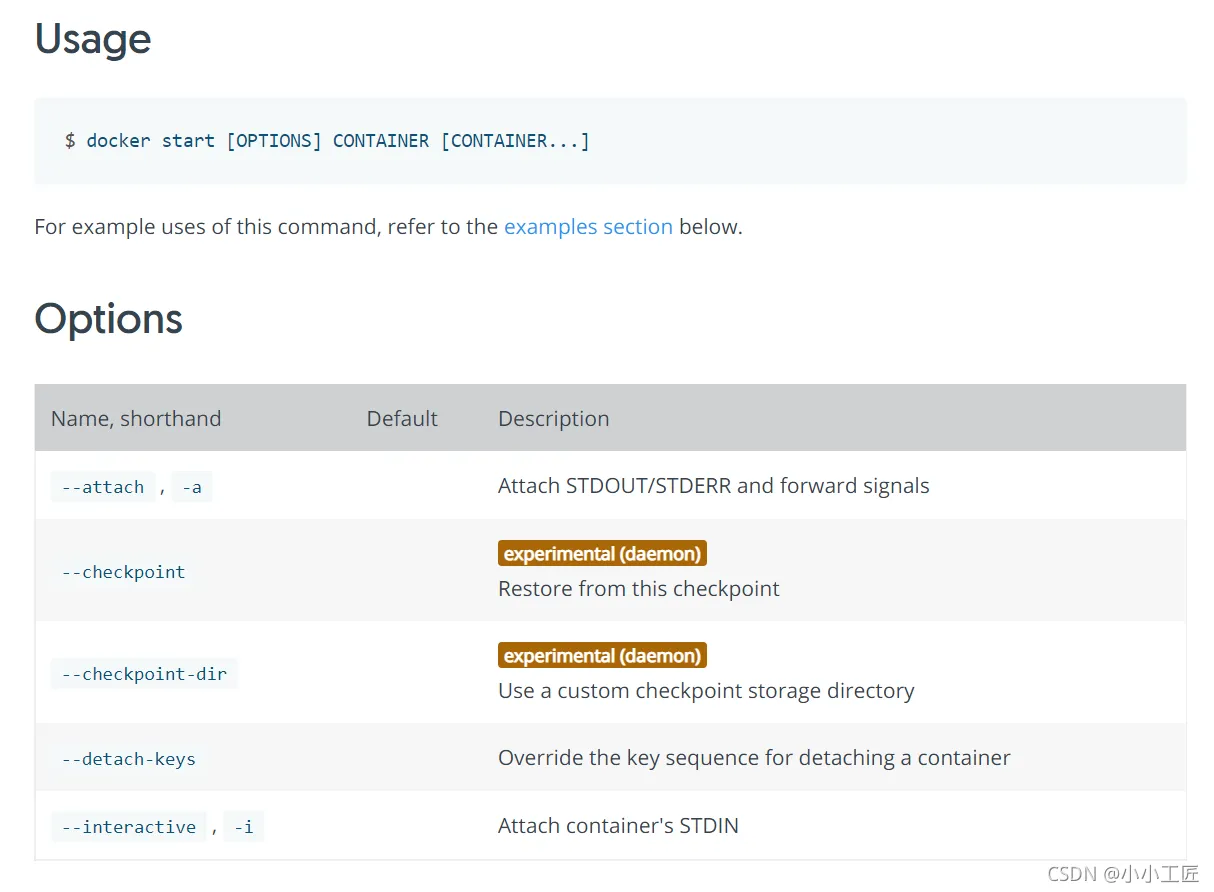
启动容器
docker start container_name/container_id # 启动容器
https://docs.docker.com/engine/reference/commandline/start/
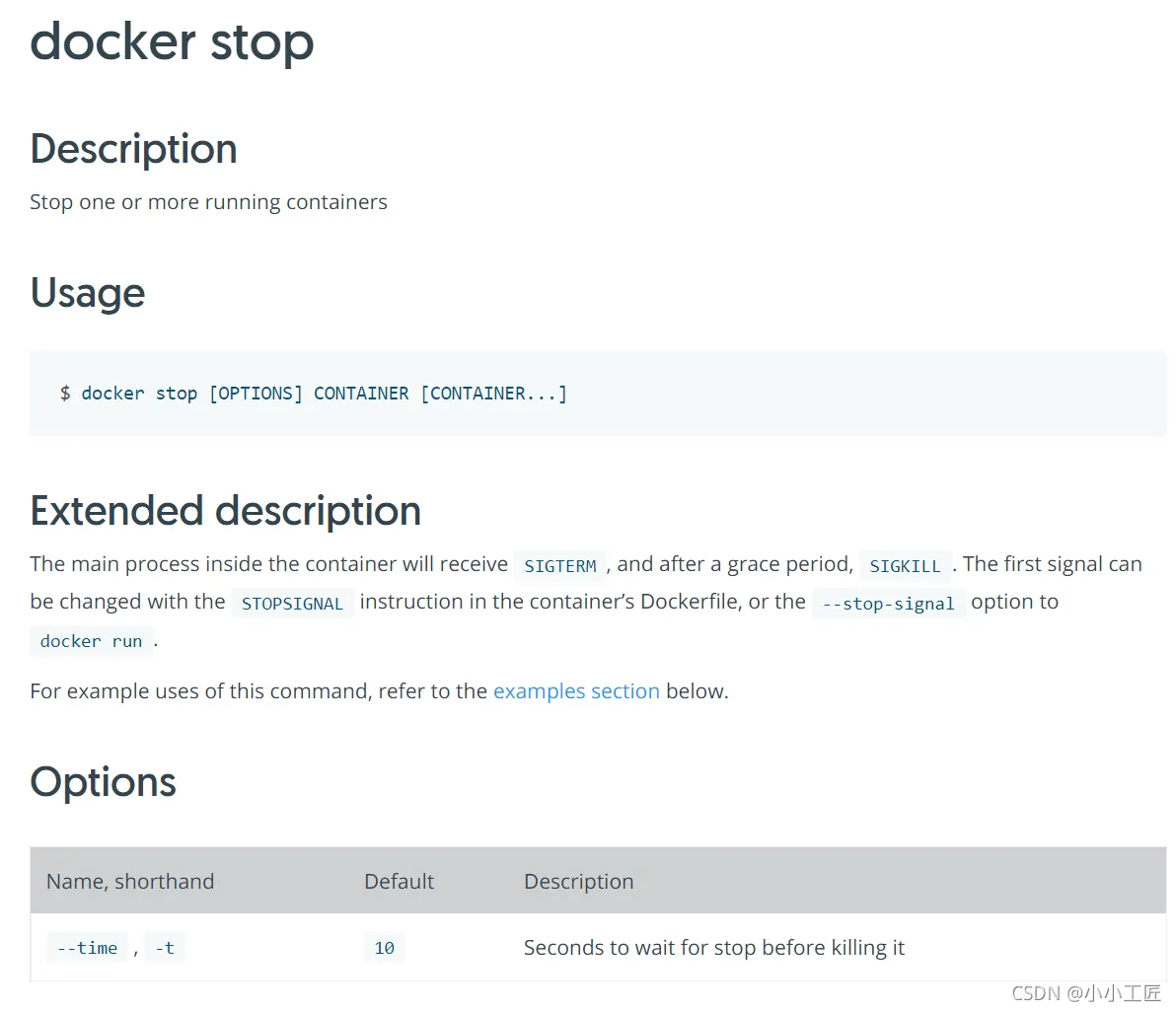
停止容器
https://docs.docker.com/engine/reference/commandline/stop/
docker stop container_name/container_id # 停止当前正在运行的容器
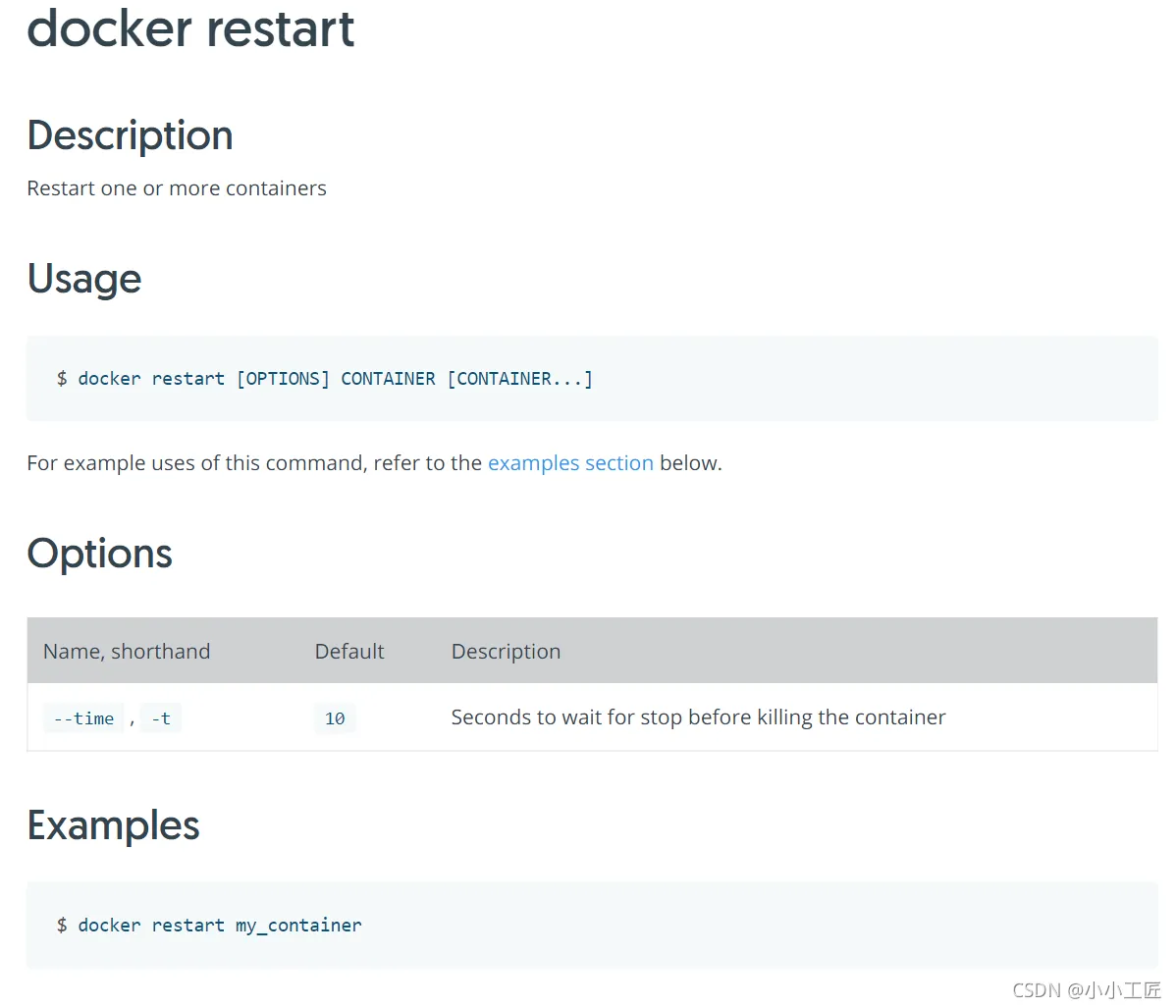
重启容器
docker restart container_name/container_id # 重启容器
https://docs.docker.com/engine/reference/commandline/restart/
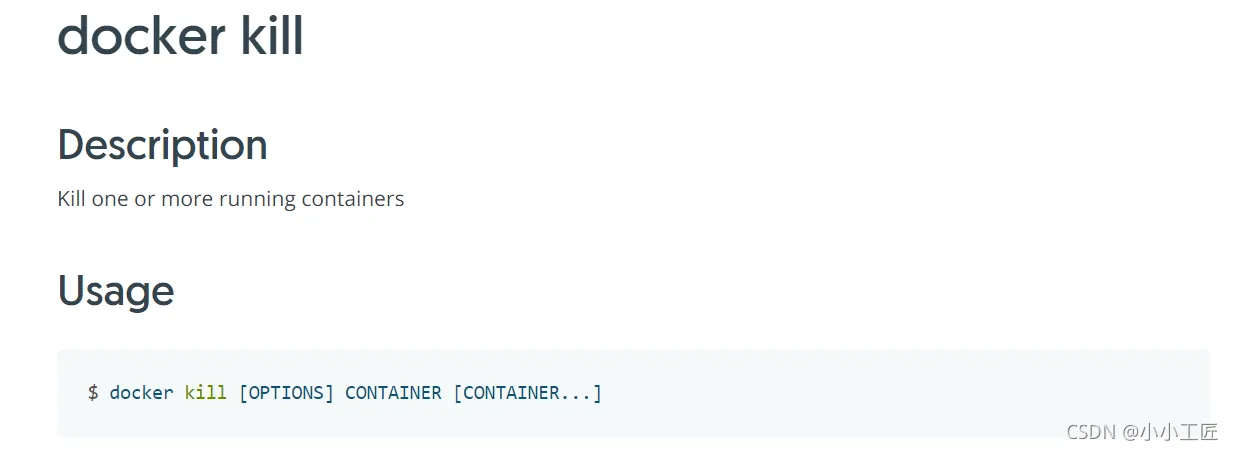
强制停止
docker kill container_name/container_id # 强制停止当前容器
https://docs.docker.com/engine/reference/commandline/kill/
进入容器
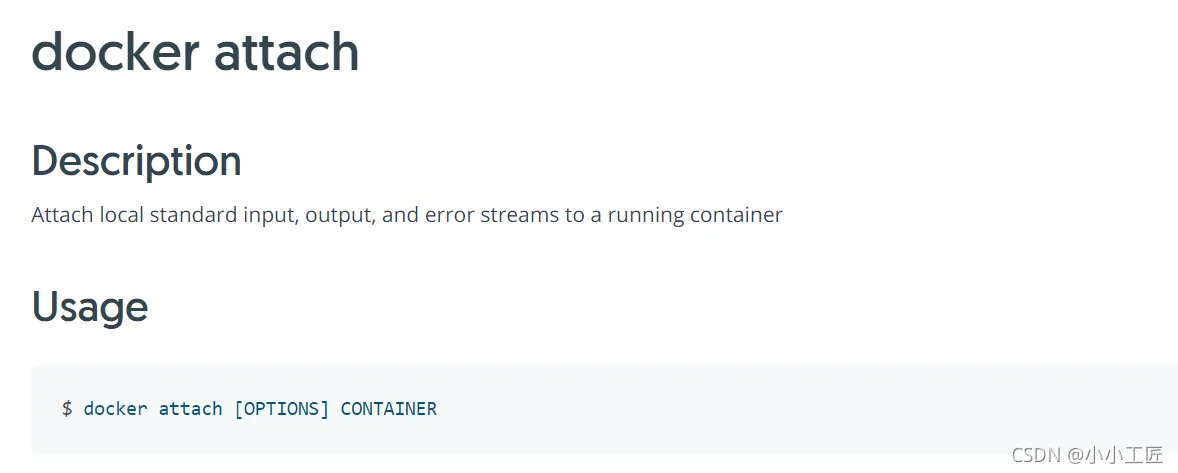
后台启动一个容器后,如果想进入到这个容器,可以使用attach命令
docker attach container_name/container_id
https://docs.docker.com/engine/reference/commandline/attach/
退出容器
exit          # 直接退出容器并停止
Ctrl + P + Q  # 退出容器但是容器不停止
# 查看
[root@VM-0-7-centos ~]# docker ps    发现无运行的容器
CONTAINER ID   IMAGE     COMMAND   CREATED   STATUS    PORTS     NAMES
[root@VM-0-7-centos ~]# docker run -it centos /bin/bash
[root@5fa6e10931b5 /]#
[root@5fa6e10931b5 /]#  Ctrl + P + Q  # 退出容器但是容器不停止
[root@VM-0-7-centos ~]#
[root@VM-0-7-centos ~]# 查看运行的容器
[root@VM-0-7-centos ~]# docker ps   发现容器并没有退出,区别于exit
CONTAINER ID   IMAGE     COMMAND       CREATED          STATUS          PORTS     NAMES
5fa6e10931b5   centos    "/bin/bash"   19 seconds ago   Up 18 seconds             agitated_pare
[root@VM-0-7-centos ~]#
[root@VM-0-7-centos ~]#  进入容器
[root@VM-0-7-centos ~]# docker attach 5fa6e10931b5
[root@5fa6e10931b5 /]#
[root@5fa6e10931b5 /]#
删除容器
https://docs.docker.com/engine/reference/commandline/rm/
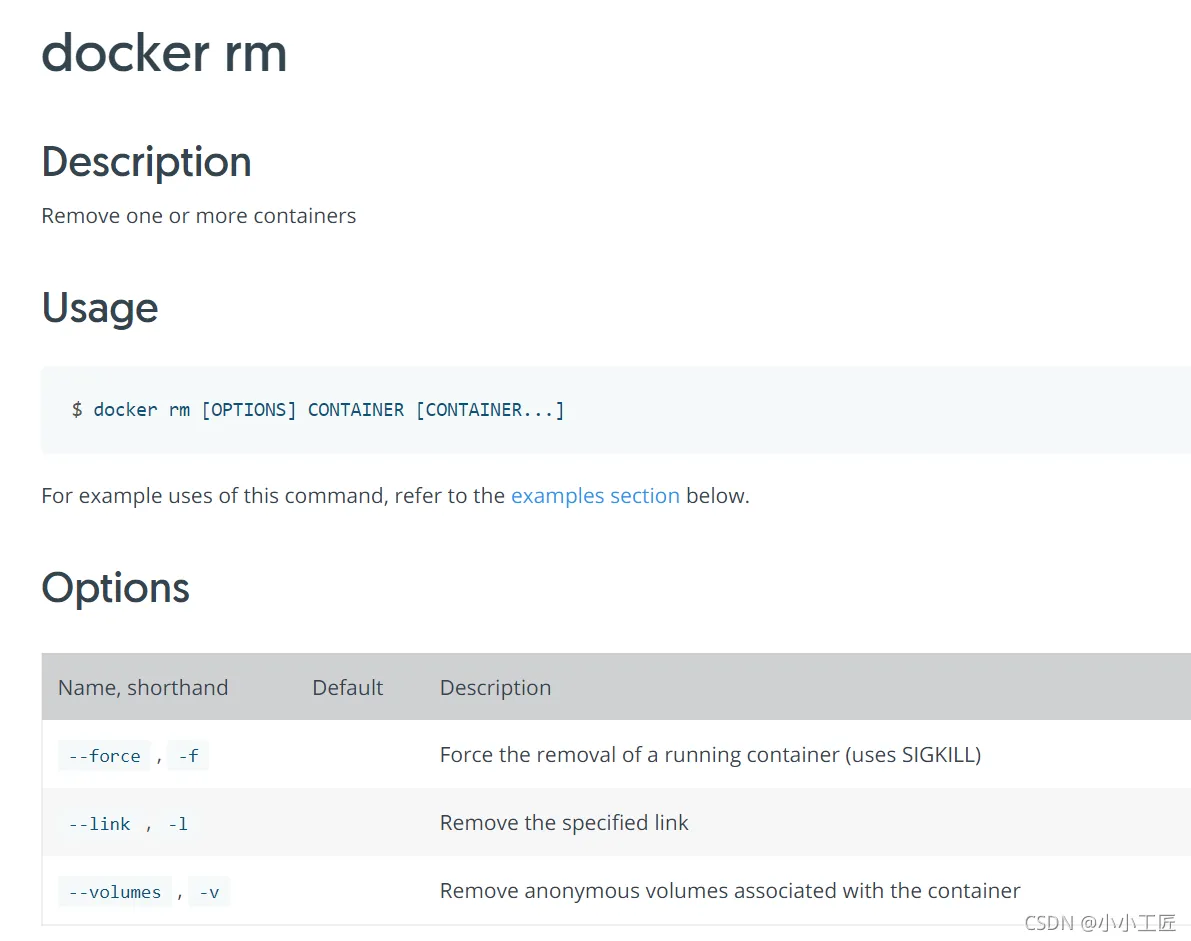
docker rm container_name/container_id # 不能删除正在运行的容器
删除所有停止的容器
docker rm -f $(docker ps -a -q)
其他常用命令
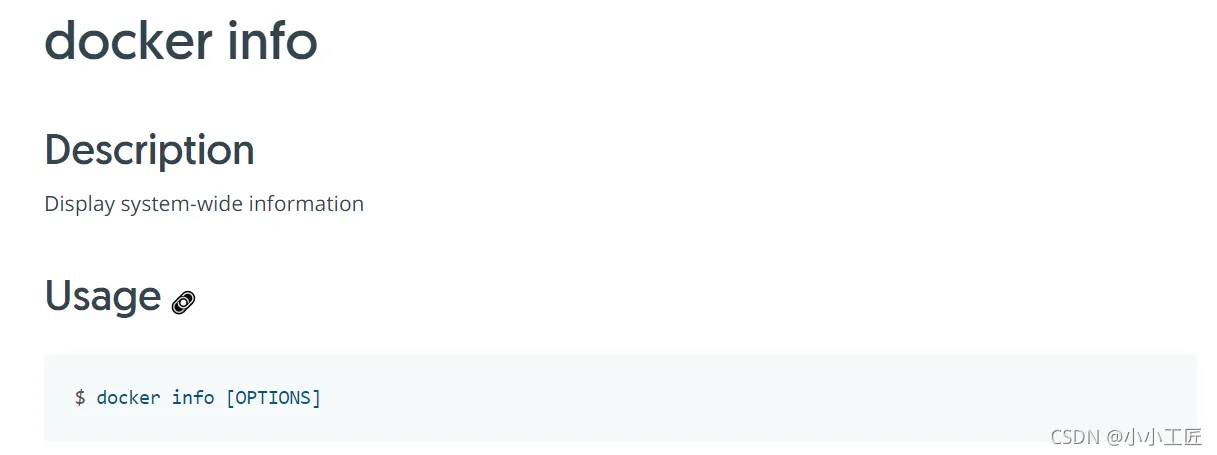
查看当前系统Docker信息
https://docs.docker.com/engine/reference/commandline/info/
docker info
后台启动容器
[root@VM-0-7-centos ~]# docker ps
CONTAINER ID   IMAGE     COMMAND   CREATED   STATUS    PORTS     NAMES
[root@VM-0-7-centos ~]# docker run -d centos
04abf017a5b00eb23707c07dc0d0d521d022bc9bba3d7a59d2aca855e87422c5
[root@VM-0-7-centos ~]# docker ps
CONTAINER ID   IMAGE     COMMAND   CREATED   STATUS    PORTS     NAMES
[root@VM-0-7-centos ~]#
[root@VM-0-7-centos ~]# docker ps
CONTAINER ID   IMAGE     COMMAND   CREATED   STATUS    PORTS     NAMES
问题docker ps ,发现 centos 停止了
docker 容器使用后台运行,就必须要有一个前台进程,docker发现没有应用,就自动停止
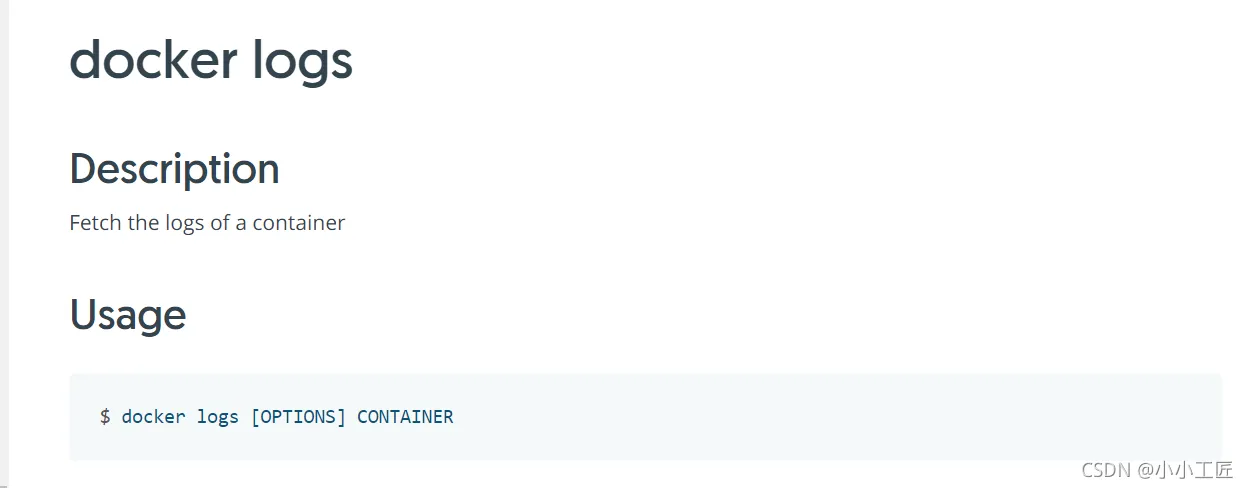
docker logs 查看日志
https://docs.docker.com/engine/reference/commandline/logs/
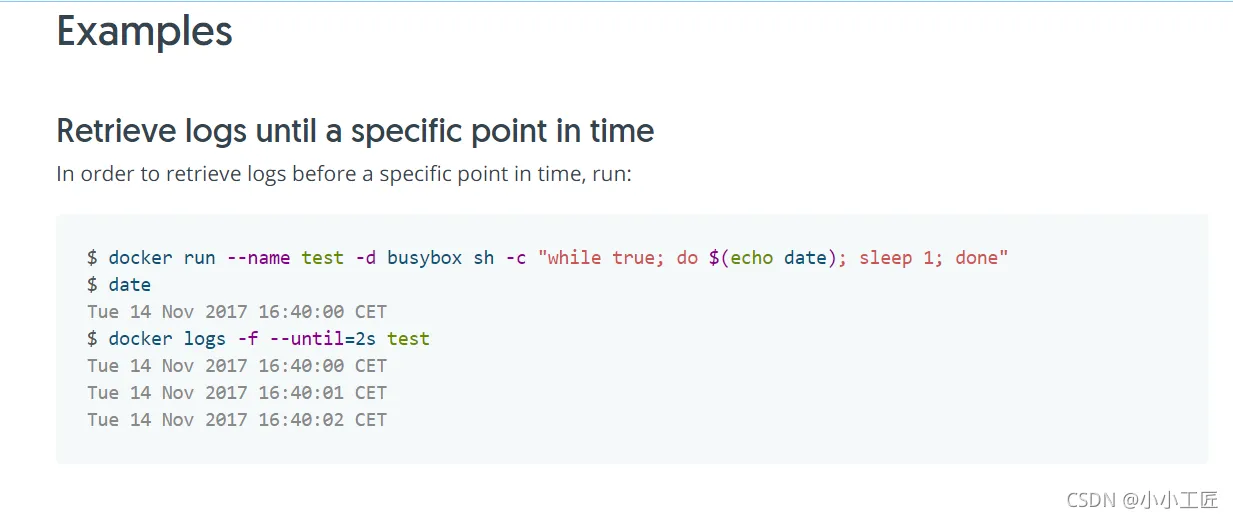
[root@VM-0-7-centos ~]# docker run --name test -d centos  sh -c "while true; do $(echo date); sleep 1; done"
d0dd49e573ce117cdc6e8ea1c9a8648ef5927c6182bc4a2a189e16645e261bcc
[root@VM-0-7-centos ~]# docker logs -f --until=2s test
Wed Oct  6 12:31:43 UTC 2021
Wed Oct  6 12:31:44 UTC 2021
Wed Oct  6 12:31:45 UTC 2021
Wed Oct  6 12:31:46 UTC 2021
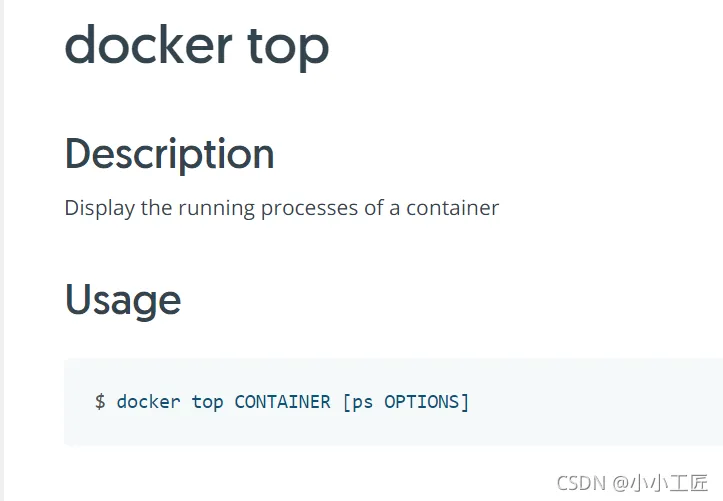
docker top
https://docs.docker.com/engine/reference/commandline/top/
[root@VM-0-7-centos ~]# docker ps
CONTAINER ID   IMAGE     COMMAND                  CREATED              STATUS              PORTS     NAMES
d0dd49e573ce   centos    "sh -c 'while true; …"   About a minute ago   Up About a minute             test
3b68181c277f   centos    "/bin/bash"              6 minutes ago        Up 6 minutes                  wizardly_hopper
[root@VM-0-7-centos ~]# docker top d0dd49e573ce
UID                 PID                 PPID                C                   STIME               TTY                 TIME                CMD
root                24424               24405               0                   20:31               ?                   00:00:00            sh -c while true; do date; sleep 1; done
root                25067               24424               0                   20:33               ?                   00:00:00            /usr/bin/coreutils --coreutils-prog-shebang=sleep /usr/bin/sleep 1
[root@VM-0-7-centos ~]#
[root@VM-0-7-centos ~]#
[root@VM-0-7-centos ~]#
[root@VM-0-7-centos ~]#
[root@VM-0-7-centos ~]# docker top 3b68181c277f
UID                 PID                 PPID                C                   STIME               TTY                 TIME                CMD
root                23338               23317               0                   20:26               pts/0               00:00:00            /bin/bash
[root@VM-0-7-centos ~]#

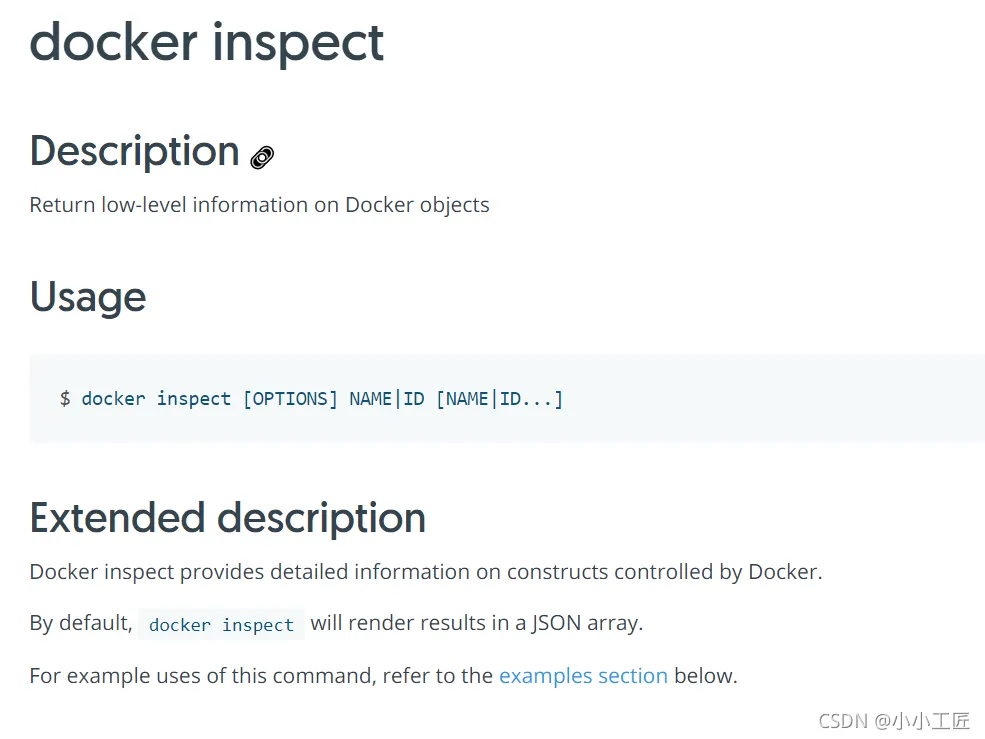
查看镜像中的元数据 docker inspect
https://docs.docker.com/engine/reference/commandline/inspect/
[root@VM-0-7-centos ~]# docker ps
CONTAINER ID   IMAGE     COMMAND                  CREATED         STATUS         PORTS     NAMES
d0dd49e573ce   centos    "sh -c 'while true; …"   3 minutes ago   Up 3 minutes             test
3b68181c277f   centos    "/bin/bash"              8 minutes ago   Up 8 minutes             wizardly_hopper
[root@VM-0-7-centos ~]# docker inspect d0dd49e573ce
[
    {
        "Id": "d0dd49e573ce117cdc6e8ea1c9a8648ef5927c6182bc4a2a189e16645e261bcc",
        "Created": "2021-10-06T12:31:43.01364583Z",
        "Path": "sh",
        "Args": [
            "-c",
            "while true; do date; sleep 1; done"
        ],
        "State": {
            "Status": "running",
            "Running": true,
            "Paused": false,
            "Restarting": false,
            "OOMKilled": false,
            "Dead": false,
            "Pid": 24424,
            "ExitCode": 0,
            "Error": "",
            "StartedAt": "2021-10-06T12:31:43.314744794Z",
            "FinishedAt": "0001-01-01T00:00:00Z"
        },
        "Image": "sha256:5d0da3dc976460b72c77d94c8a1ad043720b0416bfc16c52c45d4847e53fadb6",
        "ResolvConfPath": "/var/lib/docker/containers/d0dd49e573ce117cdc6e8ea1c9a8648ef5927c6182bc4a2a189e16645e261bcc/resolv.conf",
        "HostnamePath": "/var/lib/docker/containers/d0dd49e573ce117cdc6e8ea1c9a8648ef5927c6182bc4a2a189e16645e261bcc/hostname",
        "HostsPath": "/var/lib/docker/containers/d0dd49e573ce117cdc6e8ea1c9a8648ef5927c6182bc4a2a189e16645e261bcc/hosts",
        "LogPath": "/var/lib/docker/containers/d0dd49e573ce117cdc6e8ea1c9a8648ef5927c6182bc4a2a189e16645e261bcc/d0dd49e573ce117cdc6e8ea1c9a8648ef5927c6182bc4a2a189e16645e261bcc-json.log",
        "Name": "/test",
        "RestartCount": 0,
        "Driver": "overlay2",
        "Platform": "linux",
        "MountLabel": "",
        "ProcessLabel": "",
        "AppArmorProfile": "",
        "ExecIDs": null,
        "HostConfig": {
            "Binds": null,
            "ContainerIDFile": "",
            "LogConfig": {
                "Type": "json-file",
                "Config": {}
            },
            "NetworkMode": "default",
            "PortBindings": {},
            "RestartPolicy": {
                "Name": "no",
                "MaximumRetryCount": 0
            },
            "AutoRemove": false,
            "VolumeDriver": "",
            "VolumesFrom": null,
            "CapAdd": null,
            "CapDrop": null,
            "CgroupnsMode": "host",
            "Dns": [],
            "DnsOptions": [],
            "DnsSearch": [],
            "ExtraHosts": null,
            "GroupAdd": null,
            "IpcMode": "private",
            "Cgroup": "",
            "Links": null,
            "OomScoreAdj": 0,
            "PidMode": "",
            "Privileged": false,
            "PublishAllPorts": false,
            "ReadonlyRootfs": false,
            "SecurityOpt": null,
            "UTSMode": "",
            "UsernsMode": "",
            "ShmSize": 67108864,
            "Runtime": "runc",
            "ConsoleSize": [
                0,
                0
            ],
            "Isolation": "",
            "CpuShares": 0,
            "Memory": 0,
            "NanoCpus": 0,
            "CgroupParent": "",
            "BlkioWeight": 0,
            "BlkioWeightDevice": [],
            "BlkioDeviceReadBps": null,
            "BlkioDeviceWriteBps": null,
            "BlkioDeviceReadIOps": null,
            "BlkioDeviceWriteIOps": null,
            "CpuPeriod": 0,
            "CpuQuota": 0,
            "CpuRealtimePeriod": 0,
            "CpuRealtimeRuntime": 0,
            "CpusetCpus": "",
            "CpusetMems": "",
            "Devices": [],
            "DeviceCgroupRules": null,
            "DeviceRequests": null,
            "KernelMemory": 0,
            "KernelMemoryTCP": 0,
            "MemoryReservation": 0,
            "MemorySwap": 0,
            "MemorySwappiness": null,
            "OomKillDisable": false,
            "PidsLimit": null,
            "Ulimits": null,
            "CpuCount": 0,
            "CpuPercent": 0,
            "IOMaximumIOps": 0,
            "IOMaximumBandwidth": 0,
            "MaskedPaths": [
                "/proc/asound",
                "/proc/acpi",
                "/proc/kcore",
                "/proc/keys",
                "/proc/latency_stats",
                "/proc/timer_list",
                "/proc/timer_stats",
                "/proc/sched_debug",
                "/proc/scsi",
                "/sys/firmware"
            ],
            "ReadonlyPaths": [
                "/proc/bus",
                "/proc/fs",
                "/proc/irq",
                "/proc/sys",
                "/proc/sysrq-trigger"
            ]
        },
        "GraphDriver": {
            "Data": {
                "LowerDir": "/var/lib/docker/overlay2/ff23509532fdb929a71fc16b935635699b212284aad75b2ba1a98c12be9e8188-init/diff:/var/lib/docker/overlay2/75393e5cf278f83ef25913983a4eb3dfc84b59c157c393721f7b7287df241fe1/diff",
                "MergedDir": "/var/lib/docker/overlay2/ff23509532fdb929a71fc16b935635699b212284aad75b2ba1a98c12be9e8188/merged",
                "UpperDir": "/var/lib/docker/overlay2/ff23509532fdb929a71fc16b935635699b212284aad75b2ba1a98c12be9e8188/diff",
                "WorkDir": "/var/lib/docker/overlay2/ff23509532fdb929a71fc16b935635699b212284aad75b2ba1a98c12be9e8188/work"
            },
            "Name": "overlay2"
        },
        "Mounts": [],
        "Config": {
            "Hostname": "d0dd49e573ce",
            "Domainname": "",
            "User": "",
            "AttachStdin": false,
            "AttachStdout": false,
            "AttachStderr": false,
            "Tty": false,
            "OpenStdin": false,
            "StdinOnce": false,
            "Env": [
                "PATH=/usr/local/sbin:/usr/local/bin:/usr/sbin:/usr/bin:/sbin:/bin"
            ],
            "Cmd": [
                "sh",
                "-c",
                "while true; do date; sleep 1; done"
            ],
            "Image": "centos",
            "Volumes": null,
            "WorkingDir": "",
            "Entrypoint": null,
            "OnBuild": null,
            "Labels": {
                "org.label-schema.build-date": "20210915",
                "org.label-schema.license": "GPLv2",
                "org.label-schema.name": "CentOS Base Image",
                "org.label-schema.schema-version": "1.0",
                "org.label-schema.vendor": "CentOS"
            }
        },
        "NetworkSettings": {
            "Bridge": "",
            "SandboxID": "8a50bb225a56d6a6d1a22a81d0800dab5a69a64c085854506efa7e32368f120d",
            "HairpinMode": false,
            "LinkLocalIPv6Address": "",
            "LinkLocalIPv6PrefixLen": 0,
            "Ports": {},
            "SandboxKey": "/var/run/docker/netns/8a50bb225a56",
            "SecondaryIPAddresses": null,
            "SecondaryIPv6Addresses": null,
            "EndpointID": "cb85731792a00f6a5551deb0c9d014d77cd0b40d36280998858916f302c97379",
            "Gateway": "172.18.0.1",
            "GlobalIPv6Address": "",
            "GlobalIPv6PrefixLen": 0,
            "IPAddress": "172.18.0.3",
            "IPPrefixLen": 16,
            "IPv6Gateway": "",
            "MacAddress": "02:42:ac:12:00:03",
            "Networks": {
                "bridge": {
                    "IPAMConfig": null,
                    "Links": null,
                    "Aliases": null,
                    "NetworkID": "f35f03a9225f5e0d05a8c929f9f23f46f1b6fae73962b04c1b0c300f6d062681",
                    "EndpointID": "cb85731792a00f6a5551deb0c9d014d77cd0b40d36280998858916f302c97379",
                    "Gateway": "172.18.0.1",
                    "IPAddress": "172.18.0.3",
                    "IPPrefixLen": 16,
                    "IPv6Gateway": "",
                    "GlobalIPv6Address": "",
                    "GlobalIPv6PrefixLen": 0,
                    "MacAddress": "02:42:ac:12:00:03",
                    "DriverOpts": null
                }
            }
        }
    }
]
[root@VM-0-7-centos ~]#
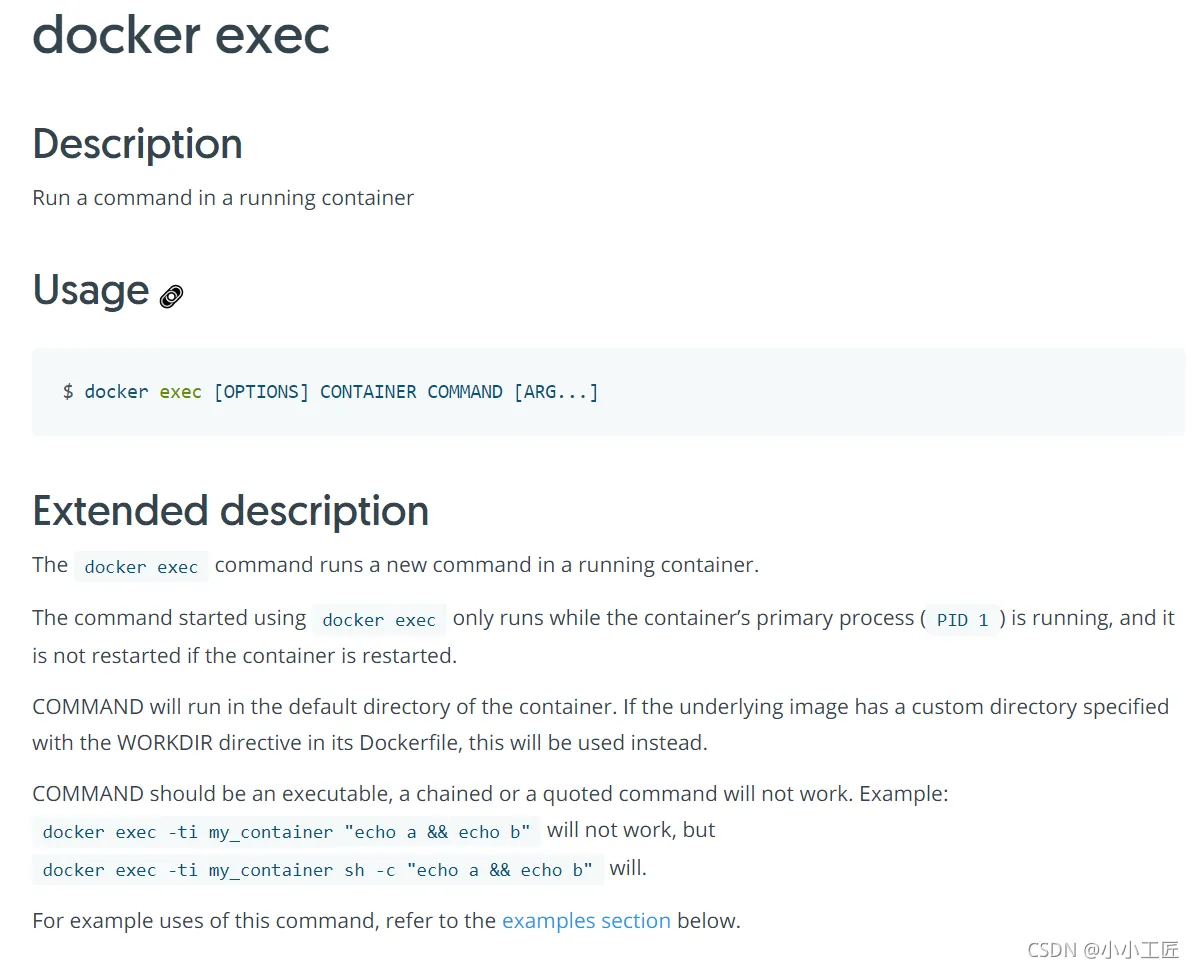
进入当前正在运行的容器
https://docs.docker.com/engine/reference/commandline/exec/
# 命令 docker exec -it 容器id /bin/bash
方式一 docker exec
[root@VM-0-7-centos ~]# docker ps
CONTAINER ID   IMAGE     COMMAND                  CREATED          STATUS          PORTS     NAMES
d0dd49e573ce   centos    "sh -c 'while true; …"   6 minutes ago    Up 6 minutes              test
3b68181c277f   centos    "/bin/bash"              11 minutes ago   Up 11 minutes             wizardly_hopper
# 进入容器
[root@VM-0-7-centos ~]# docker exec -it d0dd49e573ce /bin/bash
[root@d0dd49e573ce /]# ps -ef
UID        PID  PPID  C STIME TTY          TIME CMD
root         1     0  0 12:31 ?        00:00:00 sh -c while true; do date; sleep 1; done
root       813     0  0 12:38 pts/0    00:00:00 /bin/bash
root       839     1  0 12:38 ?        00:00:00 /usr/bin/coreutils --coreutils-prog-shebang=sleep /usr/bin/sleep 1
root       840   813  0 12:38 pts/0    00:00:00 ps -ef
[root@d0dd49e573ce /]#
方式二 docker attach
[root@VM-0-7-centos ~]# docker ps
CONTAINER ID   IMAGE     COMMAND                  CREATED          STATUS          PORTS     NAMES
d0dd49e573ce   centos    "sh -c 'while true; …"   9 minutes ago    Up 9 minutes              test
3b68181c277f   centos    "/bin/bash"              14 minutes ago   Up 14 minutes             wizardly_hopper
[root@VM-0-7-centos ~]# docker attach 3b68181c277f
[root@3b68181c277f /]#
[root@3b68181c277f /]#
[root@3b68181c277f /]# ps -ef
UID        PID  PPID  C STIME TTY          TIME CMD
root         1     0  0 12:26 pts/0    00:00:00 /bin/bash
root        15     1  0 12:41 pts/0    00:00:00 ps -ef
[root@3b68181c277f /]#
[root@3b68181c277f /]#

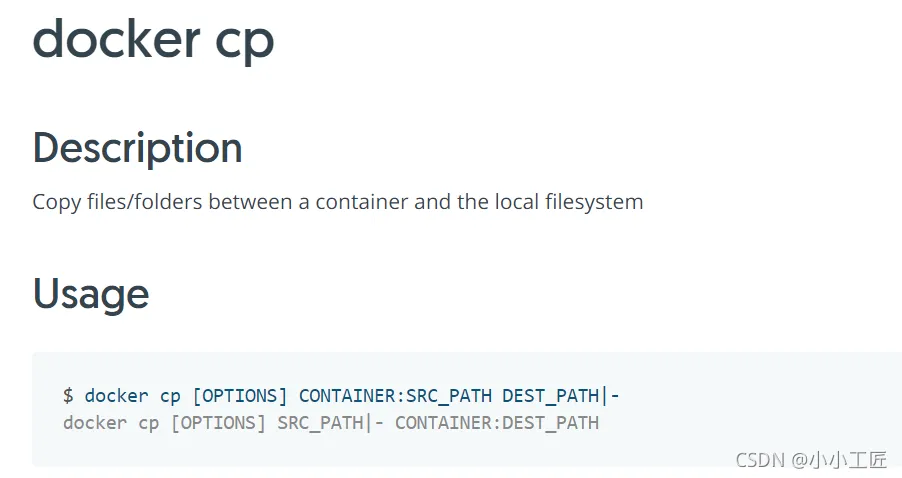
从容器内拷贝文件到主机上 docker cp
https://docs.docker.com/engine/reference/commandline/cp/
命令 docker cp 容器id:容器内路径 目的的主机路径
[root@VM-0-7-centos ~]# docker ps
CONTAINER ID   IMAGE     COMMAND                  CREATED          STATUS          PORTS     NAMES
d0dd49e573ce   centos    "sh -c 'while true; …"   9 minutes ago    Up 9 minutes              test
3b68181c277f   centos    "/bin/bash"              14 minutes ago   Up 14 minutes             wizardly_hopper
[root@VM-0-7-centos ~]# docker attach 3b68181c277f
[root@3b68181c277f /]#
[root@3b68181c277f /]#
[root@3b68181c277f /]# ps -ef
UID        PID  PPID  C STIME TTY          TIME CMD
root         1     0  0 12:26 pts/0    00:00:00 /bin/bash
root        15     1  0 12:41 pts/0    00:00:00 ps -ef
[root@3b68181c277f /]#
[root@3b68181c277f /]# pwd
/
[root@3b68181c277f /]# ls
bin  dev  etc  home  lib  lib64  lost+found  media  mnt  opt  proc  root  run  sbin  srv  sys  tmp  usr  var
# 在容器的根目录 / 创建一个文件 artisan.log
[root@3b68181c277f /]# touch artisan.log
[root@3b68181c277f /]#
[root@3b68181c277f /]# ls artisan.log
artisan.log
[root@3b68181c277f /]# pwd
/
# 退出容器
[root@3b68181c277f /]# exit
exit
# 宿主机上执行 docker cp 将容器内/artisan.log 拷贝到 宿主机的/root目录下
[root@VM-0-7-centos ~]# docker cp 3b68181c277f:/artisan.log /root
[root@VM-0-7-centos ~]# 查看copy的文件
[root@VM-0-7-centos ~]# cd /root
[root@VM-0-7-centos ~]# ls
artisan.log  helloboot-0.0.1-SNAPSHOT.conf  helloboot-0.0.1-SNAPSHOT.jar  soft
[root@VM-0-7-centos ~]# ll artisan.log
-rw-r--r-- 1 root root 0 Oct  6 20:42 artisan.log
[root@VM-0-7-centos ~]#
命令总览 docker help
[root@VM-0-7-centos ~]# docker help
Usage:  docker [OPTIONS] COMMAND
A self-sufficient runtime for containers
Options:
      --config string      Location of client config files (default "/root/.docker")
  -c, --context string     Name of the context to use to connect to the daemon (overrides DOCKER_HOST env var and default context
                           set with "docker context use")
  -D, --debug              Enable debug mode
  -H, --host list          Daemon socket(s) to connect to
  -l, --log-level string   Set the logging level ("debug"|"info"|"warn"|"error"|"fatal") (default "info")
      --tls                Use TLS; implied by --tlsverify
      --tlscacert string   Trust certs signed only by this CA (default "/root/.docker/ca.pem")
      --tlscert string     Path to TLS certificate file (default "/root/.docker/cert.pem")
      --tlskey string      Path to TLS key file (default "/root/.docker/key.pem")
      --tlsverify          Use TLS and verify the remote
  -v, --version            Print version information and quit
Management Commands:
  app*        Docker App (Docker Inc., v0.9.1-beta3)
  builder     Manage builds
  buildx*     Build with BuildKit (Docker Inc., v0.6.1-docker)
  config      Manage Docker configs
  container   Manage containers
  context     Manage contexts
  image       Manage images
  manifest    Manage Docker image manifests and manifest lists
  network     Manage networks
  node        Manage Swarm nodes
  plugin      Manage plugins
  scan*       Docker Scan (Docker Inc., v0.8.0)
  secret      Manage Docker secrets
  service     Manage services
  stack       Manage Docker stacks
  swarm       Manage Swarm
  system      Manage Docker
  trust       Manage trust on Docker images
  volume      Manage volumes
Commands:
  attach      Attach local standard input, output, and error streams to a running container
  build       Build an image from a Dockerfile
  commit      Create a new image from a container's changes
  cp          Copy files/folders between a container and the local filesystem
  create      Create a new container
  diff        Inspect changes to files or directories on a container's filesystem
  events      Get real time events from the server
  exec        Run a command in a running container
  export      Export a container's filesystem as a tar archive
  history     Show the history of an image
  images      List images
  import      Import the contents from a tarball to create a filesystem image
  info        Display system-wide information
  inspect     Return low-level information on Docker objects
  kill        Kill one or more running containers
  load        Load an image from a tar archive or STDIN
  login       Log in to a Docker registry
  logout      Log out from a Docker registry
  logs        Fetch the logs of a container
  pause       Pause all processes within one or more containers
  port        List port mappings or a specific mapping for the container
  ps          List containers
  pull        Pull an image or a repository from a registry
  push        Push an image or a repository to a registry
  rename      Rename a container
  restart     Restart one or more containers
  rm          Remove one or more containers
  rmi         Remove one or more images
  run         Run a command in a new container
  save        Save one or more images to a tar archive (streamed to STDOUT by default)
  search      Search the Docker Hub for images
  start       Start one or more stopped containers
  stats       Display a live stream of container(s) resource usage statistics
  stop        Stop one or more running containers
  tag         Create a tag TARGET_IMAGE that refers to SOURCE_IMAGE
  top         Display the running processes of a container
  unpause     Unpause all processes within one or more containers
  update      Update configuration of one or more containers
  version     Show the Docker version information
  wait        Block until one or more containers stop, then print their exit codes
Run 'docker COMMAND --help' for more information on a command.
To get more help with docker, check out our guides at https://docs.docker.com/go/guides/
[root@VM-0-7-centos ~]#
https://docs.docker.com/engine/reference/run/