jmeter对数据的测试

本文涉及的产品
RDS MySQL DuckDB 分析主实例,集群系列 4核8GB
简介:
Building a Database Test Plan

In this section, you will learn how to create a basic Test Plan to test a database server. You will create ten users that send five SQL requests to the database server. Also, you will tell the users to run their tests three times. So, the total number of requests is (10 users) x (2 requests) x (repeat 3 times) = 60 JDBC requests. To construct the Test Plan, you will use the following elements: Thread Group JDBC Request , Graph Results .

This example uses the MySQL database driver. To use this driver, its containing .jar file must be copied to the JMeter lib directory (seeJMeter's Classpath for more details).


记住 mysql 与sqlserver 或者 oracle jar包
都放在 lib目录下

Adding Users

The first step you want to do with every JMeter Test Plan is to add a Thread Group element. The Thread Group tells JMeter the number of users you want to simulate, how often the users should send requests, and the how many requests they should send.

Go ahead and add the ThreadGroup element by first selecting the Test Plan, clicking your right mouse button to get the Add menu, and then select Add --> ThreadGroup.

You should now see the Thread Group element under Test Plan. If you do not see the element, then "expand" the Test Plan tree by clicking on the Test Plan element.

Next, you need to modify the default properties. Select the Thread Group element in the tree, if you have not already selected it. You should now see the Thread Group Control Panel in the right section of the JMeter window (see Figure 7.1 below)
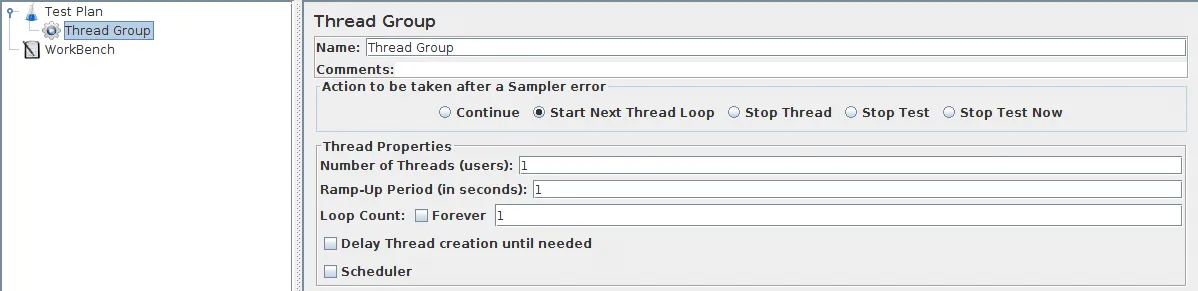

Figure 7.1. Thread Group with Default Values

Start by providing a more descriptive name for our Thread Group. In the name field, enter JDBC Users.

You will need a valid database, database table, and user-level access to that table. In the example shown here, the database is 'mydb' and the table name is 'Stocks'.

Next, increase the number of users to 10.

In the next field, the Ramp-Up Period, leave the the default value of 0 seconds. This property tells JMeter how long to delay between starting each user. For example, if you enter a Ramp-Up Period of 5 seconds, JMeter will finish starting all of your users by the end of the 5 seconds. So, if we have 5 users and a 5 second Ramp-Up Period, then the delay between starting users would be 1 second (5 users / 5 seconds = 1 user per second). If you set the value to 0, then JMeter will immediately start all of your users.

Finally, enter a value of 3 in the Loop Count field. This property tells JMeter how many times to repeat your test. To have JMeter repeatedly run your Test Plan, select the Forever checkbox.

In most applications, you have to manually accept changes you make in a Control Panel. However, in JMeter, the Control Panel automatically accepts your changes as you make them. If you change the name of an element, the tree will be updated with the new text after you leave the Control Panel (for example, when selecting another tree element).

See Figure 7.2 for the completed JDBC Users Thread Group.
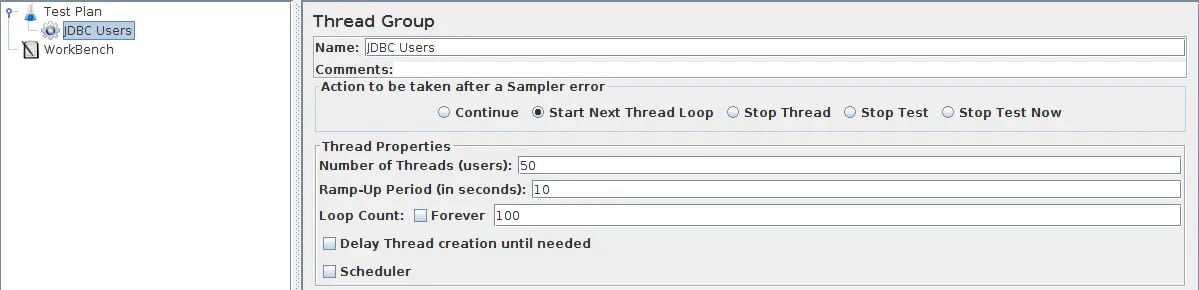

Figure 7.2. JDBC Users Thread Group

7.2 Adding JDBC Requests

Now that we have defined our users, it is time to define the tasks that they will be performing. In this section, you will specify the JDBC requests to perform.

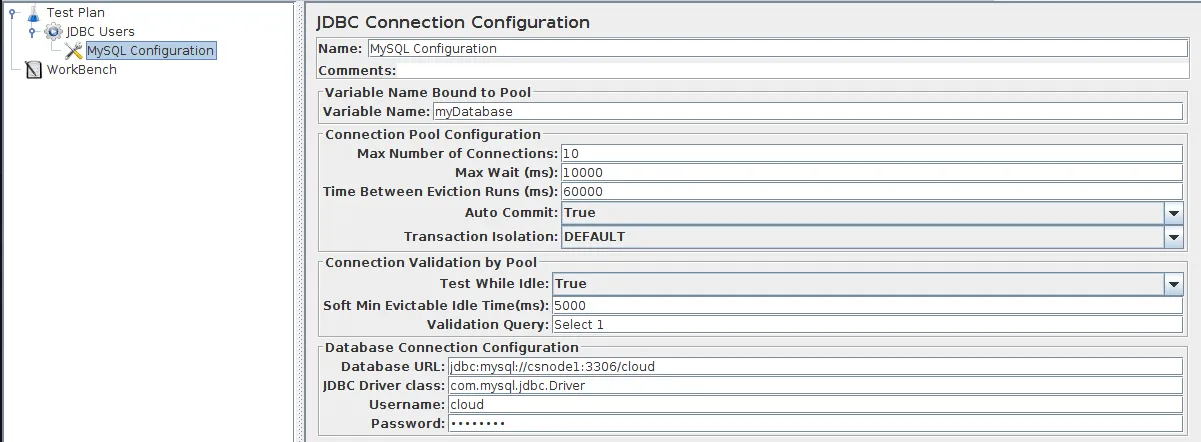
Begin by selecting the JDBC Users element. Click your right mouse button to get the Add menu, and then select Add --> Config Element --> JDBC Connection Configuration. Then, select this new element to view its Control Panel (see Figure 7.3).

Set up the following fields (these assume we will be using a local MySQL database called test):

  • Variable name bound to pool. This needs to uniquely identify the configuration. It is used by the JDBC Sampler to identify the configuration to be used.
  • Database URL: jdbc:mysql://localhost:3306/test
  • JDBC Driver class: com.mysql.jdbc.Driver
  • Username: guest
  • Password: password for guest

The other fields on the screen can be left as the defaults.

JMeter creates a database connection pool with the configuration settings as specified in the Control Panel. The pool is referred to in JDBC Requests in the 'Variable Name' field. Several different JDBC Configuration elements can be used, but they must have unique names. Every JDBC Request must refer to a JDBC Configuration pool. More than one JDBC Request can refer to the same pool.


Figure 7.3. JDBC Configuration

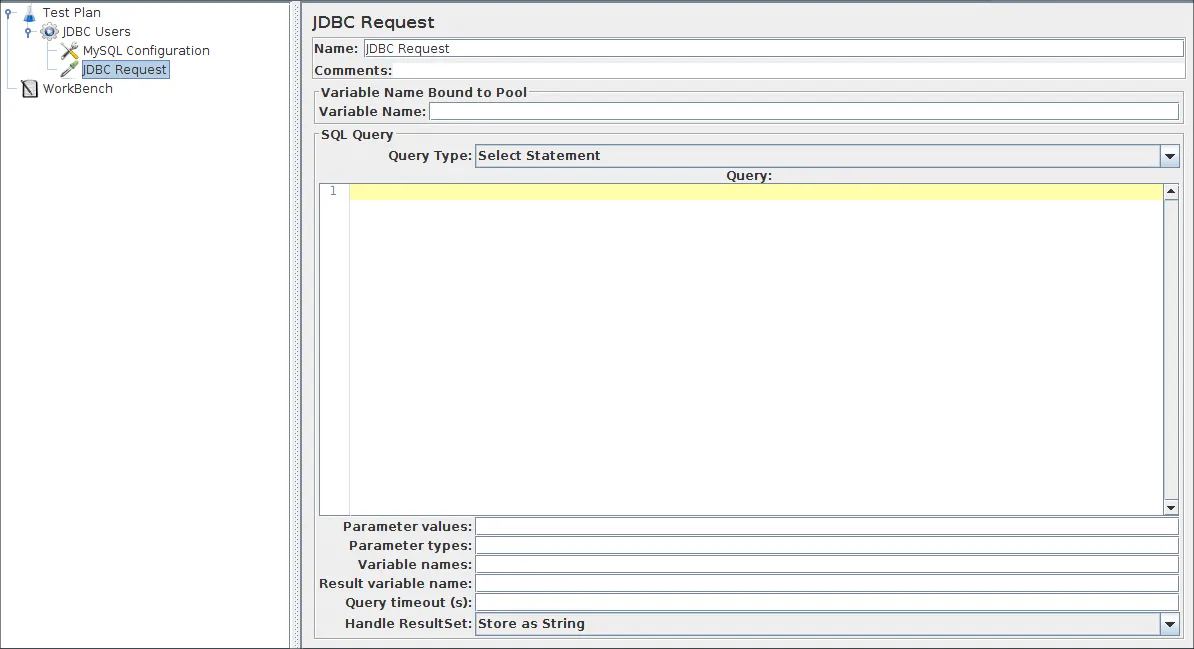
Selecting the JDBC Users element again. Click your right mouse button to get the Add menu, and then select Add --> Sampler --> JDBC Request. Then, select this new element to view its Control Panel (see Figure 7.4).


Figure 7.4. JDBC Request

In our Test Plan, we will make two JDBC requests. The first one is for Eastman Kodak stock, and the second is Pfizer stock (obviously you should change these to examples appropriate for your particular database). These are illustrated below.

JMeter sends requests in the order that you add them to the tree.

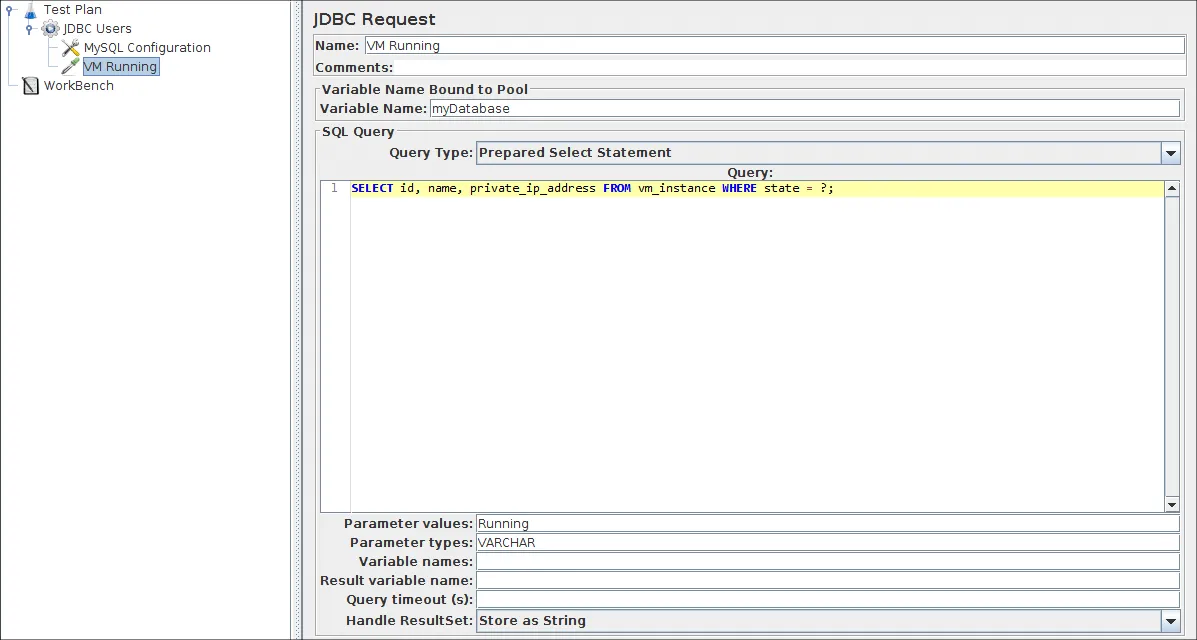
Start by editing the following properties (see Figure 7.5):

  • Change the Name to "Kodak".
  • Enter the Pool Name: MySQL (same as in the configuration element)
  • Enter the SQL Query String field.

Figure 7.5. JDBC Request for Eastman Kodak stock

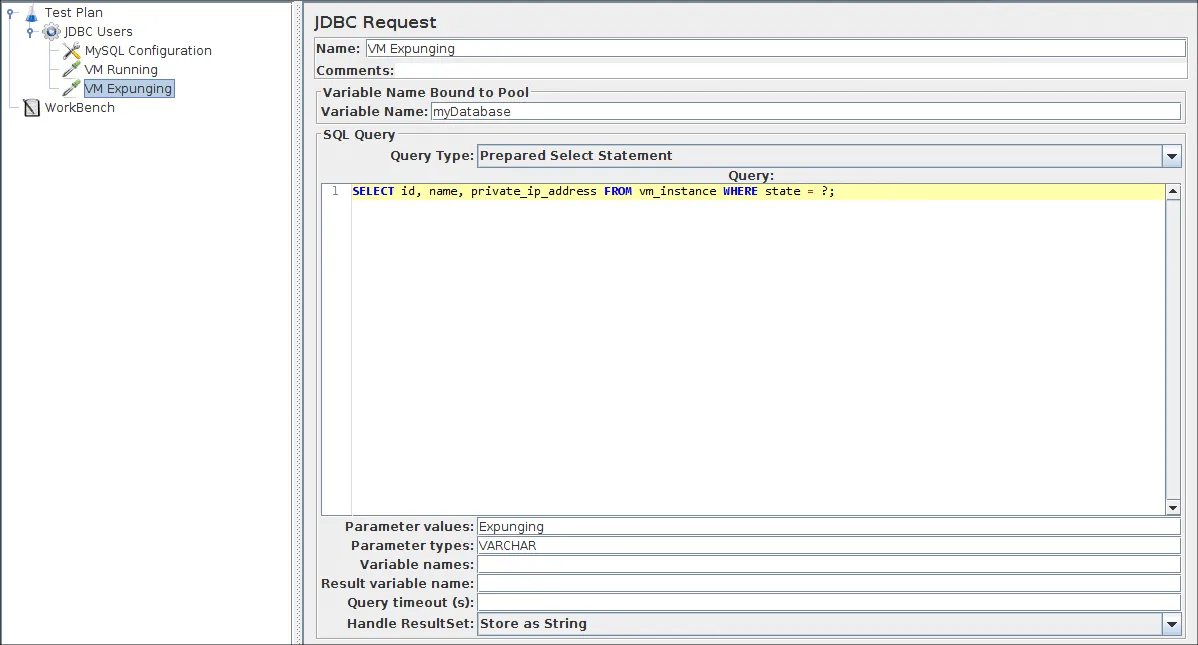
Next, add the second JDBC Request and edit the following properties (see Figure 7.6):

  • Change the Name to "Pfizer".
  • Enter the SQL Query String field.

Figure 7.6. JDBC Request for Pfizer stock

7.3 Adding a Listener to View/Store the Test Results

The final element you need to add to your Test Plan is a Listener . This element is responsible for storing all of the results of your JDBC requests in a file and presenting a visual model of the data.

Select the JDBC Users element and add a Graph Results listener (Add --> Listener --> Graph Results).


本文出自seven的测试人生公众号最新内容请见作者的GitHub页:http://qaseven.github.io/
相关实践学习
每个IT人都想学的“Web应用上云经典架构”实战
本实验从Web应用上云这个最基本的、最普遍的需求出发,帮助IT从业者们通过“阿里云Web应用上云解决方案”,了解一个企业级Web应用上云的常见架构,了解如何构建一个高可用、可扩展的企业级应用架构。
MySQL数据库入门学习
本课程通过最流行的开源数据库MySQL带你了解数据库的世界。   相关的阿里云产品:云数据库RDS MySQL 版 阿里云关系型数据库RDS(Relational Database Service)是一种稳定可靠、可弹性伸缩的在线数据库服务,提供容灾、备份、恢复、迁移等方面的全套解决方案,彻底解决数据库运维的烦恼。 了解产品详情: https://www.aliyun.com/product/rds/mysql 
目录
相关文章
|
2月前
|
安全 数据管理 测试技术
告别蛮力:让测试数据生成变得智能而高效
告别蛮力:让测试数据生成变得智能而高效
419 120
|
5月前
|
XML jenkins 机器人
JMeter+Ant+Jenkins实现接口自动化测试持续集成
本文介绍了如何使用Ant生成JMeter接口测试报告,并集成到Jenkins中实现自动化测试。内容涵盖Ant与JMeter环境配置、build.xml文件设置、测试执行及报告生成,同时包括Jenkins插件安装、项目配置和钉钉消息通知的集成,帮助实现持续测试与结果可视化。
747 0
|
4月前
|
前端开发 Java jenkins
Jmeter压力测试工具全面教程和使用技巧。
JMeter是一个能够模拟高并发请求以检查应用程序各方面性能的工具,包括但不限于前端页面、后端服务及数据库系统。熟练使用JMeter不仅能够帮助发现性能瓶颈,还能在软件开发早期就预测系统在面对真实用户压力时的表现,确保软件质量和用户体验。在上述介绍的基础上,建议读者结合官方文档和社区最佳实践,持续深入学习和应用。
1007 10
|
3月前
|
存储 测试技术 API
数据驱动开发软件测试脚本
今天刚提交了我的新作《带着ChatGPT玩转软件开发》给出版社,在写作期间跟着ChatGPT学到许多新知识。下面分享数据驱动开发软件测试脚本。
138 0
|
6月前
|
人工智能 缓存 自然语言处理
别再手搓测试数据了!AE测试数据智造系统揭秘
本文介绍如何通过构建基于大语言模型的测试数据智造Agent,解决AliExpress跨境电商测试中数据构造复杂、低效的问题,推动测试效率提升与智能化转型。
别再手搓测试数据了!AE测试数据智造系统揭秘
|
4月前
|
监控 Java 数据挖掘
利用Jmeter工具进行HTTP接口的性能测试操作
基础上述步骤反复迭代调整直至满足预期目标达成满意水平结束本轮压力评估周期进入常态监控阶段持续关注系统运转状态及时发现处理新出现问题保障服务稳定高效运作
664 0
|
6月前
|
Java 测试技术 容器
Jmeter工具使用:HTTP接口性能测试实战
希望这篇文章能够帮助你初步理解如何使用JMeter进行HTTP接口性能测试,有兴趣的话,你可以研究更多关于JMeter的内容。记住,只有理解并掌握了这些工具,你才能充分利用它们发挥其应有的价值。+
1079 23
|
8月前
|
数据可视化 测试技术 API
JMeter、Apipost 与 Postman 的 API 测试对比:为什么 APIPost 是更聪明的选择
API测试如同筹备一场晚宴,选对工具至关重要。JMeter功能强大但上手难,适合专业用户;Postman简单易用,但在复杂场景和团队协作中表现有限;而Apipost则是一款智能高效的“厨房神器”。它性能测试轻松、结果清晰、学习门槛低,并且能一键集成CI/CD流程。对于追求效率与便捷的团队而言,Apipost无疑是更优选择,让API测试如同五星大厨烹饪般丝滑流畅。
|
11月前
|
分布式计算 Shell MaxCompute
odps测试表及大量数据构建测试
odps测试表及大量数据构建测试
|
11月前
|
缓存 网络协议
Jmeter如何对UDP协议进行测试?
`jmeter-plugins`是JMeter的插件管理器,用于管理和组织所有插件。访问[官网](https://jmeter-plugins.org/install/Install/)下载并放置于`lib/ext`目录下,重启JMeter后可在“选项”中看到插件管理器。
440 1
Jmeter如何对UDP协议进行测试?