也许每一个男子全都有过这样的两个女人,至少两个。娶了红玫瑰,久而久之,红的变了墙上的一抹蚊子血,白的还是床前明月光;娶了白玫瑰,白的便是衣服上沾的一粒饭黏子,红的却是心口上一颗朱砂痣。--张爱玲《红玫瑰与白玫瑰》
Selenium一直都是Python开源自动化浏览器工具的王者,但这两年微软开源的PlayWright异军突起,后来者居上,隐隐然有撼动Selenium江湖地位之势,本次我们来对比PlayWright与Selenium之间的差异,看看曾经的玫瑰花Selenium是否会变成蚊子血。
PlayWright的安装和使用
PlayWright是由业界大佬微软(Microsoft)开源的端到端 Web 测试和自动化库,可谓是大厂背书,功能满格,虽然作为无头浏览器,该框架的主要作用是测试 Web 应用,但事实上,无头浏览器更多的是用于 Web 抓取目的,也就是爬虫。
首先终端运行安装命令:
pip3 install playwright程序返回:
Successfully built greenlet
Installing collected packages: pyee, greenlet, playwright
  Attempting uninstall: greenlet
    Found existing installation: greenlet 2.0.2
    Uninstalling greenlet-2.0.2:
      Successfully uninstalled greenlet-2.0.2
Successfully installed greenlet-2.0.1 playwright-1.30.0 pyee-9.0.4
目前最新稳定版为1.30.0
随后可以选择直接安装浏览器驱动:
playwright install程序返回:
Downloading Chromium 110.0.5481.38 (playwright build v1045) from https://playwright.azureedge.net/builds/chromium/1045/chromium-mac-arm64.zip
123.8 Mb [====================] 100% 0.0s
Chromium 110.0.5481.38 (playwright build v1045) downloaded to /Users/liuyue/Library/Caches/ms-playwright/chromium-1045
Downloading FFMPEG playwright build v1008 from https://playwright.azureedge.net/builds/ffmpeg/1008/ffmpeg-mac-arm64.zip
1 Mb [====================] 100% 0.0s
FFMPEG playwright build v1008 downloaded to /Users/liuyue/Library/Caches/ms-playwright/ffmpeg-1008
Downloading Firefox 108.0.2 (playwright build v1372) from https://playwright.azureedge.net/builds/firefox/1372/firefox-mac-11-arm64.zip
69.8 Mb [====================] 100% 0.0s
Firefox 108.0.2 (playwright build v1372) downloaded to /Users/liuyue/Library/Caches/ms-playwright/firefox-1372
Downloading Webkit 16.4 (playwright build v1767) from https://playwright.azureedge.net/builds/webkit/1767/webkit-mac-12-arm64.zip
56.9 Mb [====================] 100% 0.0s
Webkit 16.4 (playwright build v1767) downloaded to /Users/liuyue/Library/Caches/ms-playwright/webkit-1767
默认会下载Chromium内核、Firefox以及Webkit驱动。
其中使用最广泛的就是基于Chromium内核的浏览器,最负盛名的就是Google的Chrome和微软自家的Edge。
确保当前电脑安装了Edge浏览器,让我们小试牛刀一把:
from playwright.sync_api import sync_playwright
import time
with sync_playwright() as p:
    browser = p.chromium.launch(channel="msedge", headless=True)
    page = browser.new_page()
    page.goto('http:/v3u.cn')
    page.screenshot(path=f'./example-v3u.png')
    time.sleep(5)
    browser.close()
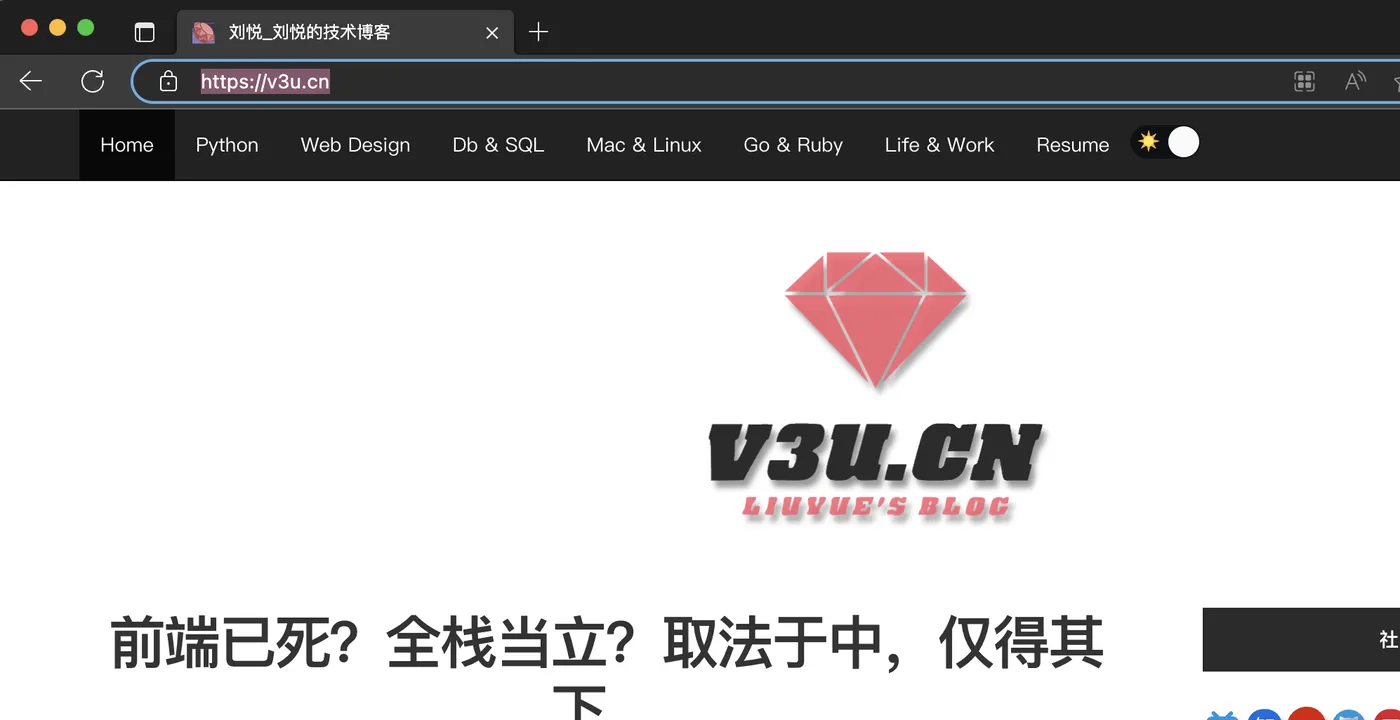
这里导入sync\_playwright模块,顾名思义,同步执行,通过上下文管理器开启浏览器进程。
随后通过channel指定edge浏览器,截图后关闭浏览器进程:
我们也可以指定headless参数为True,让浏览器再后台运行:
from playwright.sync_api import sync_playwright
with sync_playwright() as p:
    browser = p.chromium.launch(channel="msedge", headless=True)
    page = browser.new_page()
    page.goto('http:/v3u.cn')
    page.screenshot(path=f'./example-v3u.png')
    browser.close()
除了同步模式,PlayWright也支持异步非阻塞模式:
import asyncio
from playwright.async_api import async_playwright

async def main():
    async with async_playwright() as p:
        browser = await p.chromium.launch(channel="msedge", headless=False)
        page = await browser.new_page()
        await page.goto("http://v3u.cn")
        print(await page.title())
        await browser.close()

asyncio.run(main())
可以通过原生协程库asyncio进行调用,PlayWright内置函数只需要添加await关键字即可,非常方便,与之相比,Selenium原生库并不支持异步模式,必须安装三方扩展才可以。
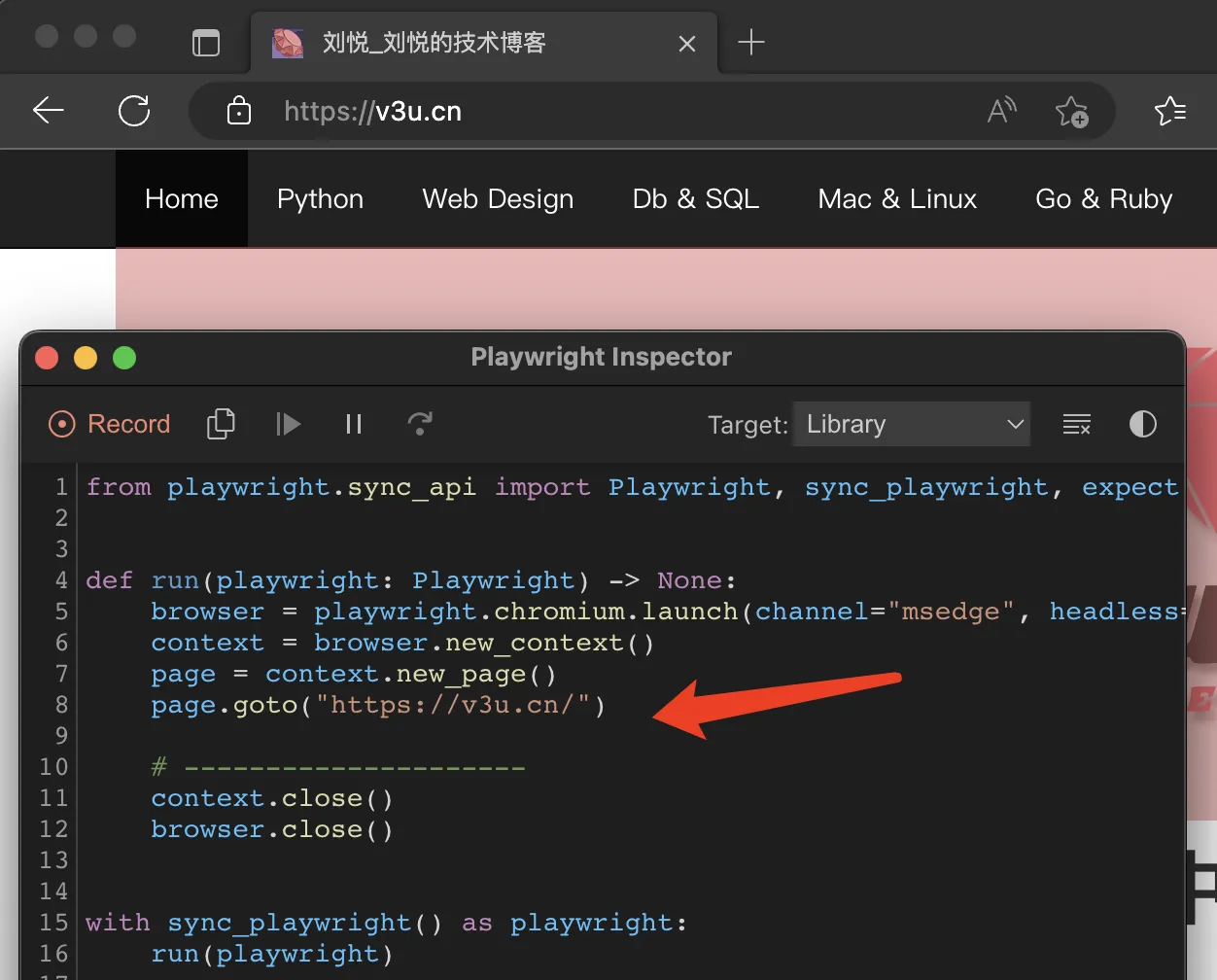
最炫酷的是,PlayWright可以对用户的浏览器操作进行录制,并且可以转换为相应的代码,在终端执行以下命令:
python -m playwright codegen --target python -o 'edge.py' -b chromium --channel=msedge这里通过codegen命令进行录制,指定浏览器为edge,将所有操作写入edge.py的文件中:
与此同时,PlayWright也支持移动端的浏览器模拟,比如苹果手机:
from playwright.sync_api import sync_playwright
with sync_playwright() as p:
    iphone_13 = p.devices['iPhone 13 Pro']
    browser = p.webkit.launch(headless=False)
    page = browser.new_page()
    page.goto('https://v3u.cn')
    page.screenshot(path='./v3u-iphone.png')
    browser.close()
这里模拟Iphone13pro的浏览器访问情况。
当然了,除了UI功能测试,我们当然还需要PlayWright帮我们干点脏活累活,那就是爬虫:
from playwright.sync_api import sync_playwright

def extract_data(entry):
    name = entry.locator("h3").inner_text().strip("\n").strip()
    capital = entry.locator("span.country-capital").inner_text()
    population = entry.locator("span.country-population").inner_text()
    area = entry.locator("span.country-area").inner_text()

    return {"name": name, "capital": capital, "population": population, "area (km sq)": area}

with sync_playwright() as p:
    # launch the browser instance and define a new context
    browser = p.chromium.launch()
    context = browser.new_context()
    # open a new tab and go to the website
    page = context.new_page()
    page.goto("https://www.scrapethissite.com/pages/simple/")
    page.wait_for_load_state("load")
    # get the countries
    countries = page.locator("div.country")
    n_countries = countries.count()

    # loop through the elements and scrape the data
    data = []

    for i in range(n_countries):
        entry = countries.nth(i)
        sample = extract_data(entry)
        data.append(sample)

browser.close()
这里data变量就是抓取的数据内容:
[
    {'name': 'Andorra', 'capital': 'Andorra la Vella', 'population': '84000', 'area (km sq)': '468.0'},
    {'name': 'United Arab Emirates', 'capital': 'Abu Dhabi', 'population': '4975593', 'area (km sq)': '82880.0'},
    {'name': 'Afghanistan', 'capital': 'Kabul', 'population': '29121286', 'area (km sq)': '647500.0'},
    {'name': 'Antigua and Barbuda', 'capital': "St. John's", 'population': '86754', 'area (km sq)': '443.0'},
    {'name': 'Anguilla', 'capital': 'The Valley', 'population': '13254', 'area (km sq)': '102.0'},
    ...
]基本上,该有的功能基本都有,更多功能请参见官方文档:https://playwright.dev/python/docs/library
Selenium
Selenium曾经是用于网络抓取和网络自动化的最流行的开源无头浏览器工具之一。在使用 Selenium 进行抓取时,我们可以自动化浏览器、与 UI 元素交互并在 Web 应用程序上模仿用户操作。Selenium 的一些核心组件包括 WebDriver、Selenium IDE 和 Selenium Grid。
关于Selenium的一些基本操作请移玉步至:python3.7爬虫:使用Selenium带Cookie登录并且模拟进行表单上传文件,这里不作过多赘述。
如同前文提到的,与Playwright相比,Selenium需要第三方库来实现异步并发执行,同时,如果需要录制动作视频,也需要使用外部的解决方案。
就像Playwright那样,让我们使用 Selenium 构建一个简单的爬虫脚本。
首先导入必要的模块并配置 Selenium 实例,并且通过设置确保无头模式处于活动状态option.headless = True:
from selenium import webdriver
from selenium.webdriver.chrome.service import Service
from selenium.webdriver.common.by import By
# web driver manager: https://github.com/SergeyPirogov/webdriver_manager
# will help us automatically download the web driver binaries
# then we can use `Service` to manage the web driver's state.
from webdriver_manager.chrome import ChromeDriverManager

def extract_data(row):
    name = row.find_element(By.TAG_NAME, "h3").text.strip("\n").strip()
    capital = row.find_element(By.CSS_SELECTOR, "span.country-capital").text
    population = row.find_element(By.CSS_SELECTOR, "span.country-population").text
    area = row.find_element(By.CSS_SELECTOR, "span.country-area").text

    return {"name": name, "capital": capital, "population": population, "area (km sq)": area}

options = webdriver.ChromeOptions()
options.headless = True
# this returns the path web driver downloaded
chrome_path = ChromeDriverManager().install()
# define the chrome service and pass it to the driver instance
chrome_service = Service(chrome_path)
driver = webdriver.Chrome(service=chrome_service, options=options)

url = "https://www.scrapethissite.com/pages/simple"

driver.get(url)
# get the data divs
countries = driver.find_elements(By.CSS_SELECTOR, "div.country")

# extract the data
data = list(map(extract_data, countries))

driver.quit()
数据返回:
[
    {'name': 'Andorra', 'capital': 'Andorra la Vella', 'population': '84000', 'area (km sq)': '468.0'},
    {'name': 'United Arab Emirates', 'capital': 'Abu Dhabi', 'population': '4975593', 'area (km sq)': '82880.0'},
    {'name': 'Afghanistan', 'capital': 'Kabul', 'population': '29121286', 'area (km sq)': '647500.0'},
    {'name': 'Antigua and Barbuda', 'capital': "St. John's", 'population': '86754', 'area (km sq)': '443.0'},
    {'name': 'Anguilla', 'capital': 'The Valley', 'population': '13254', 'area (km sq)': '102.0'},
    ...
]
性能测试
在数据抓取量一样的前提下,我们当然需要知道到底谁的性能更好,是PlayWright,还是Selenium?
这里我们使用Python3.10内置的time模块来统计爬虫脚本的执行速度。
PlayWright:
import time
from playwright.sync_api import sync_playwright

def extract_data(entry):
    name = entry.locator("h3").inner_text().strip("\n").strip()
    capital = entry.locator("span.country-capital").inner_text()
    population = entry.locator("span.country-population").inner_text()
    area = entry.locator("span.country-area").inner_text()

    return {"name": name, "capital": capital, "population": population, "area (km sq)": area}

start = time.time()
with sync_playwright() as p:
    # launch the browser instance and define a new context
    browser = p.chromium.launch()
    context = browser.new_context()
    # open a new tab and go to the website
    page = context.new_page()
    page.goto("https://www.scrapethissite.com/pages/")
    # click to the first page and wait while page loads
    page.locator("a[href='/pages/simple/']").click()
    page.wait_for_load_state("load")
    # get the countries
    countries = page.locator("div.country")
    n_countries = countries.count()

    data = []

    for i in range(n_countries):
        entry = countries.nth(i)
        sample = extract_data(entry)
        data.append(sample)

browser.close()
end = time.time()

print(f"The whole script took: {end-start:.4f}")
Selenium:
import time
from selenium import webdriver
from selenium.webdriver.chrome.service import Service
from selenium.webdriver.common.by import By
# web driver manager: https://github.com/SergeyPirogov/webdriver_manager
# will help us automatically download the web driver binaries
# then we can use `Service` to manage the web driver's state.
from webdriver_manager.chrome import ChromeDriverManager

def extract_data(row):
    name = row.find_element(By.TAG_NAME, "h3").text.strip("\n").strip()
    capital = row.find_element(By.CSS_SELECTOR, "span.country-capital").text
    population = row.find_element(By.CSS_SELECTOR, "span.country-population").text
    area = row.find_element(By.CSS_SELECTOR, "span.country-area").text

    return {"name": name, "capital": capital, "population": population, "area (km sq)": area}

# start the timer
start = time.time()

options = webdriver.ChromeOptions()
options.headless = True
# this returns the path web driver downloaded
chrome_path = ChromeDriverManager().install()
# define the chrome service and pass it to the driver instance
chrome_service = Service(chrome_path)
driver = webdriver.Chrome(service=chrome_service, options=options)

url = "https://www.scrapethissite.com/pages/"

driver.get(url)
# get the first page and click to the link
first_page = driver.find_element(By.CSS_SELECTOR, "h3.page-title a")
first_page.click()
# get the data div and extract the data using beautifulsoup
countries_container = driver.find_element(By.CSS_SELECTOR, "section#countries div.container")
countries = driver.find_elements(By.CSS_SELECTOR, "div.country")

# scrape the data using extract_data function
data = list(map(extract_data, countries))

end = time.time()

print(f"The whole script took: {end-start:.4f}")

driver.quit()
测试结果:
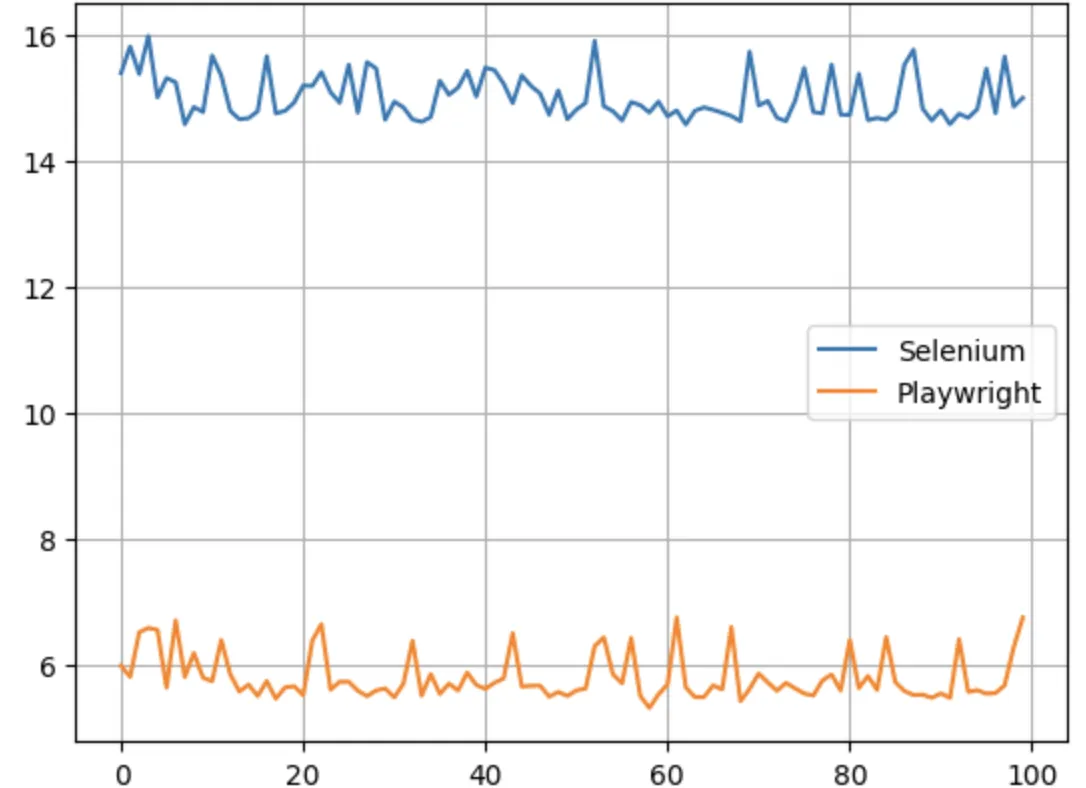
Y轴是执行时间,一望而知,Selenium比PlayWright差了大概五倍左右。
红玫瑰还是白玫瑰?
不得不承认,Playwright 和 Selenium 都是出色的自动化无头浏览器工具,都可以完成爬虫任务。我们还不能断定那个更好一点,所以选择那个取决于你的网络抓取需求、你想要抓取的数据类型、浏览器支持和其他考虑因素:
Playwright 不支持真实设备,而 Selenium 可用于真实设备和远程服务器。
Playwright 具有内置的异步并发支持,而 Selenium 需要第三方工具。
Playwright 的性能比 Selenium 高。
Selenium 不支持详细报告和视频录制等功能,而 Playwright 具有内置支持。
Selenium 比 Playwright 支持更多的浏览器。
Selenium 支持更多的编程语言。
结语
如果您看完了本篇文章,那么到底谁是最好的无头浏览器工具,答案早已在心间,所谓强中强而立强,只有弱者才害怕竞争,相信PlayWright的出现会让Selenium变为更好的自己,再接再厉,再创辉煌。